
Connect your own tool with an app
An app is how your own tool talks to Freesbe: an order system that posts new orders, a script that files tickets, a bot you built for Slack. It gets a bot, which posts under its own name with an App badge, and a bot token that only does what the app’s scopes allow. An owner or admin makes the app; a developer wires up the tool.
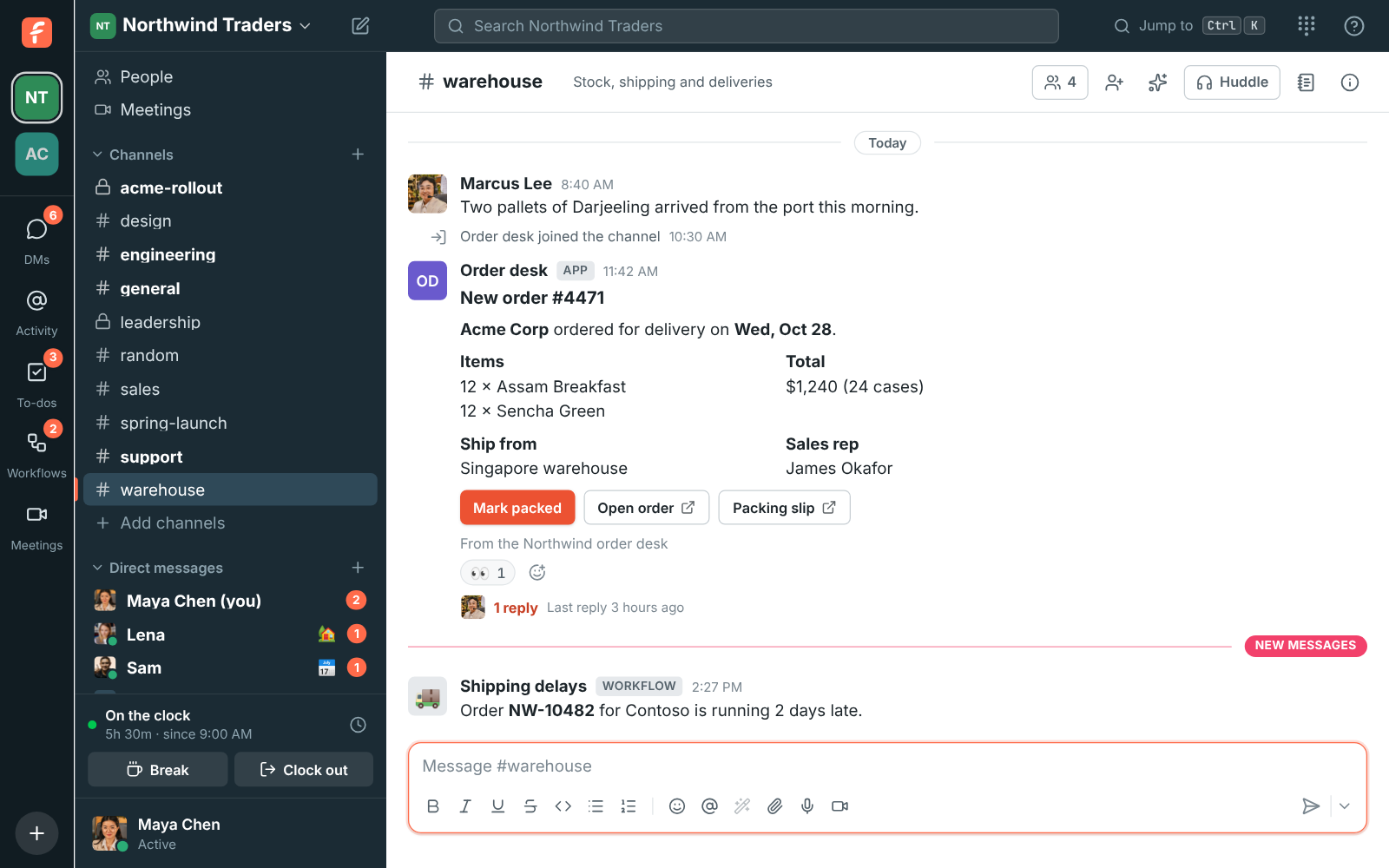
Only need to post into one channel? An incoming webhook is quicker.
1. Make the app
Section titled “1. Make the app”- Open Workspace settings → Integrations & apps → Apps and click Create app.
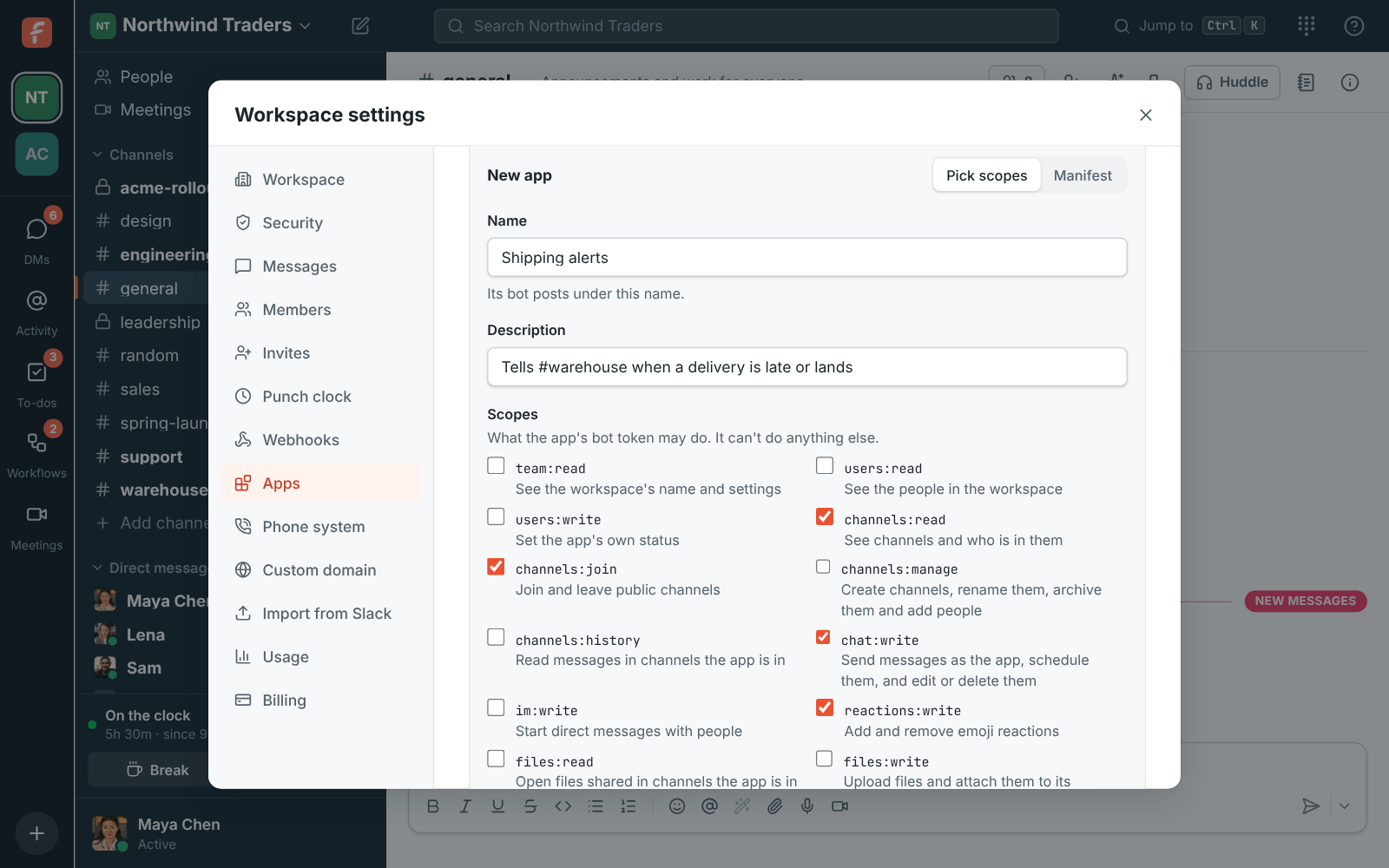
- Give it a name, such as “Order desk”. Its bot posts under that name.
- Tick only the scopes it needs, for example
chat:writeto post andchannels:jointo join public channels. You can add more later. - Click Create app and copy the bot token (it starts with
fsb-bot-). It’s only shown once; keep it in your tool’s secrets.
Check the token works:
curl -H "Authorization: Bearer fsb-bot-…" https://api.freesbe.net/api/apps/meMoving from Slack?
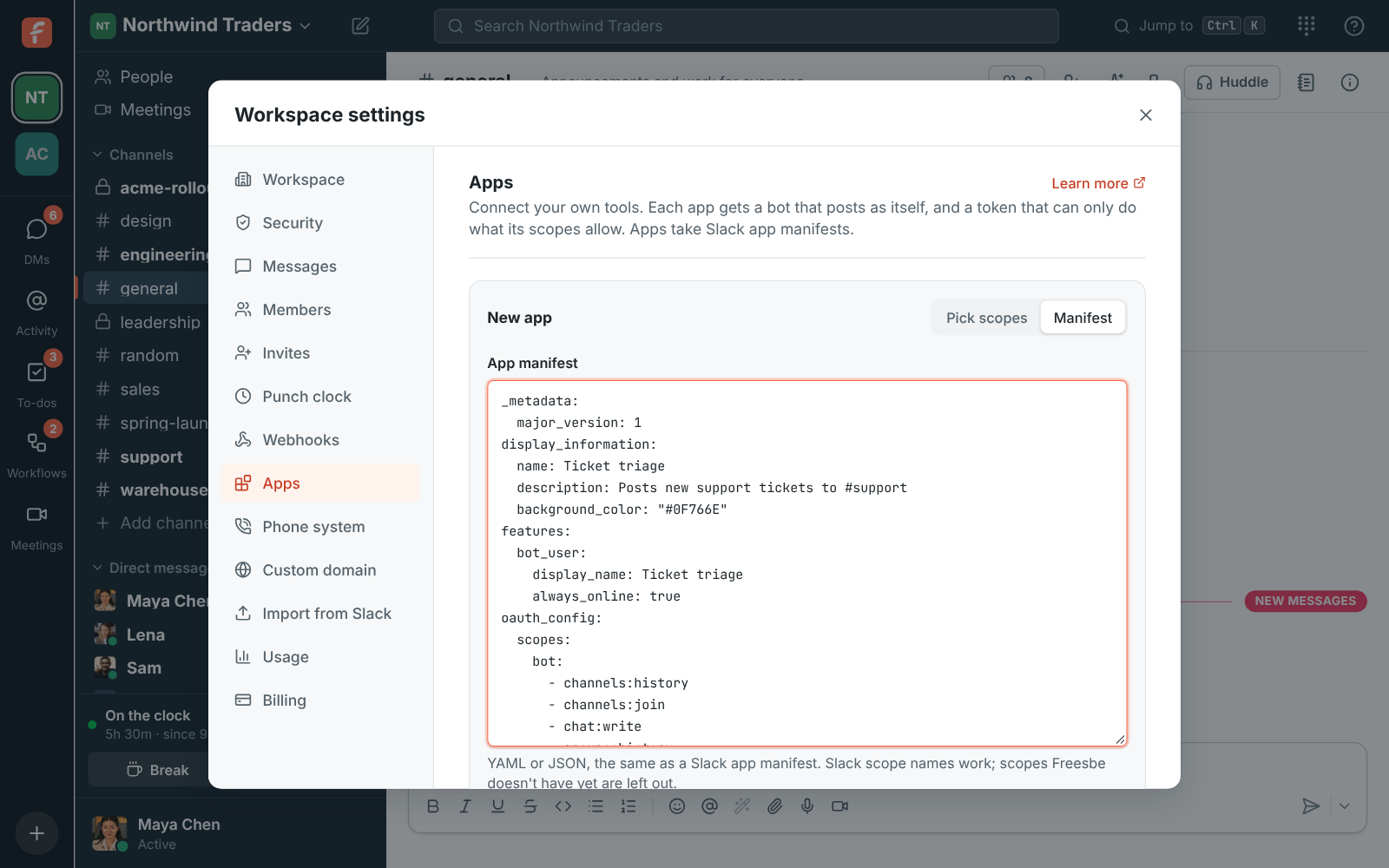
Section titled “Moving from Slack?”In Slack’s app settings, open App Manifest and copy it. In Freesbe, click Create app, switch to Manifest, paste it and click Create app. Freesbe reads the name, bot scopes, events, slash commands and message shortcuts, and lists anything it doesn’t support yet. Apps built with Slack’s SDKs (Bolt) check Freesbe’s signatures without changes.
2. Add the bot to channels
Section titled “2. Add the bot to channels”A new bot isn’t in any channel. With channels:join it can join public channels itself; for
private channels and DMs, add it from the channel’s member list like a person.
3. Post a message
Section titled “3. Post a message”curl https://api.freesbe.net/api/channels/<channel id>/messages \ -H "Authorization: Bearer fsb-bot-…" \ -H "Content-Type: application/json" \ -d '{ "body": "New order #4471 from Acme Corp" }'Add Slack Block Kit blocks for a card with headers, facts, images and buttons.
4. Get events (optional)
Section titled “4. Get events (optional)”- Open the app’s ⋯ menu → Edit.
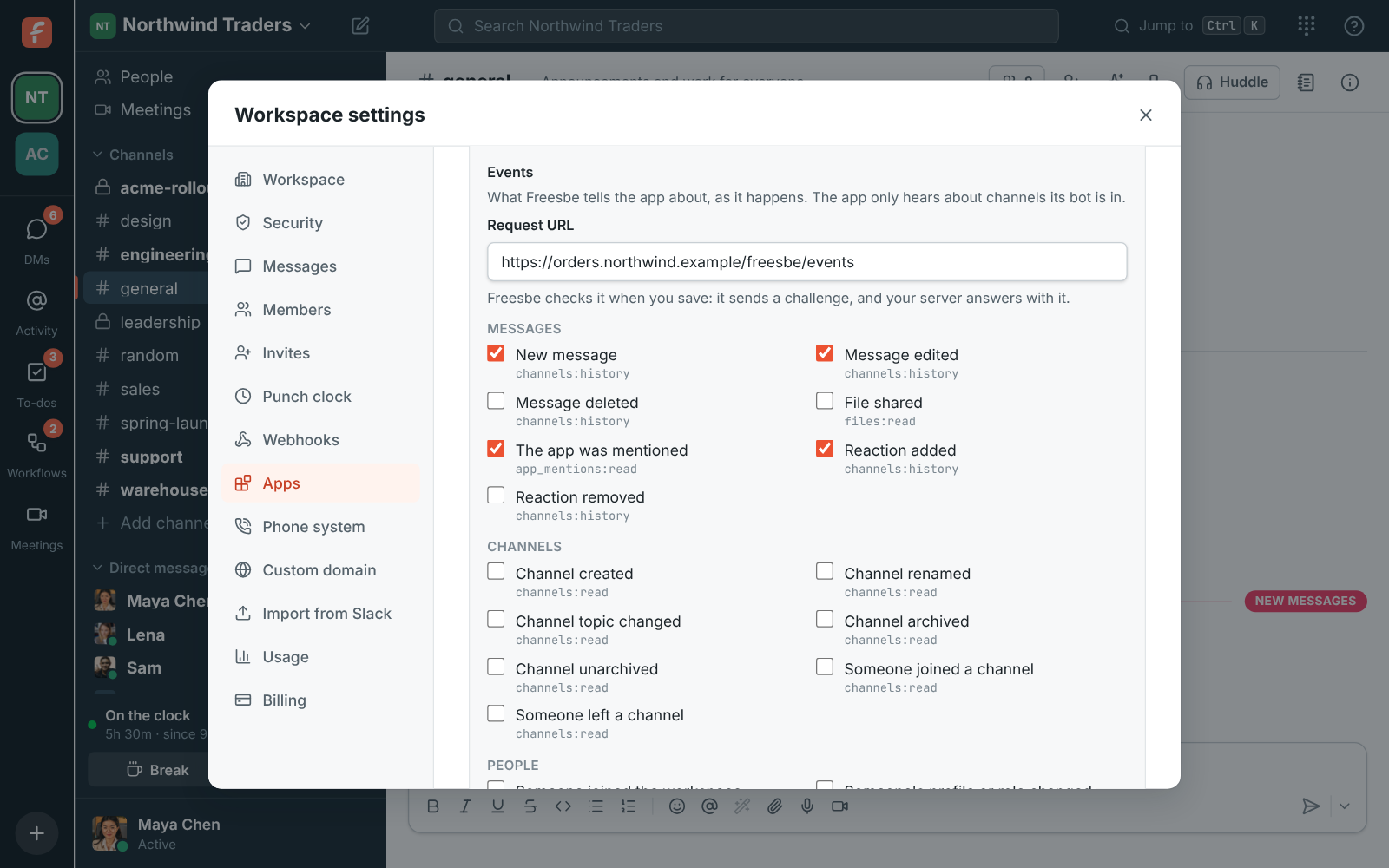
- Under Events, enter your server’s Request URL and tick the events you want.
- Click Save changes. Freesbe sends a
url_verificationchallenge first, the way Slack does, and only saves when your server answers with it.
Events arrive in Slack’s Events API format, signed with the app’s signing secret (⋯ → Show signing secret). Answer with a 2xx within 10 seconds. Deliveries shows what was sent and how your server answered.
If something’s wrong
Section titled “If something’s wrong”401. The token is wrong, was replaced with Make a new token, or the app is turned off.403 missing_scope. The call needs a scope the app doesn’t have. Add it with ⋯ → Edit; it works on the next call.403 not_allowed_token_type. Apps can’t do that at all, for example sign in or join calls.- The bot can’t post in a channel. It isn’t a member. Add it, or give it
channels:join. - The request URL won’t save. Your server didn’t answer the
url_verificationchallenge with thechallengevalue. Freesbe says what went wrong. - The token leaked. Choose ⋯ → Make a new token. The old one stops working at once.
See Apps for slash commands, message actions, buttons, dialogs and every scope.
Answers come from the Freesbe guides and are written by AI, so check the linked guide before relying on one. Please don't include personal details such as emails or passwords.