Apps
An app is an integration your workspace makes for itself: an order system that posts new orders, a script that files tickets, a bot you built for Slack. Each app gets two things:
- A bot. It shows up in the people list with an App badge and posts the app’s messages under its own name, so nobody’s account is borrowed. Add it to a channel like a person.
- A bot token. Your tool sends it with each call to the API. It can only do what the app’s scopes allow, and it keeps working when the workspace requires single sign-on or multi-factor authentication, so it doubles as an API key.
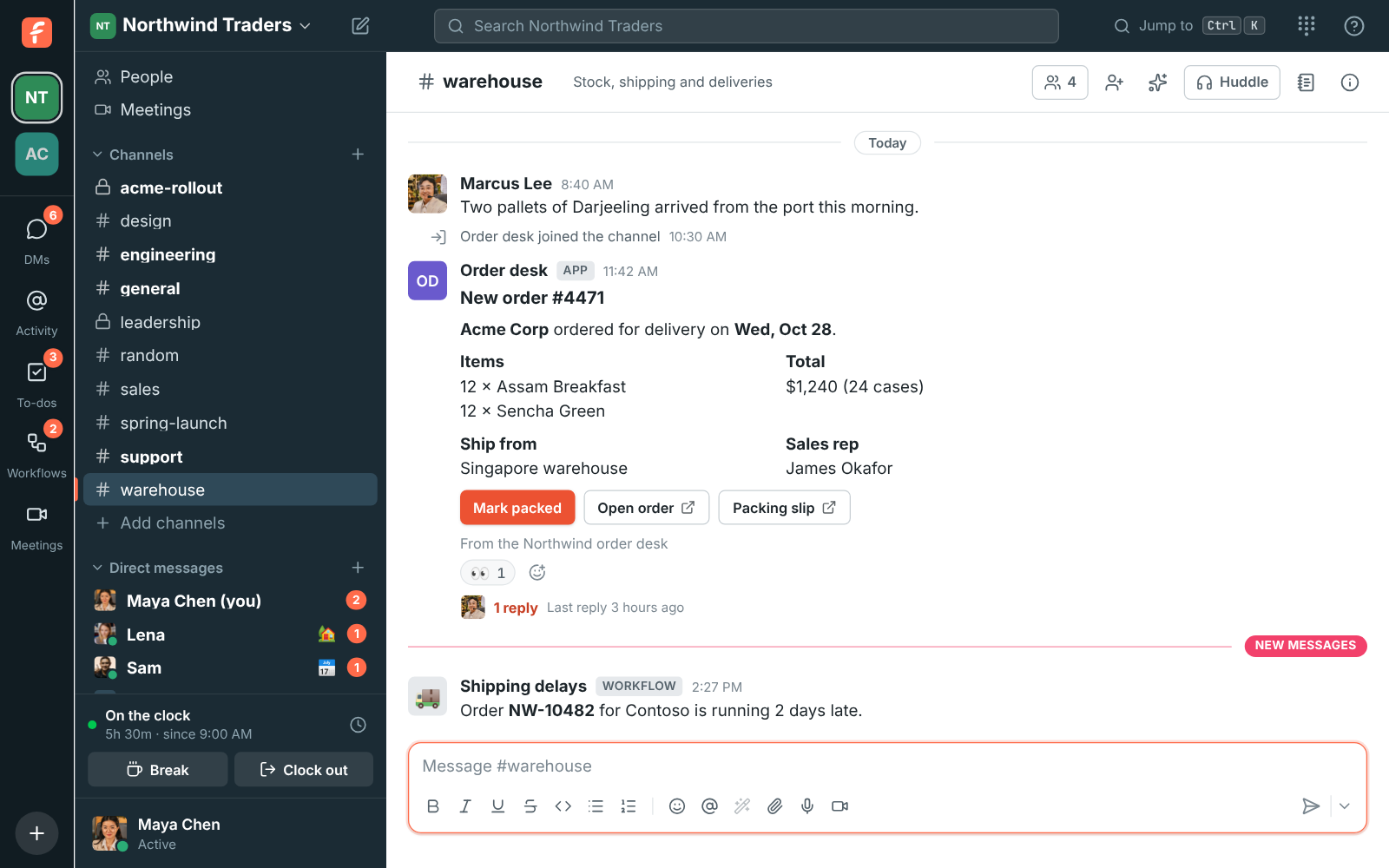
Apps belong to one workspace. Only owners and admins can make and change them, in Workspace settings → Integrations & apps → Apps.
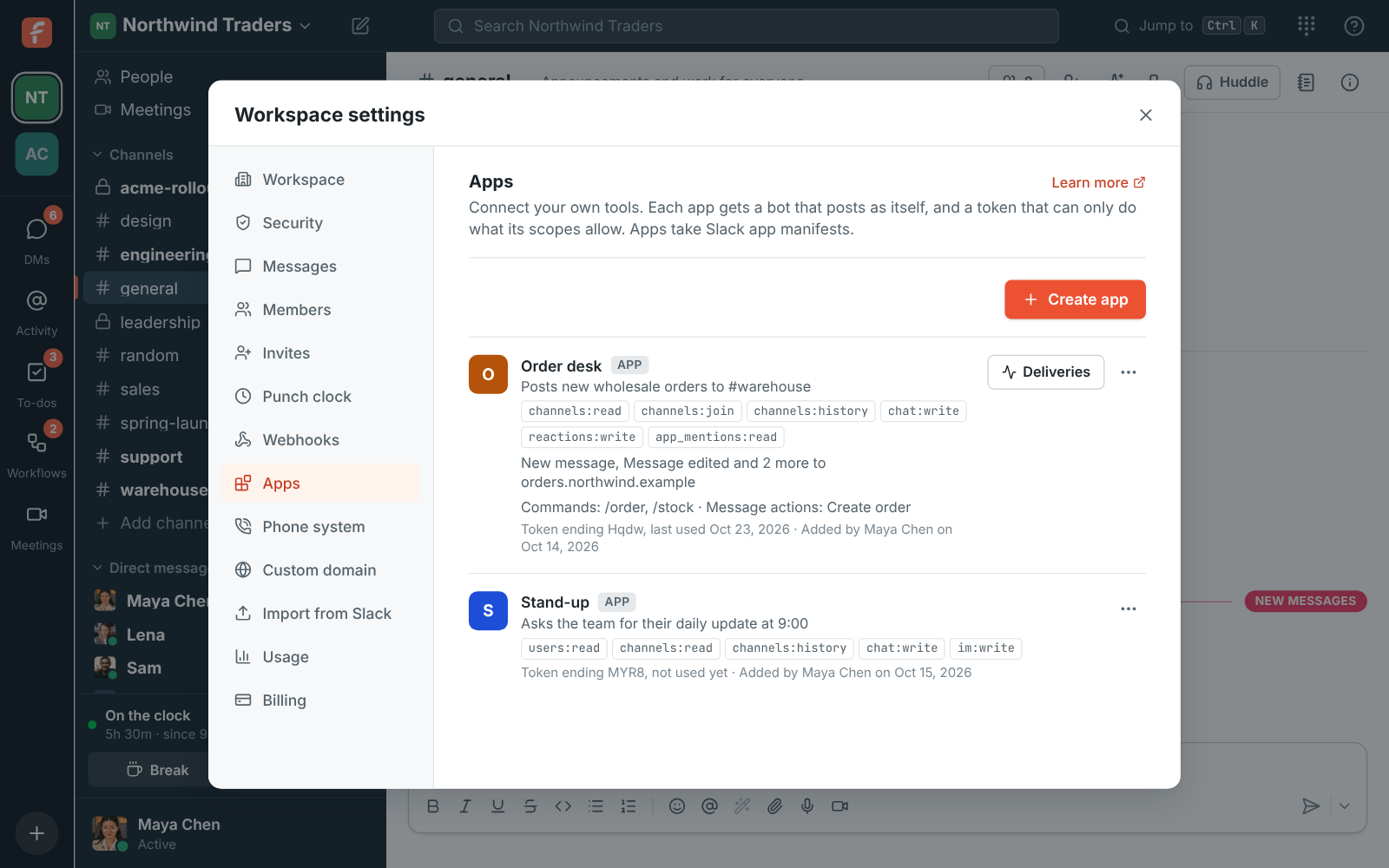
Make an app
Section titled “Make an app”- Open Workspace settings → Integrations & apps → Apps and click Create app.
- Give it a name and, if you like, a description. Its bot posts under the name.
- Tick the scopes it needs. Start small; you can add more later.
- Click Create app.
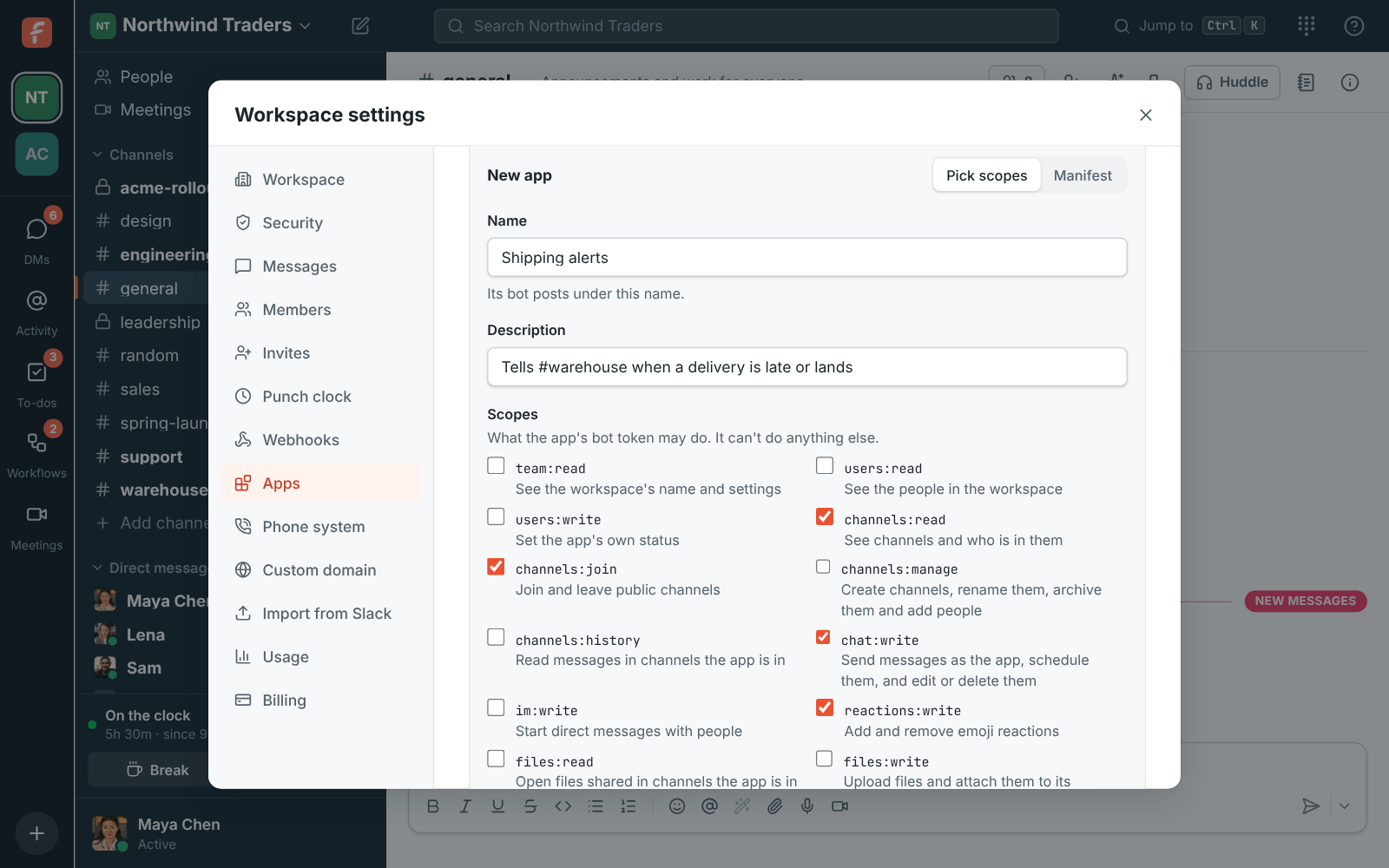
Freesbe shows the app’s bot token once. Copy it into your tool’s settings or secrets now; if you lose it, make a new one.
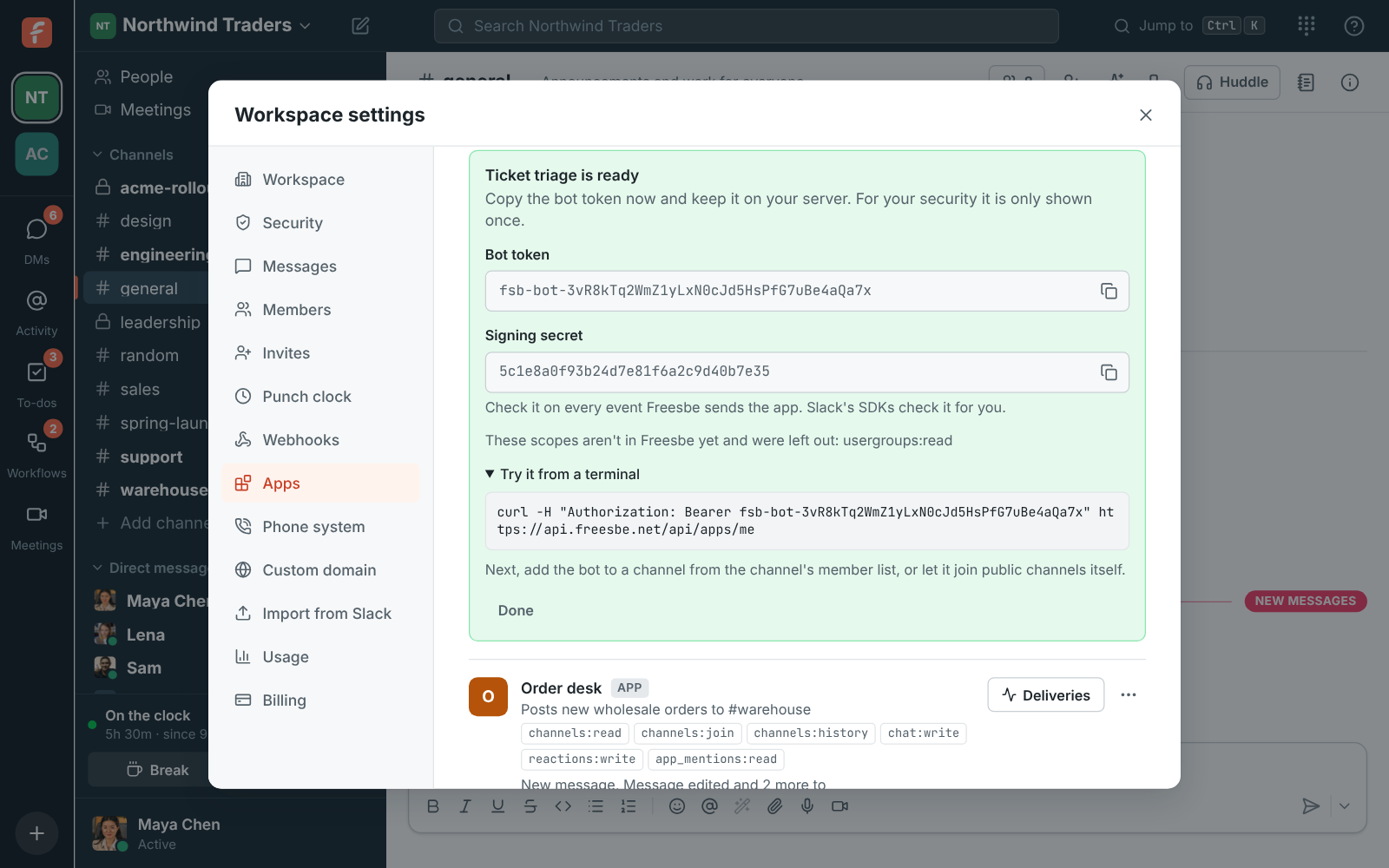
Try it from a terminal: it answers with the app’s name, its bot and its scopes.
curl -H "Authorization: Bearer fsb-bot-…" https://api.freesbe.net/api/apps/meBring an app from Slack
Section titled “Bring an app from Slack”If you built an app for Slack, paste its manifest instead of picking scopes:
- In Slack’s app settings, open App Manifest and copy it (YAML or JSON).
- In Freesbe, click Create app, switch to Manifest and paste it.
- Click Create app.
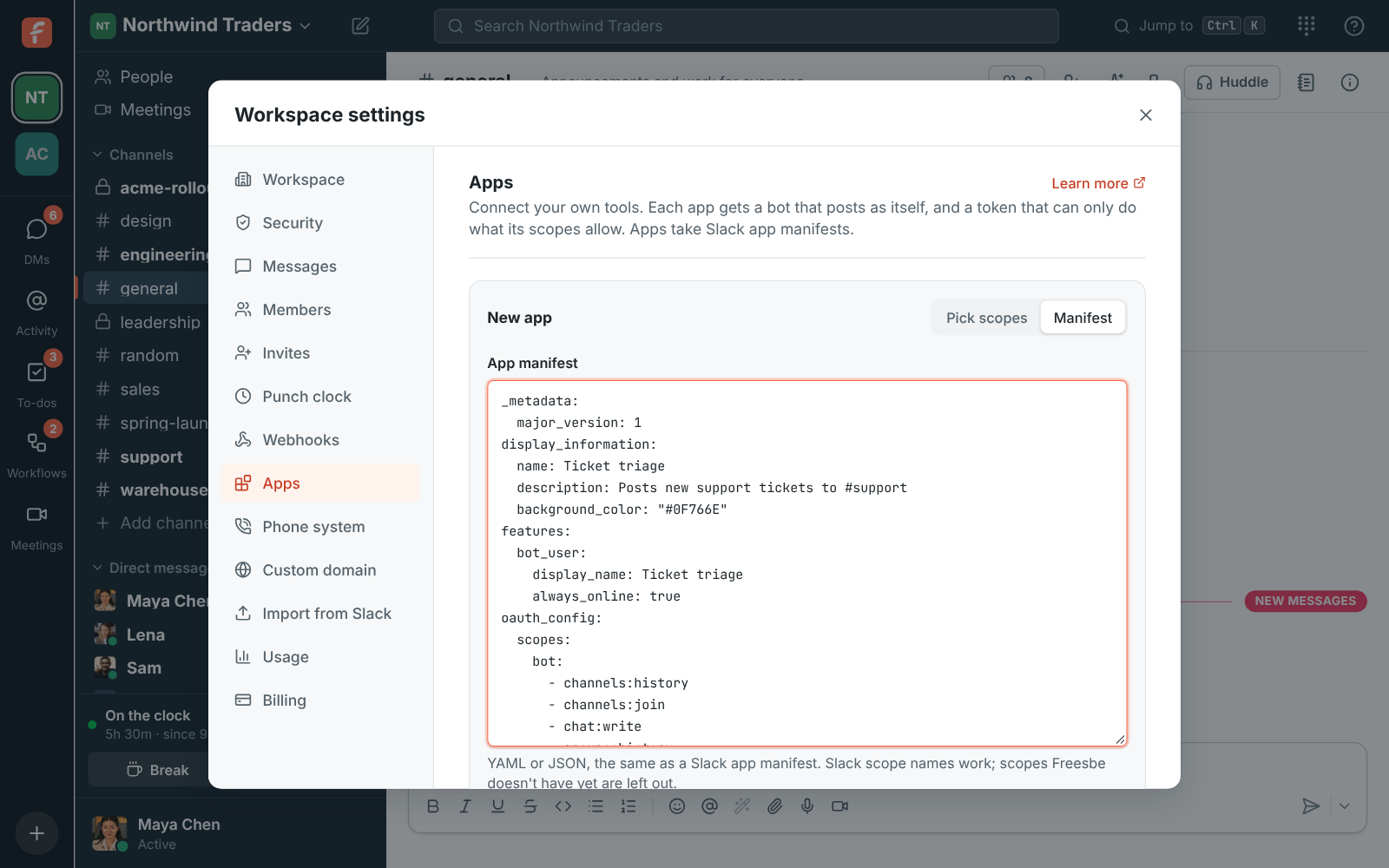
Freesbe reads the app’s name, description, colour, bot name, bot scopes,
event subscriptions, slash commands and
message shortcuts. Slack splits scopes and events for public channels,
private channels and DMs (groups:history, message.im); Freesbe has one for each, so those map
across. Scopes and events Freesbe doesn’t have yet are listed and left out, and user scopes and
global shortcuts are ignored: the app acts as its bot only. Its interactivity request URL is
where buttons and dialogs are sent.
Put the bot to work
Section titled “Put the bot to work”A new bot isn’t in any channel yet.
- Public channels: give the app the
channels:joinscope and let it join, or add it from the channel’s member list. - Private channels and DMs: add the bot from the channel’s member list, like a person.
Then your tool posts with POST /api/channels/{channel}/messages. Besides text, apps can send a
card as Slack Block Kit blocks or attachments, with headers, facts, images and link buttons;
the body is what notifications and search show.
curl https://api.freesbe.net/api/channels/<channel id>/messages \ -H "Authorization: Bearer fsb-bot-…" \ -H "Content-Type: application/json" \ -d '{ "body": "New order #4471 from Acme Corp", "blocks": [ { "type": "header", "text": { "type": "plain_text", "text": "New order #4471" } } ] }'Get events
Section titled “Get events”Freesbe can tell your app when things happen: a message in a channel its bot is in, someone mentioning the app, a reaction, a new channel, someone joining the workspace, a huddle starting, a meeting being scheduled, a recording that’s ready.
- Open the app’s ⋯ menu and click Edit (or set it up while you make the app).
- Under Events, enter the Request URL on your server and tick the events you want. Ticking an event ticks the scope it needs.
- Click Save changes.
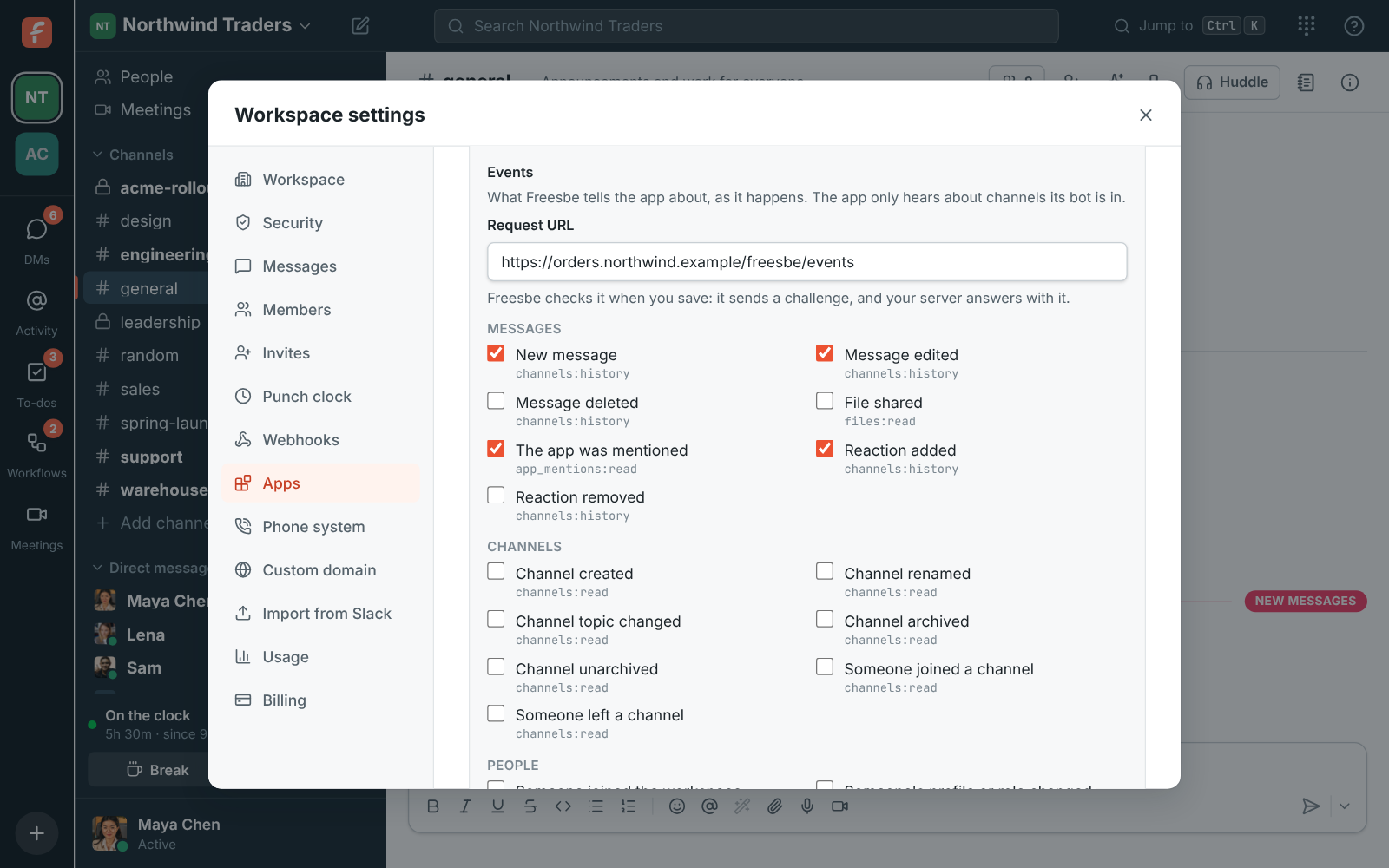
When you save, Freesbe checks the URL the way Slack does: it sends a url_verification request
with a challenge, and your server answers with the challenge. If it doesn’t, the app isn’t
saved and Freesbe says what went wrong. Apps built with Slack’s SDKs (Bolt) do this already.
Each event then arrives as a POST in Slack’s Events API envelope ("type": "event_callback"),
with the event inside event. The app only hears what its bot could see: messages and
reactions in channels and DMs it is in, changes to public channels, the people in the workspace,
and meetings it is part of. It never hears about what its own bot did, so it can’t talk to
itself.
Check the signature
Section titled “Check the signature”Every event is signed with the app’s signing secret: open the app’s ⋯ menu and click Show signing secret. Freesbe sends two signatures over the same body:
X-Slack-SignatureandX-Slack-Request-Timestamp, the way Slack signs, so Slack’s SDKs check it for you.Freesbe-Signature, the same way as outgoing webhooks.
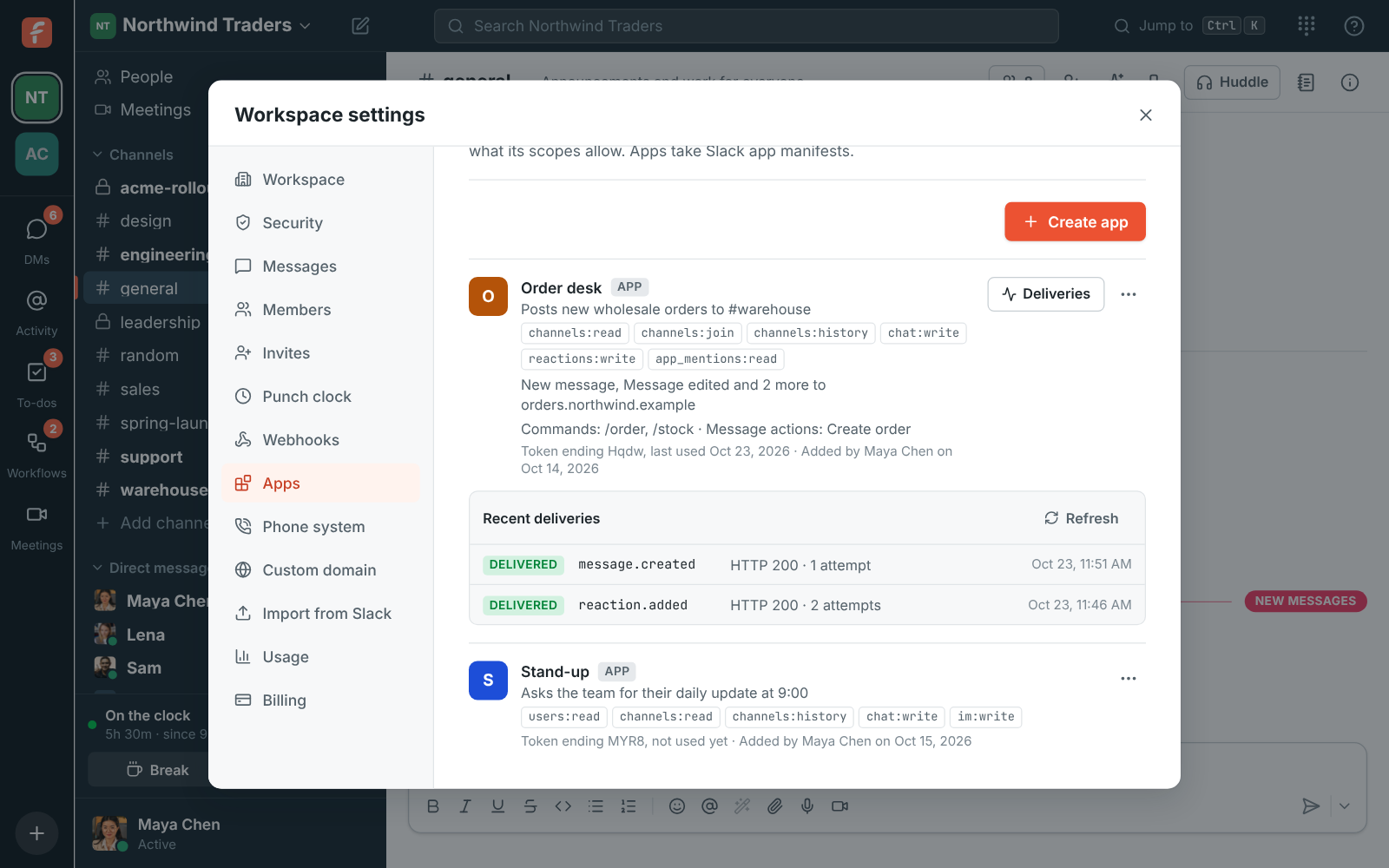
Answer with any 2xx within 10 seconds. Failures are retried for about 13 hours. Click Deliveries next to the app to see what was sent and how your server answered.
The API reference lists every event, what it carries and the scope it needs.
Slash commands
Section titled “Slash commands”An app can add slash commands, such as /order 4512, that anyone in the workspace can type at
the start of a message. Typing / shows the commands the workspace’s apps add, with what to
type after each one.
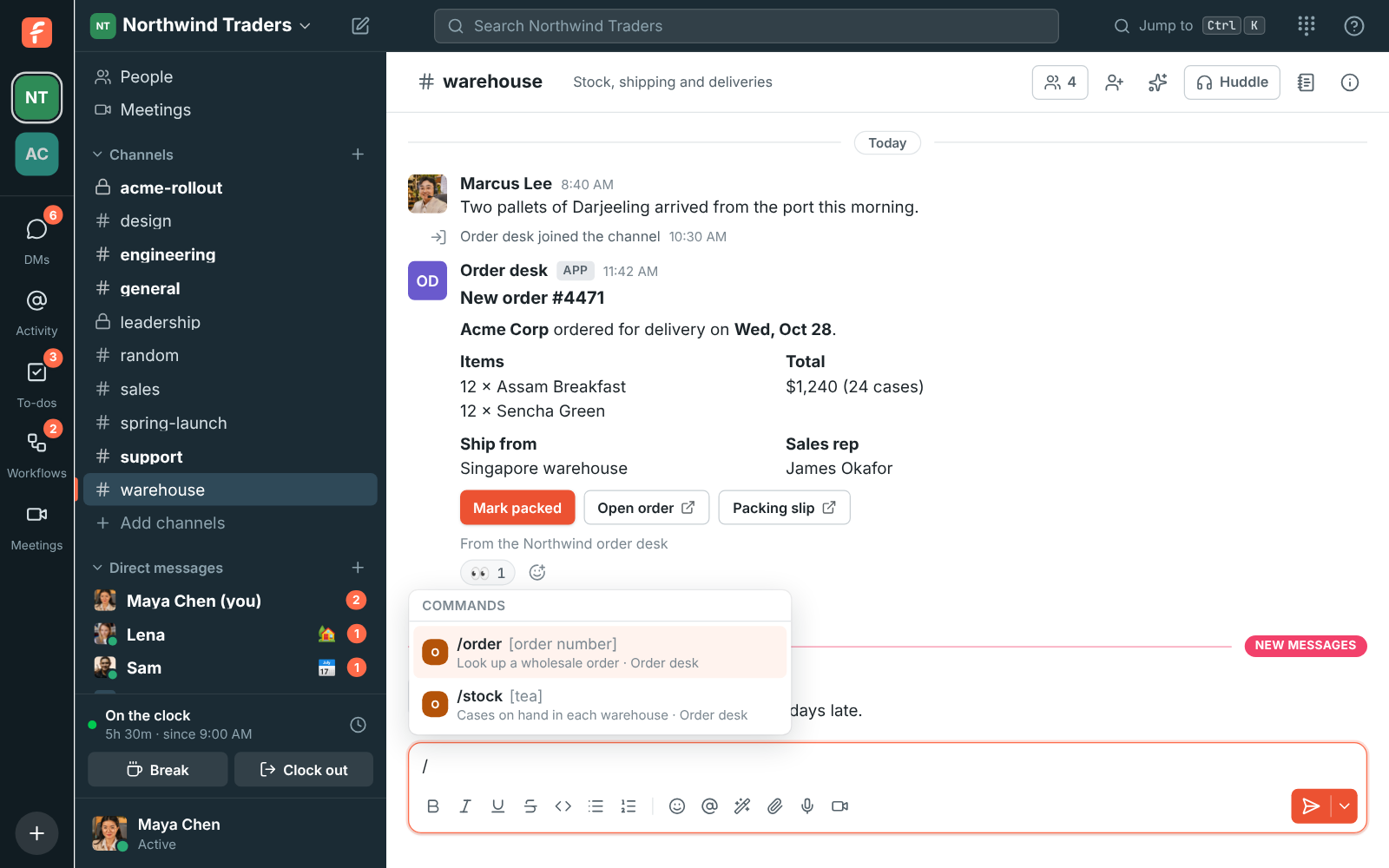
Slash commands are set in the app’s manifest, the same way as on Slack, under
features.slash_commands. Each one has a command, the url Freesbe sends it to, a
description and a usage_hint:
features: slash_commands: - command: /order url: https://orders.northwind.example/freesbe/commands description: Look up an order usage_hint: "[order number]"A command can belong to one app only. When someone runs it, Freesbe POSTs Slack’s form to the
command’s URL (command, text, user_id, channel_id, response_url and the rest), signed
like events. Answer within 3 seconds:
- Plain text, or JSON with
textorblocks: only the person who ran the command sees the answer, marked Only visible to you, until they dismiss it or reload. - JSON with
"response_type": "in_channel": the app’s bot posts the answer in the channel for everyone. - An empty 200: nothing shows yet. Post the answer later to the
response_url, the same way, up to 30 minutes later.
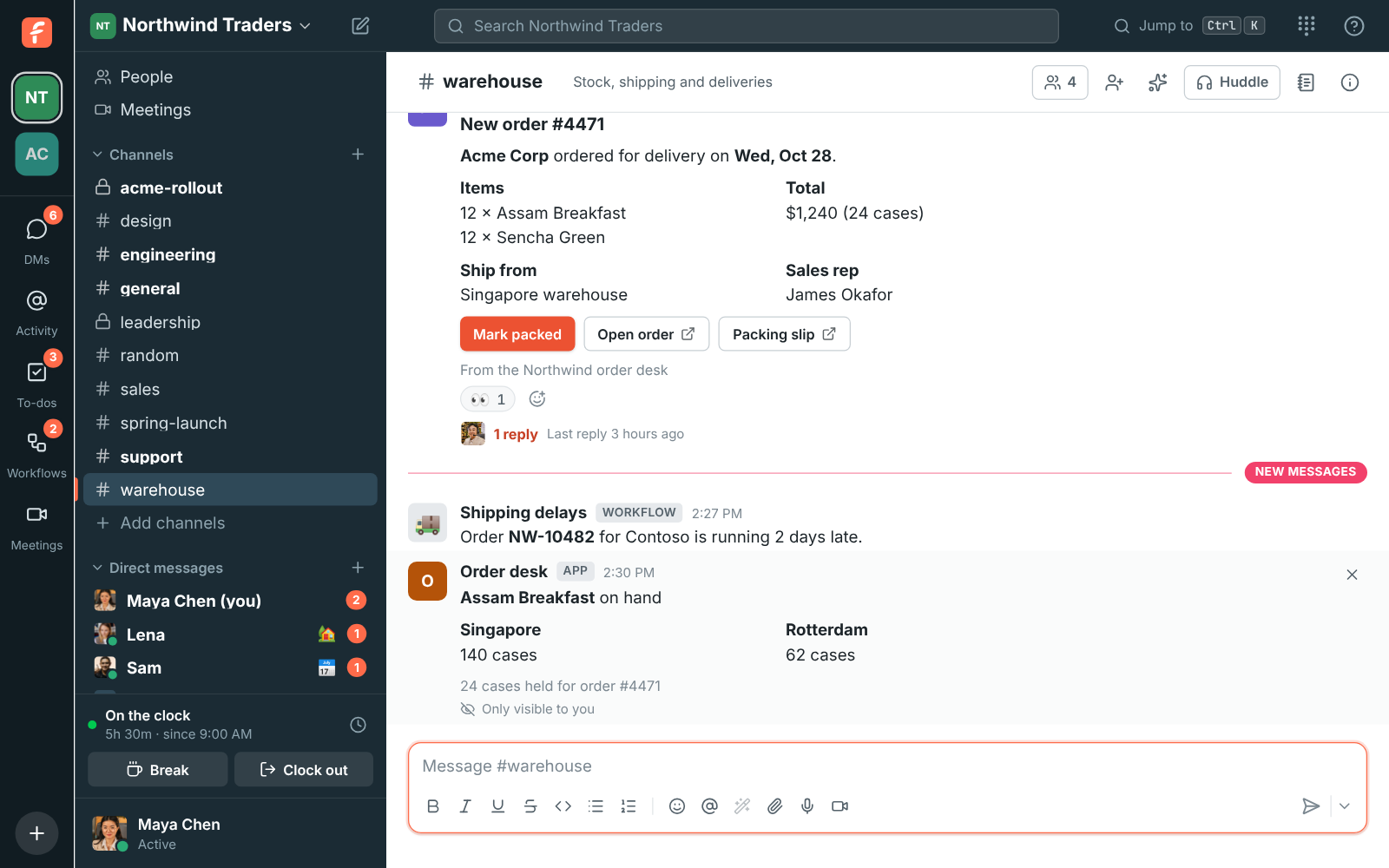
The message isn’t posted: the command goes to the app instead. A message that starts with /
but isn’t a command, such as a file path, is sent as usual.
Message actions
Section titled “Message actions”An app can add actions to every message’s ⋯ menu, such as Create order or File a
ticket. Picking one sends the message to the app, which can answer through its response_url.
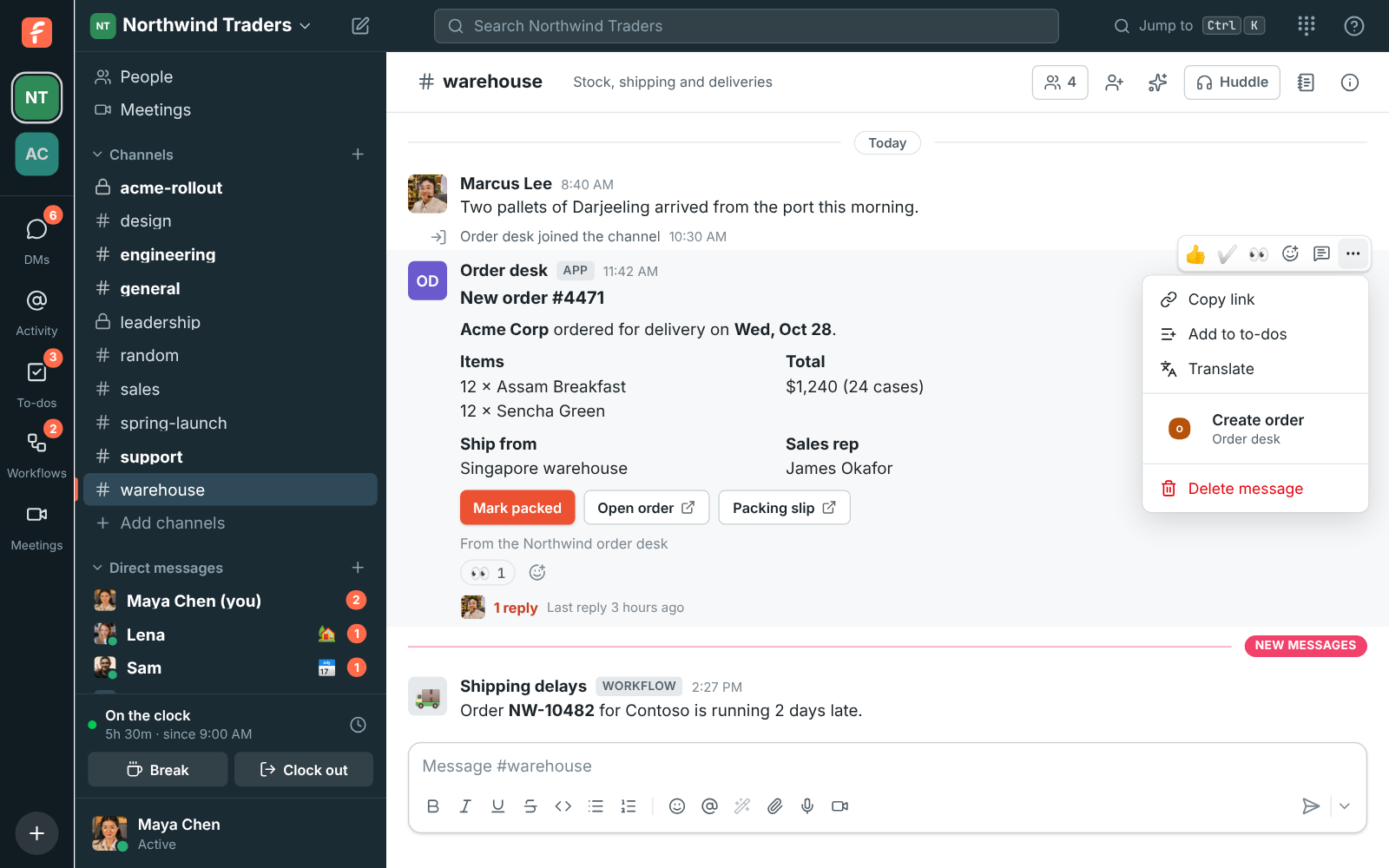
Message actions are Slack’s message shortcuts, set under features.shortcuts with
type: message. They go to the app’s interactivity request URL as Slack’s message_action
payload, with the message, the channel and the person:
features: shortcuts: - name: Create order type: message callback_id: create_order description: Make a wholesale order from this messagesettings: interactivity: is_enabled: true request_url: https://orders.northwind.example/freesbe/actionsEach app’s commands and actions are listed on its card in Workspace settings → Integrations & apps → Apps. Turning an app off hides them until it’s back on.
Buttons
Section titled “Buttons”An app’s message can have buttons that do something, such as Mark packed, as well as buttons that open a link. Pressing one tells the app, which can change the message, answer, or open a dialog.
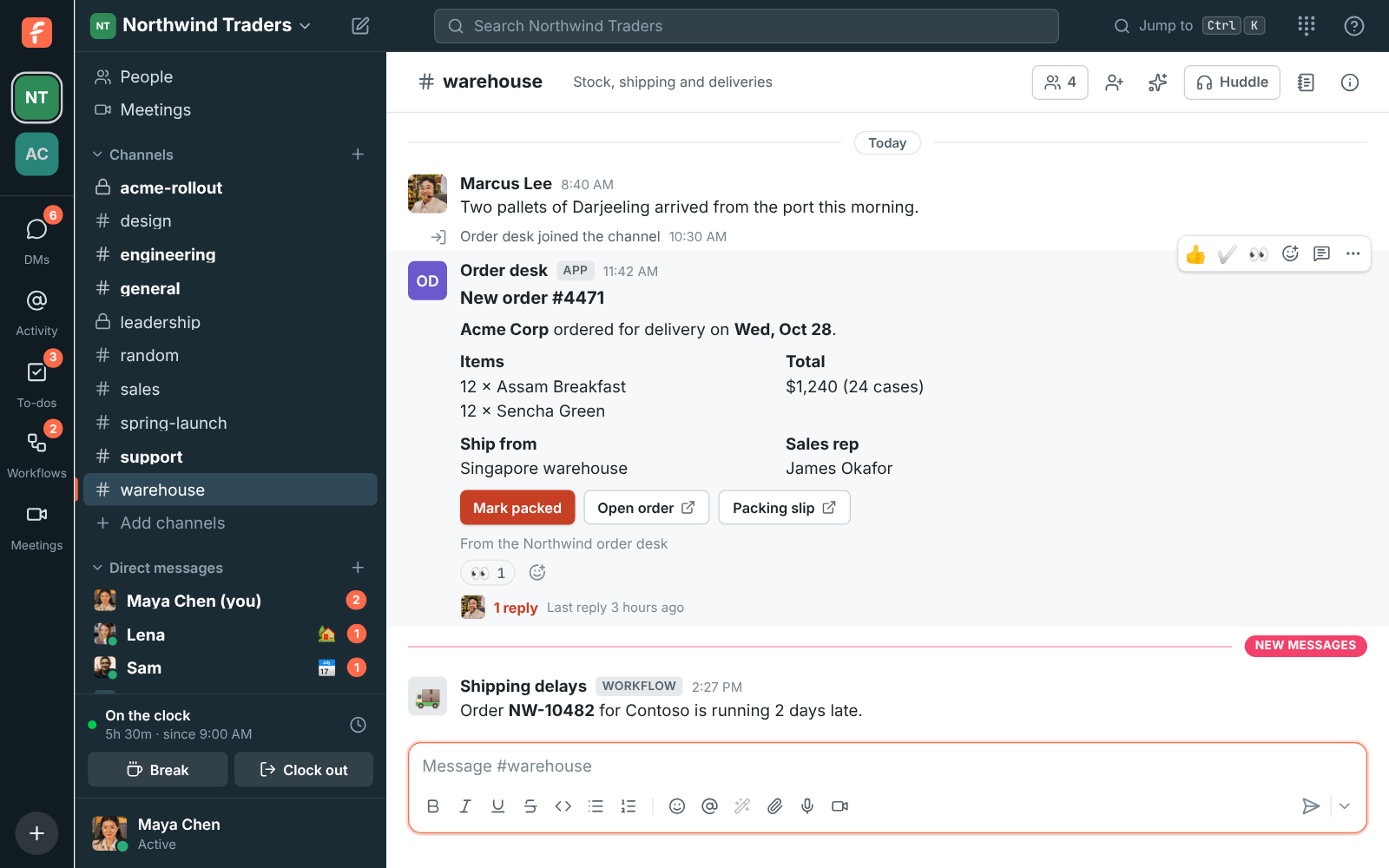
They’re Block Kit buttons with an action_id and no url, in an actions block or as a
section’s accessory. A press goes to the app’s interactivity request URL as Slack’s
block_actions payload, with the button’s action_id, block_id and value, the message,
the person, a trigger_id and a response_url. Post to the response_url with
"replace_original": true to change the message, say to show who packed the order, or with
"delete_original": true to remove it. Buttons work the same on answers only one person sees.
Only apps’ buttons do something: in incoming webhook cards, a button without a link is left out.
Dialogs
Section titled “Dialogs”An app can open a dialog for the person who ran its command, picked its message action or pressed its button, to ask for the details it needs. When they press the dialog’s send button, Freesbe checks what’s needed is filled in and sends it to the app.
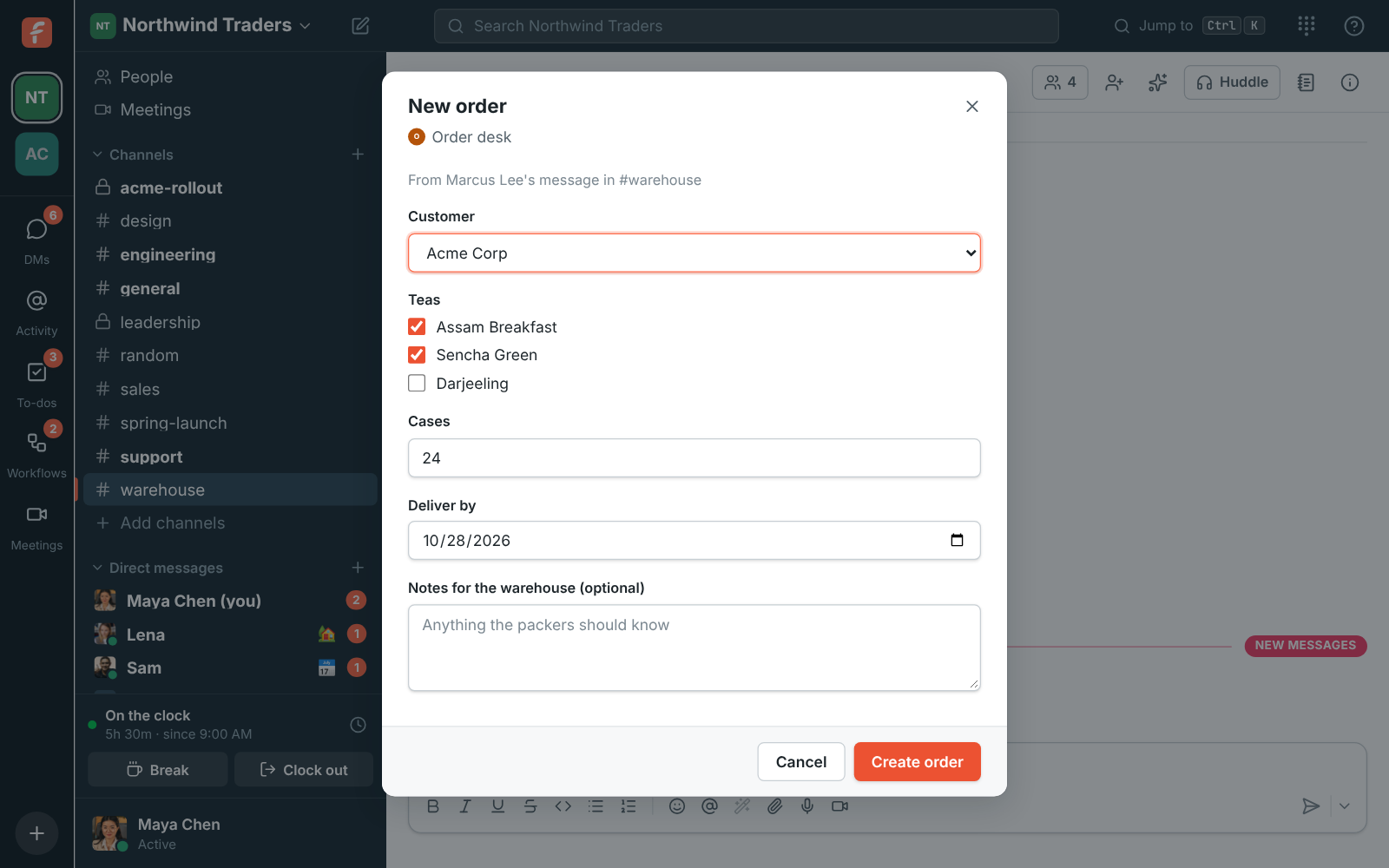
Dialogs are Slack’s modals. Within 30 seconds of the trigger_id, send the modal to
POST /api/apps/views with the bot token:
{ "triggerId": "<trigger_id>", "view": { "type": "modal", "callback_id": "new_order", "title": { "type": "plain_text", "text": "New order" }, "submit": { "type": "plain_text", "text": "Create order" }, "blocks": [ { "type": "input", "block_id": "cases", "label": { "type": "plain_text", "text": "Cases" }, "element": { "type": "number_input", "action_id": "cases", "is_decimal_allowed": false } } ] }}The dialog opens only where the person pressed or typed, not on their other devices. It can
have sections, headers, context, dividers, images and buttons, and these inputs:
plain_text_input (with multiline for longer text), email_text_input, url_text_input,
number_input, datepicker, static_select, radio_buttons, checkboxes and
users_select.
Sending the dialog reaches the app as Slack’s view_submission, with the answers in
view.state.values. Answer within 3 seconds with nothing to close it, or with a
response_action:
errors: show messages under the inputs, byblock_id, such as{ "response_action": "errors", "errors": { "cases": "Only 12 cases left" } }.update: show anotherviewin its place.push: show anotherviewon top. Closing it goes back to the one under it. Dialogs stack three deep.clear: close every dialog.
The app can also change an open dialog with PUT /api/apps/views/{id} (Slack’s
views.update), and add one on top with POST /api/apps/views/push and a trigger_id from a
button inside it. With notify_on_close: true, the app hears view_closed when the person
closes it.
Scopes
Section titled “Scopes”Each scope opens a few API endpoints; the API reference shows the scope
each endpoint needs. A call outside the app’s scopes answers 403 missing_scope, and calls apps
can’t make at all (sign-in, your account, calls, AI and the punch clock) answer
403 not_allowed_token_type.
| Scope | Lets the app |
|---|---|
team:read |
See the workspace’s name and settings |
users:read |
See the people in the workspace |
users:write |
Set the app’s own status |
channels:read |
See channels and who is in them |
channels:join |
Join and leave public channels |
channels:manage |
Create channels, rename them, archive them and add people |
channels:history |
Read messages in channels the app is in |
chat:write |
Send messages as the app, schedule them, and edit or delete them |
im:write |
Start direct messages with people |
reactions:write |
Add and remove emoji reactions |
pins:write |
Pin and unpin messages |
bookmarks:write |
Add, change and remove the links kept at the top of a channel |
files:read |
Open files shared in channels the app is in |
files:write |
Upload files and attach them to its messages |
search:read |
Search messages in channels the app is in |
todos:read |
See the app’s own to-dos |
todos:write |
Make, change and delete the app’s own to-dos |
meetings:read |
See the workspace’s meetings |
meetings:write |
Schedule meetings and change the ones the app made |
recordings:read |
Open huddle and meeting recordings the app can see |
app_mentions:read |
Hear about messages that mention the app |
The bot is a member of the workspace, never an admin, and it only sees what a member in the same channels would: private channels and DMs only once it’s been added.
Change, pause or delete an app
Section titled “Change, pause or delete an app”Open the ⋯ menu next to the app:
- Edit changes its name, description or scopes, or its whole manifest. A new scope works on the next call; a removed one stops working at once.
- Sign in with Freesbe lets your team sign in to the tool with their Freesbe account; see Sign in with Freesbe.
- Make a new token replaces the bot token. The old one stops working right away, so update your tool with the new one. Do this if a token may have leaked.
- Turn off pauses the app: its token answers
401until you turn it back on. - Delete removes the app and its token. Its bot leaves the workspace, but the messages it sent stay, under its name.
Each app shows the end of its current token and when it was last used, so you can spot a token that’s no longer needed.
Zapier, Make, n8n and Zoho Flow
Section titled “Zapier, Make, n8n and Zoho Flow”To connect Freesbe to Zapier, Make, n8n or Zoho Flow, you don’t need to make an app yourself: open
Workspace settings → Integrations & apps → Integrations → Automation and click Connect. See
Zapier, Make, n8n and Zoho Flow. Their triggers use REST hooks, which any app can make
with its bot token (POST /api/apps/hooks), to send one event to its own URL.
Apps and webhooks
Section titled “Apps and webhooks”Webhooks are still the quickest way to post into one channel, or to send a workspace’s events to your server. Use an app when your tool needs to post in several channels, read messages, react, hear about what happens in the channels its bot is in, or act as a bot people can add and DM.
Answers come from the Freesbe guides and are written by AI, so check the linked guide before relying on one. Please don't include personal details such as emails or passwords.