
Workflows
A workflow does routine work for you. It starts from something that happens, like someone joining a channel, a time on the clock, or a click on a button, and then runs its steps one after another: post a message, send someone a form, add a person to a channel, give someone a to-do, or wait.
Some things people build with workflows:
- Welcome everyone who joins #general with a direct message and a to-do to introduce themselves.
- Ask the team for a stand-up every weekday at 9:30.
- Give people a form to ask IT for help, and post each request in #support.
- Tell #warehouse when the carrier’s system reports a late order.
The Workflows page
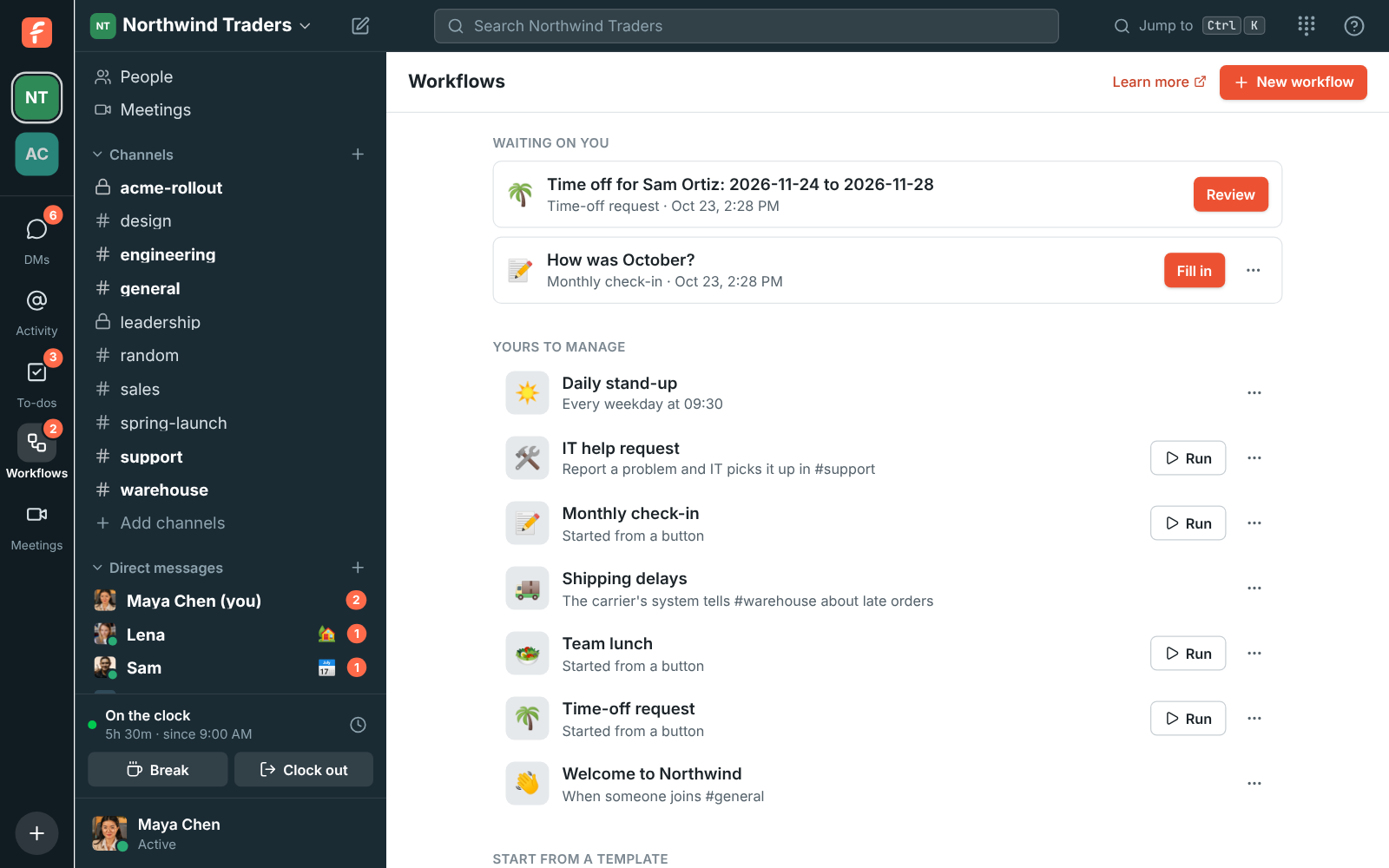
Section titled “The Workflows page”Click Workflows in the rail on the left. The page shows:
- Waiting on you: forms a workflow sent you that you haven’t filled in yet. The number on the Workflows button counts them.
- Yours to manage: workflows you made, and every workflow if you’re an admin.
- You can run: workflows other people made that start from a button. Click Run.
- Start from a template: ready-made workflows to change and turn on.
Build a workflow
Section titled “Build a workflow”- On the Workflows page, click New workflow, or pick a template. You can also use + → Workflow in the rail.
- Give it a name and an emoji. The emoji is its picture on the messages it posts.
- Choose what Starts it (see Triggers).
- Click Add a step for each thing it should do, in order. Use the arrows to move a step up or down.
- Click Save. Then turn on the On switch at the bottom.
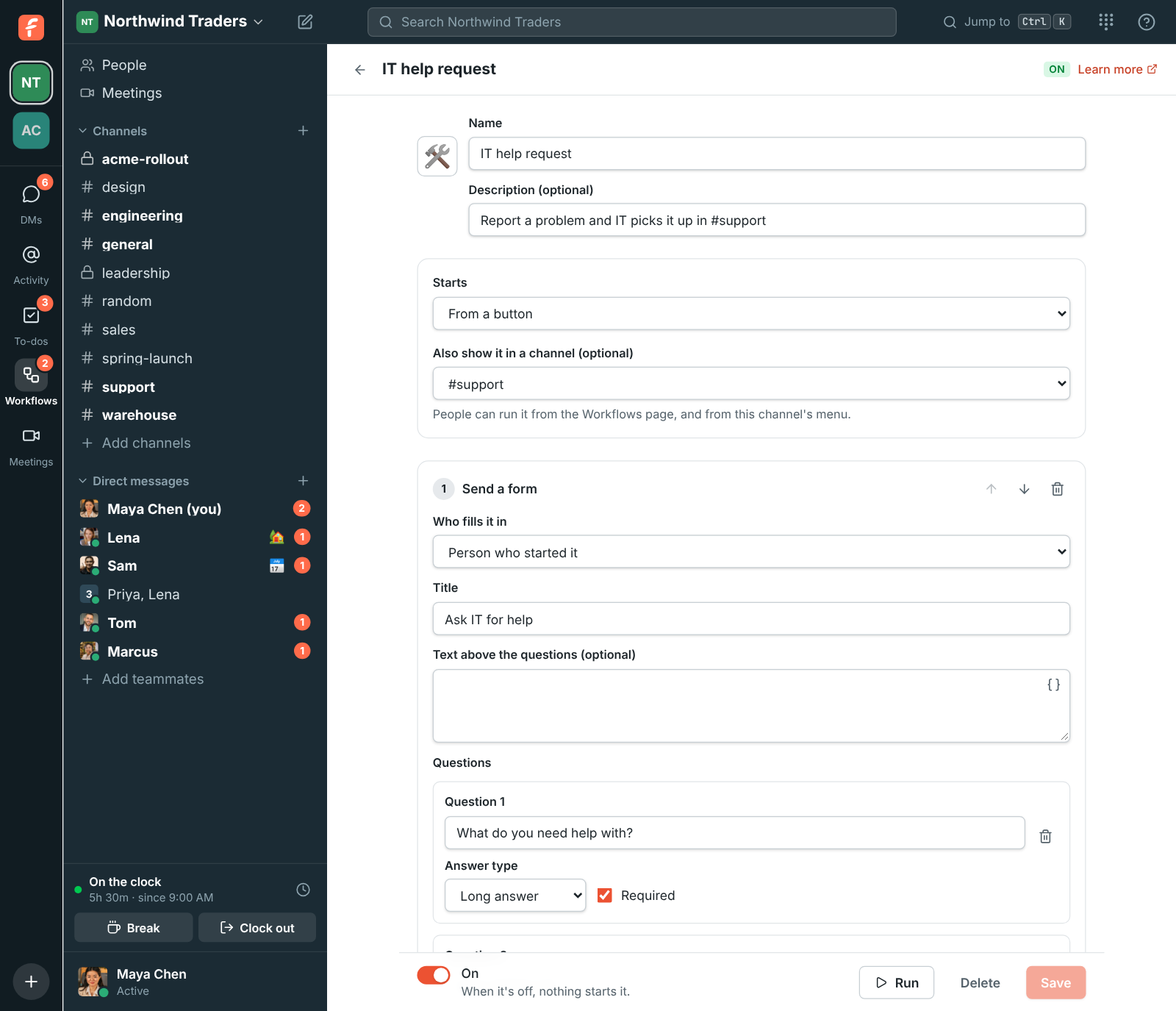
A workflow can’t be turned on while something is missing, such as a step without a channel. The builder points out each problem under the step it’s about.
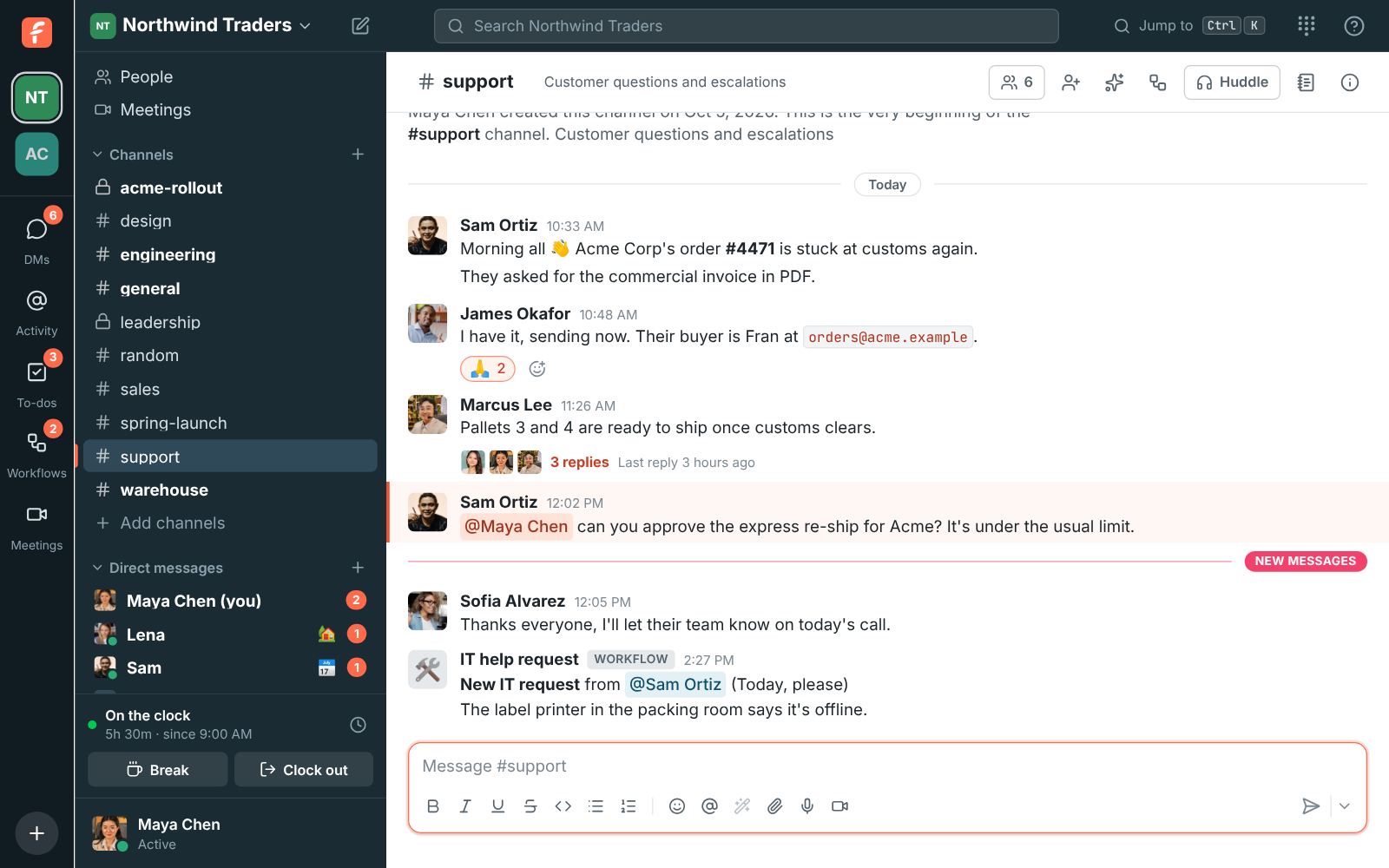
Messages a workflow posts show its name and emoji, with a Workflow label, so nobody mistakes them for a person.
Triggers
Section titled “Triggers”| Starts | When |
|---|---|
| From a button | Someone clicks Run on the Workflows page, or picks it from the Workflows button at the top of a channel you chose. |
| On a schedule | At a time on a date, once or every day, every weekday, every week or every month. Times are in the time zone you pick, and stay put when clocks change. |
| When someone reacts with an emoji | Anyone reacts with that emoji to a message in the channel. |
| When someone joins a channel | Anyone joins the channel or is added to it. |
| When a message has certain words | A new message in the channel has any of the words you list, as whole words, ignoring case. With no words, every new message starts it. Replies in threads don’t. |
| From a webhook | Another app sends a request to the workflow’s own URL. See Start a workflow from another app. |
Workflows can also start from things that happen in Freesbe:
| Starts | When |
|---|---|
| When someone clocks in or out | You clock in or out with time tracking. Admins can pick Anyone to start it for everyone’s clock. |
| When someone books time with you | A guest books one of your booking links. It knows their name and email, when, and the meeting link. |
| When a meeting you organized ends | The last person leaves a meeting you organized. It knows the title and how many minutes it ran. |
| When a huddle in a channel ends | A huddle in the channel you pick ends. It knows who started it and how many minutes it ran. |
| When you miss a call | Someone calls you in a direct message and you don’t pick up. |
| When a to-do from a workflow is done | Someone ticks off a to-do that another workflow you manage gave them. Use it to carry on once a checklist item is done, like in onboarding. |
These start for the person who made the workflow: your clock, your bookings, your meetings and your missed calls.
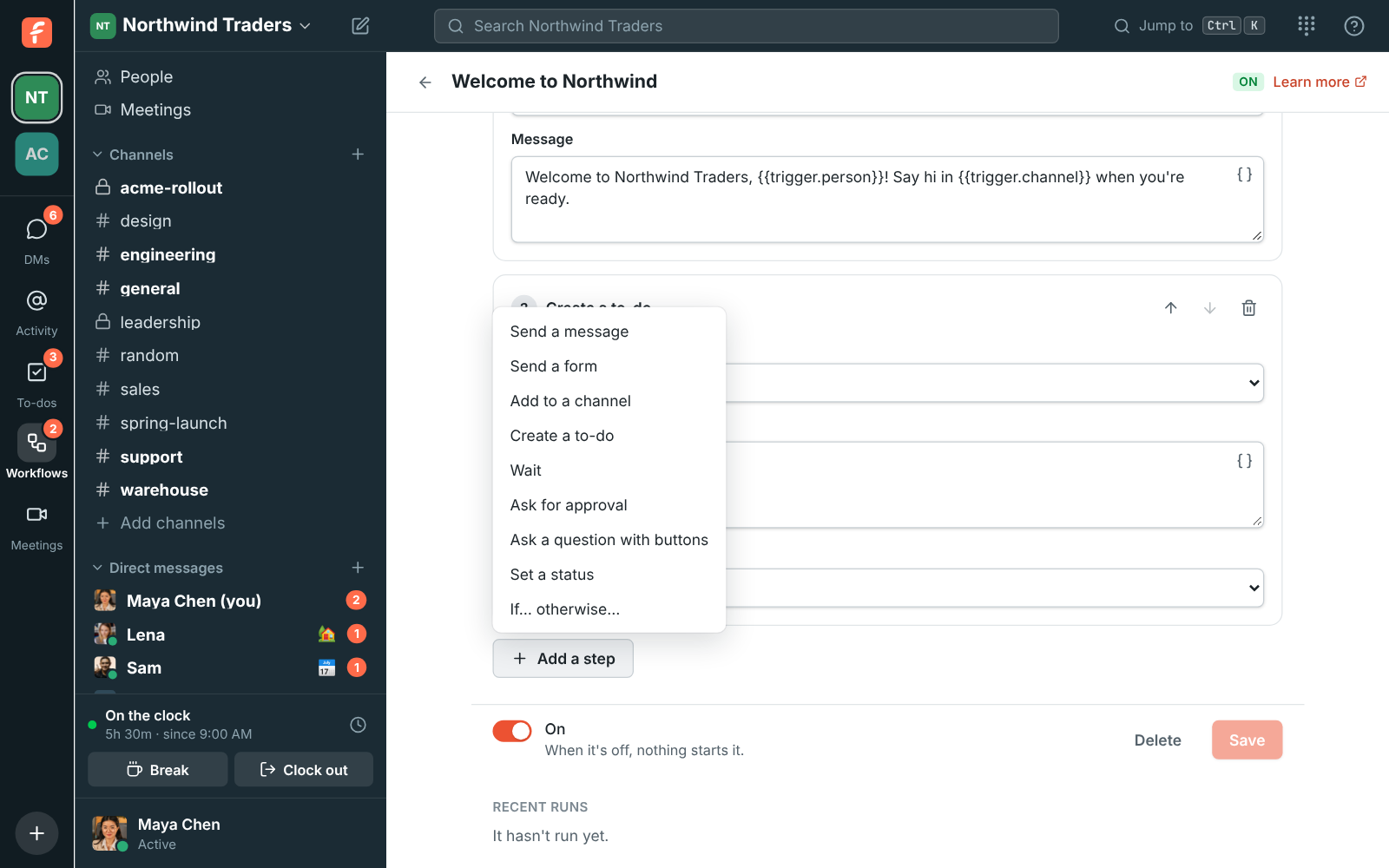
| Step | What it does |
|---|---|
| Send a message | Posts in a channel, sends a person a direct message, or replies in the thread of the message that started the workflow. |
| Send a form | Asks a person questions and waits until they send their answers. See Forms. |
| Add to a channel | Adds a person to a channel. Guests can’t be added this way. |
| Create a to-do | Adds a to-do to a person’s to-do list, due the same day, the next day or later, at 5 PM their time. |
| Wait | Waits minutes, hours or days (up to 30) before the next step. |
| Ask for approval | Asks one or more people to approve or reject something, and waits. See Approvals. |
| Ask a question with buttons | Posts a question with up to five buttons in a channel, a thread or a direct message, and waits for someone to pick one. See Questions with buttons. |
| Set a status | Sets an emoji and a status for the person who started the workflow, or someone it asked, for up to 7 days. |
| If… otherwise… | Checks something the workflow knows and runs one list of steps or the other. See If… otherwise…. |
Direct messages from a workflow arrive in the person’s own notes DM, from the workflow.
Variables
Section titled “Variables”Steps can use what the workflow knows so far: who started it, the channel, the message that
started it, and every answer from an earlier form. Click the { } button beside a text box and
pick one. It goes in as {{name}}, and each run fills it in.
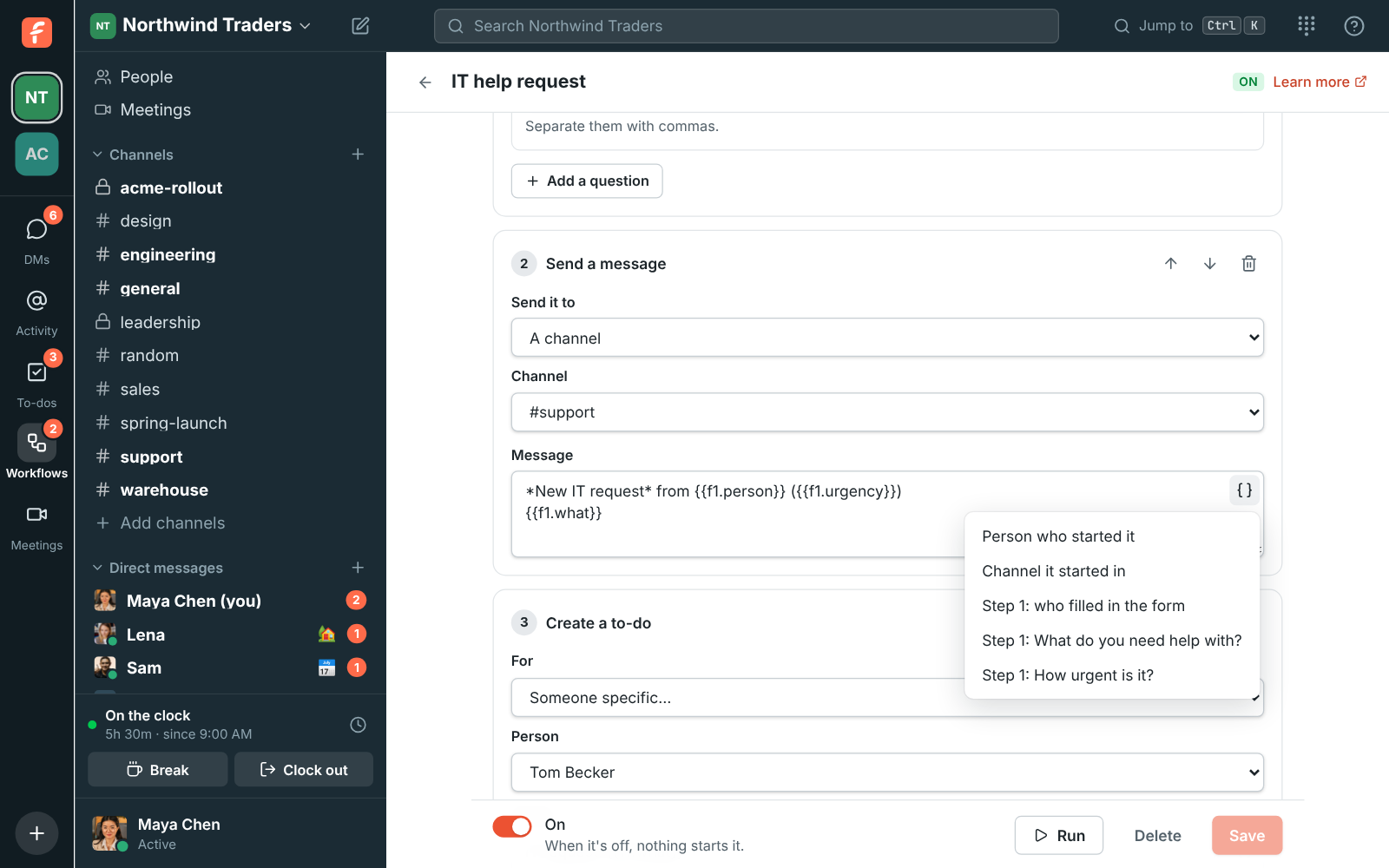
People and channels come out as mentions, like @Sam Ortiz and #support. Anything someone typed is shown as plain text, so an answer can’t mention @channel.
Steps that are for a person, such as a form or a to-do, can be for someone the workflow knows, like Person who started it, or Someone specific you pick.
A Send a form step asks one person a few questions: short or long answers, a number, a date, a choice from a list, or a person. The workflow waits until they send it, then carries on with their answers.
- When the person who clicked Run fills in the form, it opens for them right away.
- Anyone else gets a direct message from the workflow with an Open form button. It also shows under Waiting on you on the Workflows page.
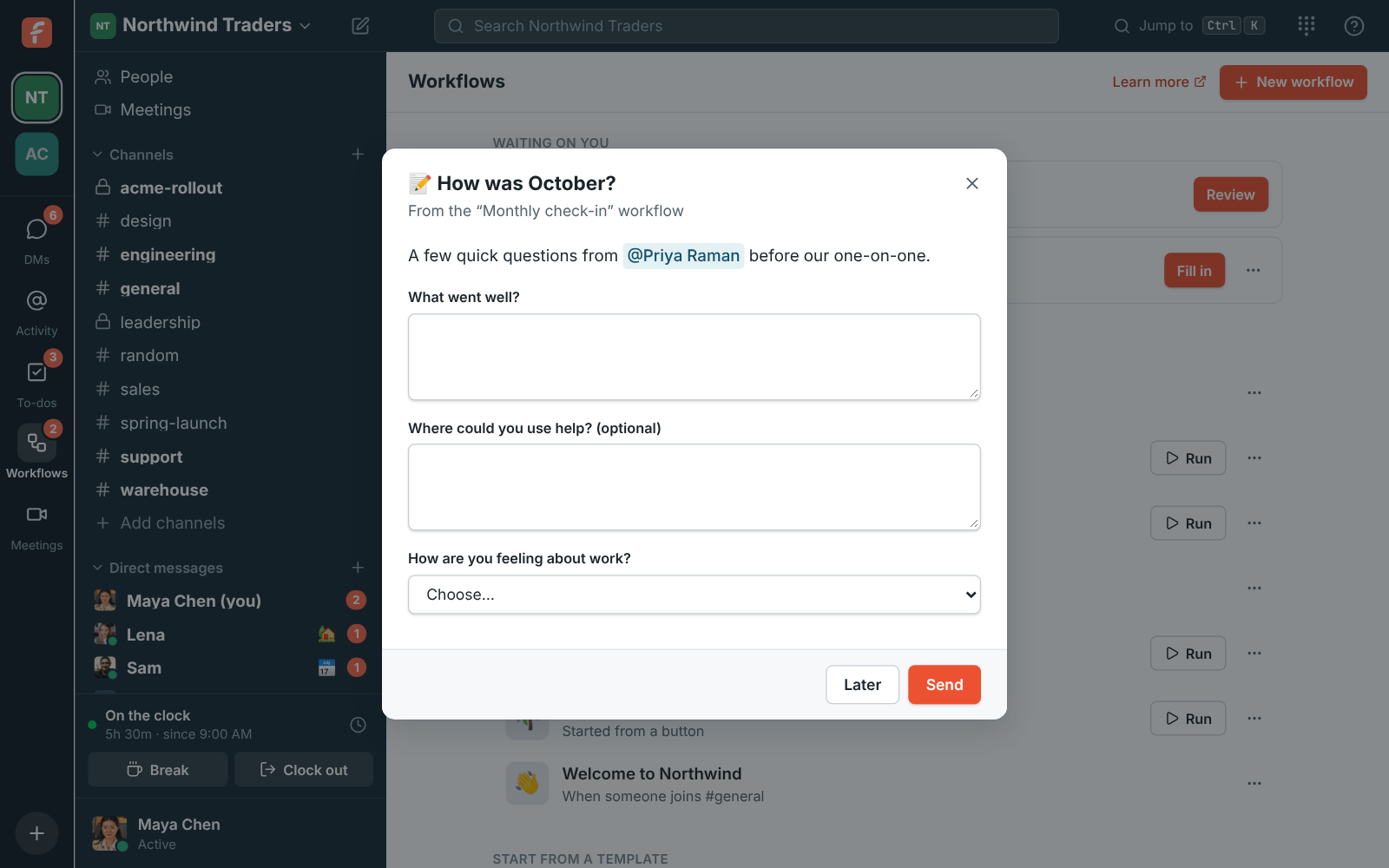
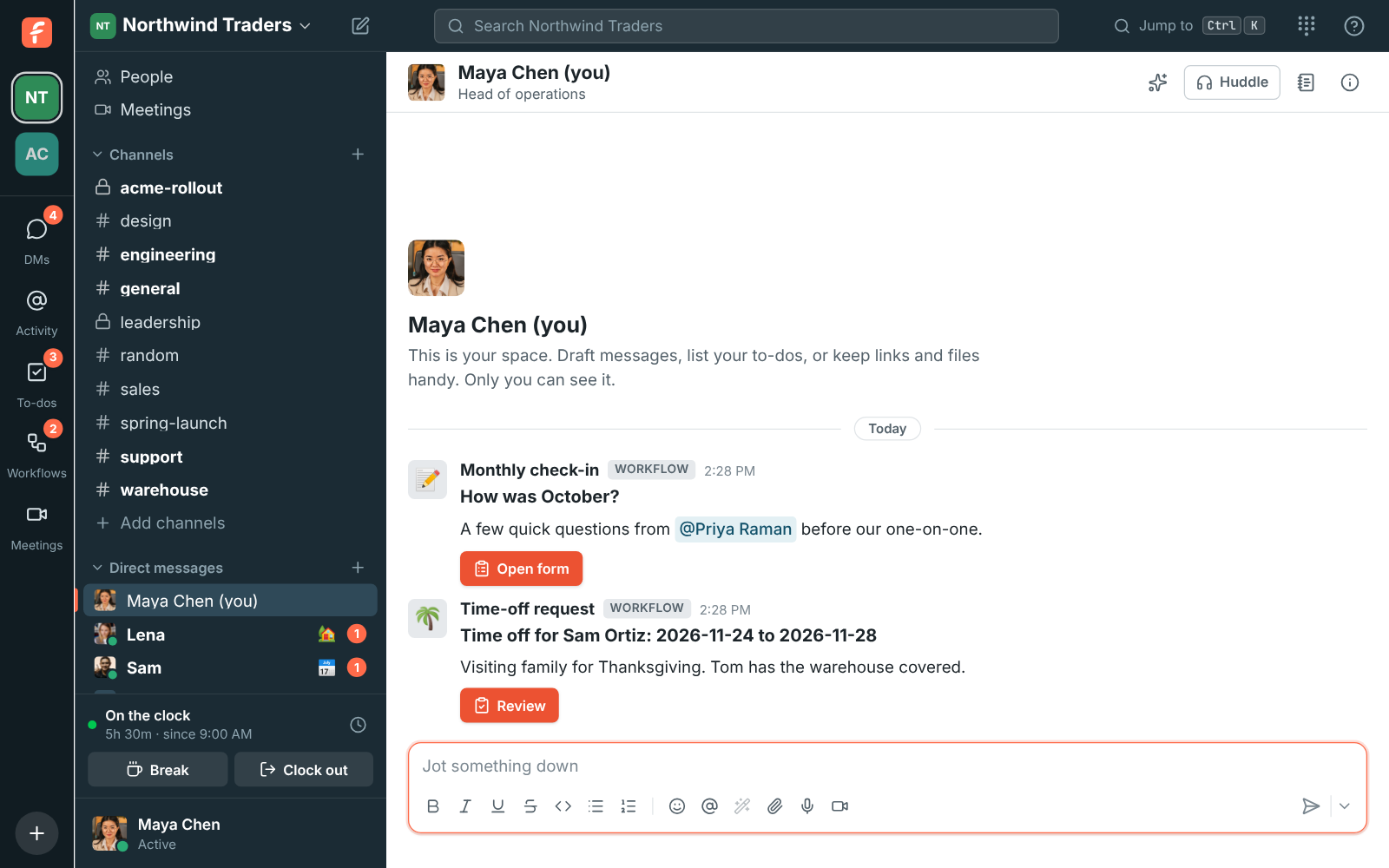
Click Later to leave a form for now. To say no to a form, use ⋯ → Close without sending on the Workflows page; the workflow that sent it stops there.
Approvals
Section titled “Approvals”An Ask for approval step sends each approver a direct message with the request and a Review button. They read it, add a comment if they like, and click Approve or Reject. It also shows under Waiting on you on the Workflows page.
- Who has to approve: up to 10 people. With Any one of them, the first answer decides. With All of them, everyone has to approve, and one rejection rejects.
- Remind them after: sends the request again to anyone who hasn’t answered.
- Stop waiting after: from 1 hour to 30 days. Then rejects it, approves it, or sends it to someone else, who gets the same choice with no time limit.
Later steps can use the result: {{a1.decision}} is Approved or Rejected, {{a1.person}}
is who decided and {{a1.comment}} is what they wrote. Most approvals are followed by an
If… otherwise… that checks the decision.
Once someone decides, the card says who approved or rejected it, so nobody answers twice.
Questions with buttons
Section titled “Questions with buttons”An Ask a question with buttons step posts a question with two to five buttons. In a channel or
a thread anyone there can answer; in a direct message only that person can. The first click
answers it, the card shows who picked what, and the workflow carries on with {{q1.choice}} and
{{q1.person}}.
If… otherwise…
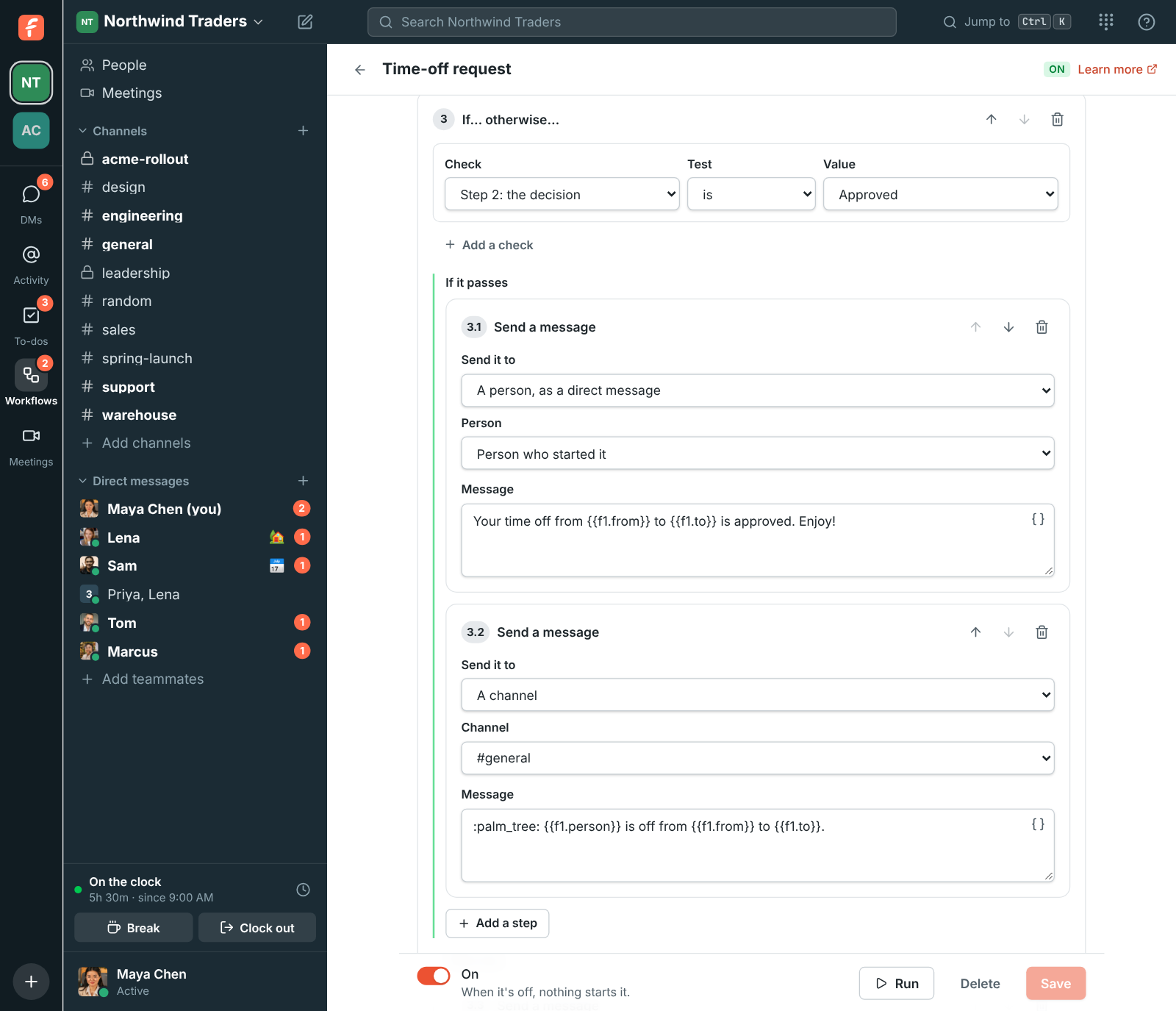
Section titled “If… otherwise…”An If… otherwise… step checks what the workflow knows so far: a form answer, a decision, a choice, who started it. Each check picks a variable, a test such as is, contains, is more than or is empty, and a value. With more than one check, pick whether every check or any check has to pass.
The steps under If it passes run when it does, and the steps under Otherwise run when it doesn’t. Then the workflow carries on after the If. Steps inside are numbered 3.1, 3.2 and so on, and an If can’t go inside another If.
Numbers and dates compare as numbers and dates, so is more than 500 works on an amount from a form. Text compares ignoring case.
Templates
Section titled “Templates”The Workflows page lists templates under Start from a template. Each one opens in the builder for you to change before you save it.
| Template | What it does |
|---|---|
| Welcome new people | Greets everyone who joins a channel and gives them a to-do. |
| Daily stand-up | Asks the channel what everyone is working on, every weekday morning. |
| IT help request | A form for reporting a problem, posted to the channel where IT can pick it up. |
| Incident kickoff | A form that collects the basics of an incident and alerts the channel. |
| Weekly reminder | Posts the same reminder in a channel every week. |
| Time-off request | A form for the dates, an approval from the manager you pick, then a message to the person and team. |
| Expense approval | A form for the amount, an approval, then a message for whoever pays it. |
| New booking alert | A message and a to-do to prepare when someone books time with you. |
| Missed call to-do | A to-do to call someone back when you miss their call. |
Start a workflow from another app
Section titled “Start a workflow from another app”Pick From a webhook as the trigger and list the Variables the other app sends, such as
order, customer, days. Save, and the builder shows the workflow’s Webhook URL.
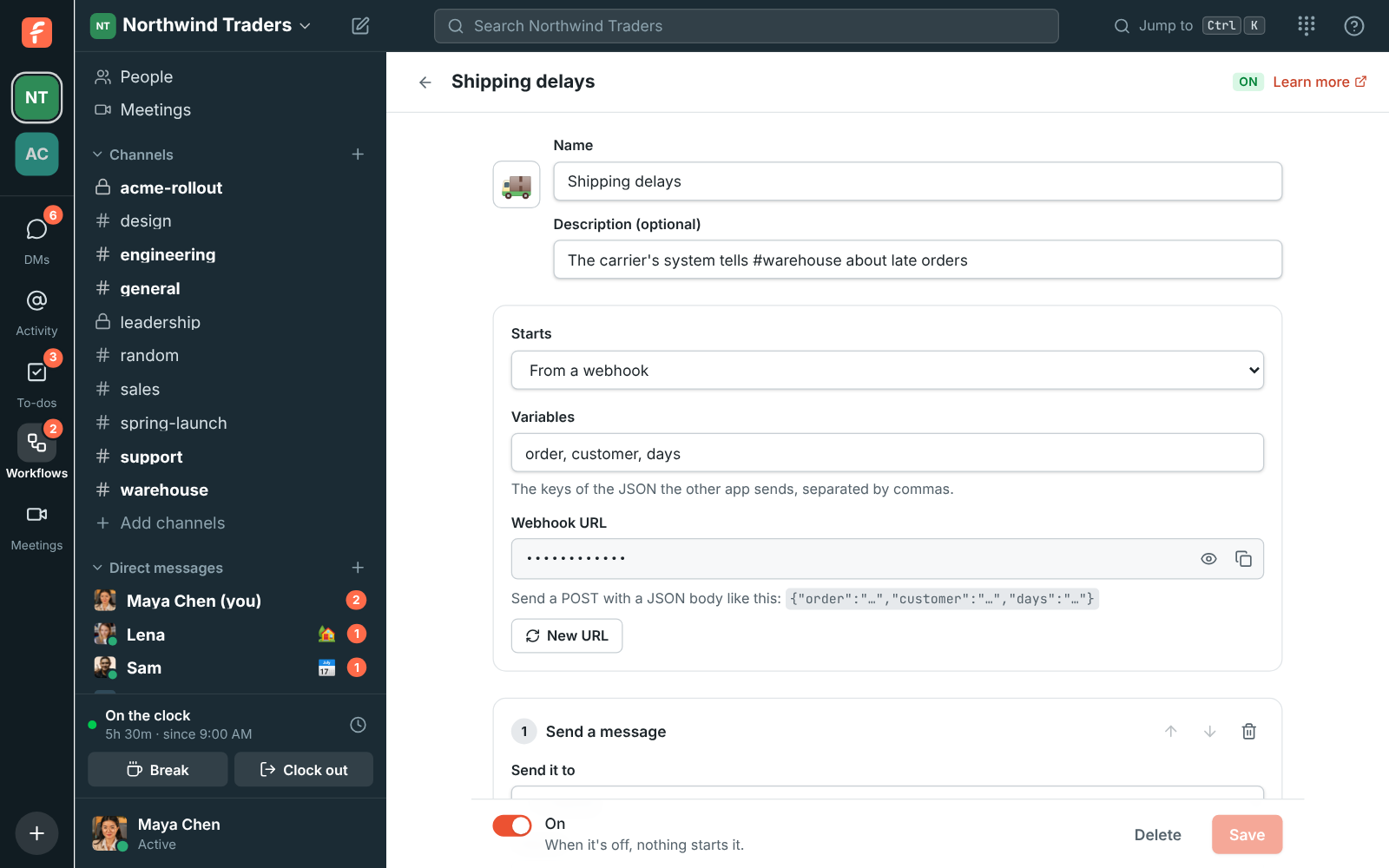
The other app sends a POST with a JSON body:
curl -X POST -H 'Content-Type: application/json' \ -d '{"order": "NW-10482", "customer": "Contoso", "days": 2}' \ https://api.freesbe.net/hooks/workflows/<token>Each variable becomes {{webhook.order}} and so on. Keys you didn’t list are ignored. Freesbe
answers {"ok": true}. Zapier, Make, n8n and most other tools can send this from a “webhook” or
“HTTP request” action. Anyone with the URL can start the workflow, so keep it secret; New URL
makes a new one and the old one stops working.
To post into a channel without any steps, an incoming webhook is simpler.
Each time a workflow starts is a run. The bottom of the builder lists the last 50, newest first. Click one to see each step: what it sent, who filled in a form, and where it stopped.
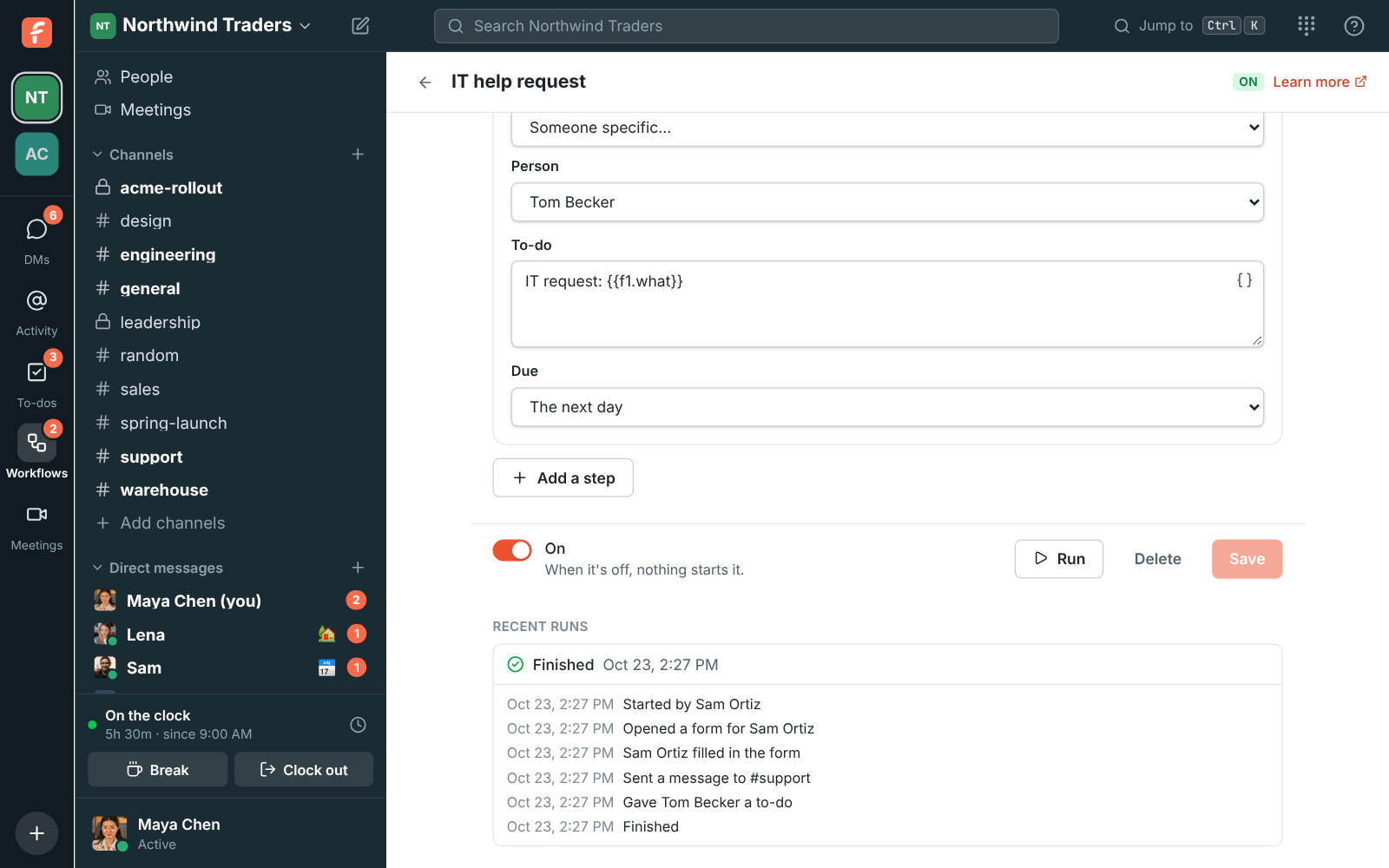
- A run that’s Waiting is waiting for a form, an approval, a question or a Wait step. Stop this run ends it.
- A run that Stopped with a problem says why, for example that a channel was archived or a person left the workspace. Fix the workflow, and the next run uses the new version. Runs already going keep the steps they started with.
- A workflow can start at most 200 runs an hour, so a loop or a flood can’t run away.
Workflows in channels
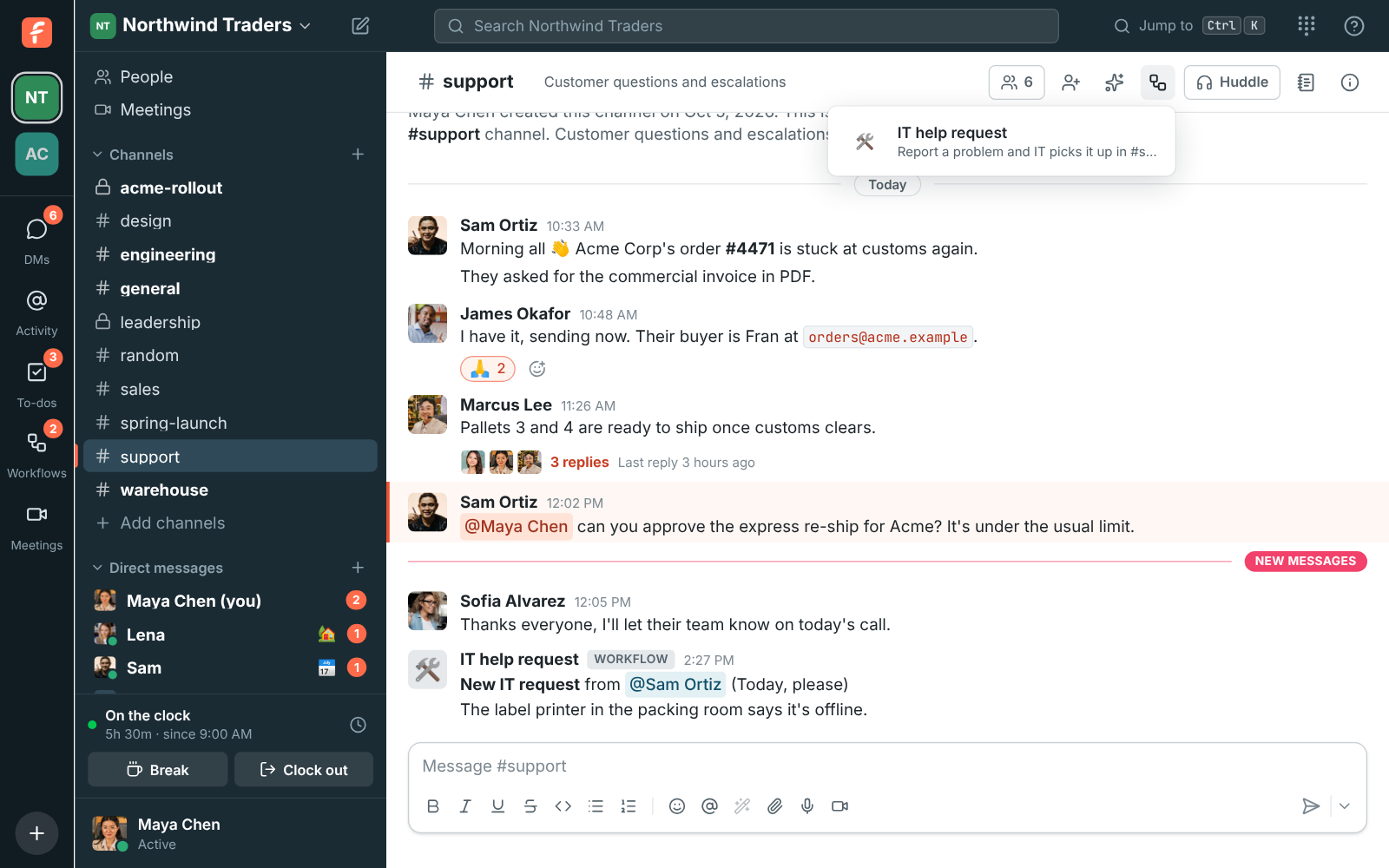
Section titled “Workflows in channels”When a workflow starts from a button, you can also show it in one channel. People in that channel find it under the Workflows button at the top, and the run knows which channel it started in.
Who can make workflows
Section titled “Who can make workflows”- Members can make workflows, and change or delete their own.
- Admins can change, turn off or delete any workflow, and see every workflow’s runs.
- Other people only see workflows that start from a button and are on, and only what starts them, not their steps.
- Guests can’t make or run workflows.
- A workflow can only use a private channel when the person who saves it is in that channel.
- Only admins can make a workflow that starts when anyone clocks in or out.
- Set a status only works on the person who started the workflow or someone it asked, never someone picked by name.
To let only admins make workflows, an admin opens Workspace settings → General → AI & workflows → Workflows and sets Who can make workflows to Only admins. Workflows members already made keep working.
Good to know
Section titled “Good to know”- Workflows run as themselves, not as the person who made them. If the maker leaves the workspace, their workflows keep running; an admin can change or delete them.
- A workflow that posts in a private channel stops with a problem if its maker is no longer in that channel.
Answers come from the Freesbe guides and are written by AI, so check the linked guide before relying on one. Please don't include personal details such as emails or passwords.