
The desktop app
The desktop app is Freesbe in its own window, with native notifications, an unread badge, a tray icon, open at login and automatic updates. It loads the same app as the browser, so new features arrive without reinstalling.
Download it from freesbe.net/download, which puts your computer’s version first. The desktop app is in beta: each download is marked Beta because the builds aren’t signed yet, so your computer asks you to confirm the first time (the steps are below). The same page lists the iPhone and Android apps as Coming soon.
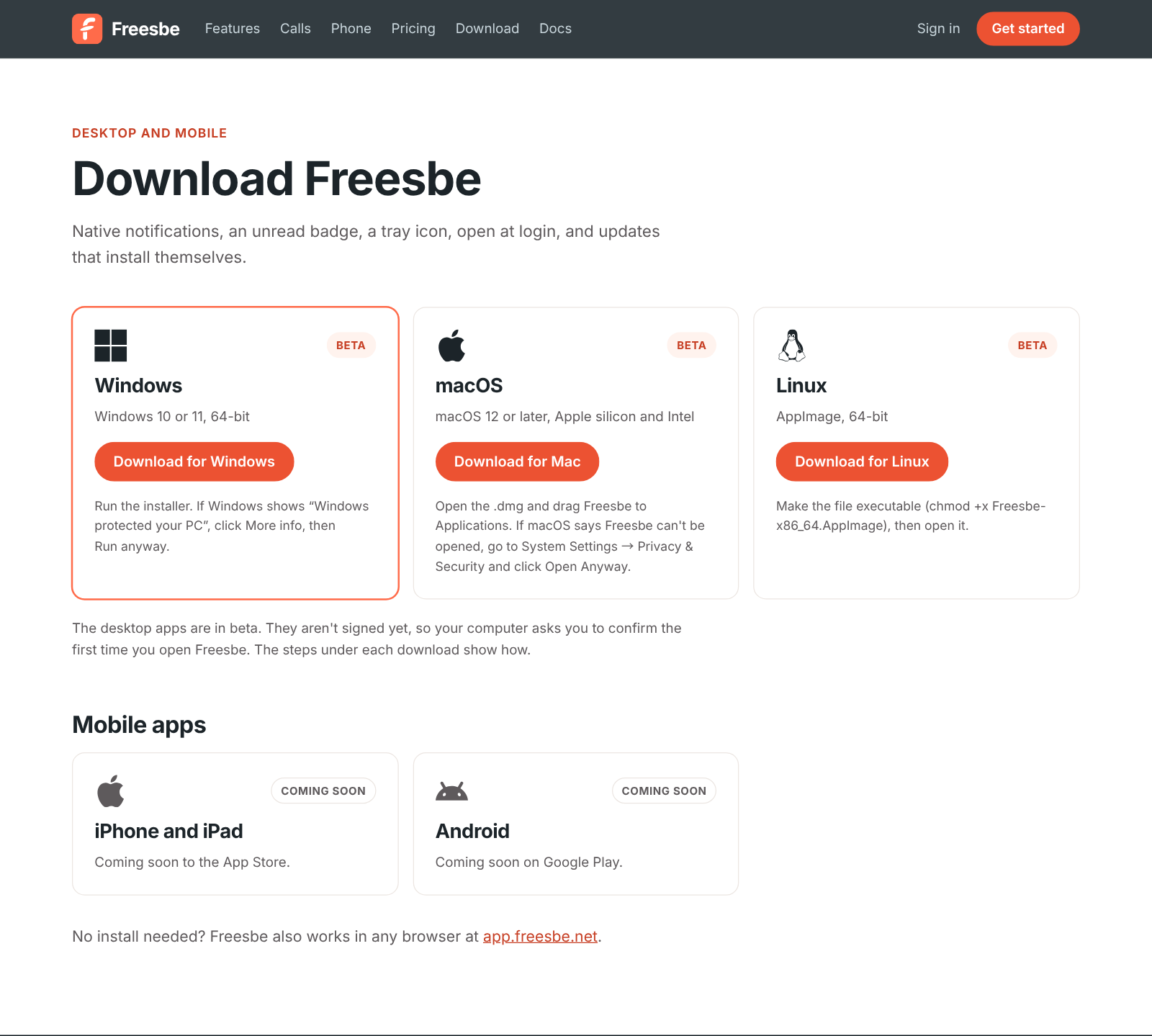
You can also get it from inside Freesbe:
- Invite emails link straight to the Mac, Windows and Linux downloads.
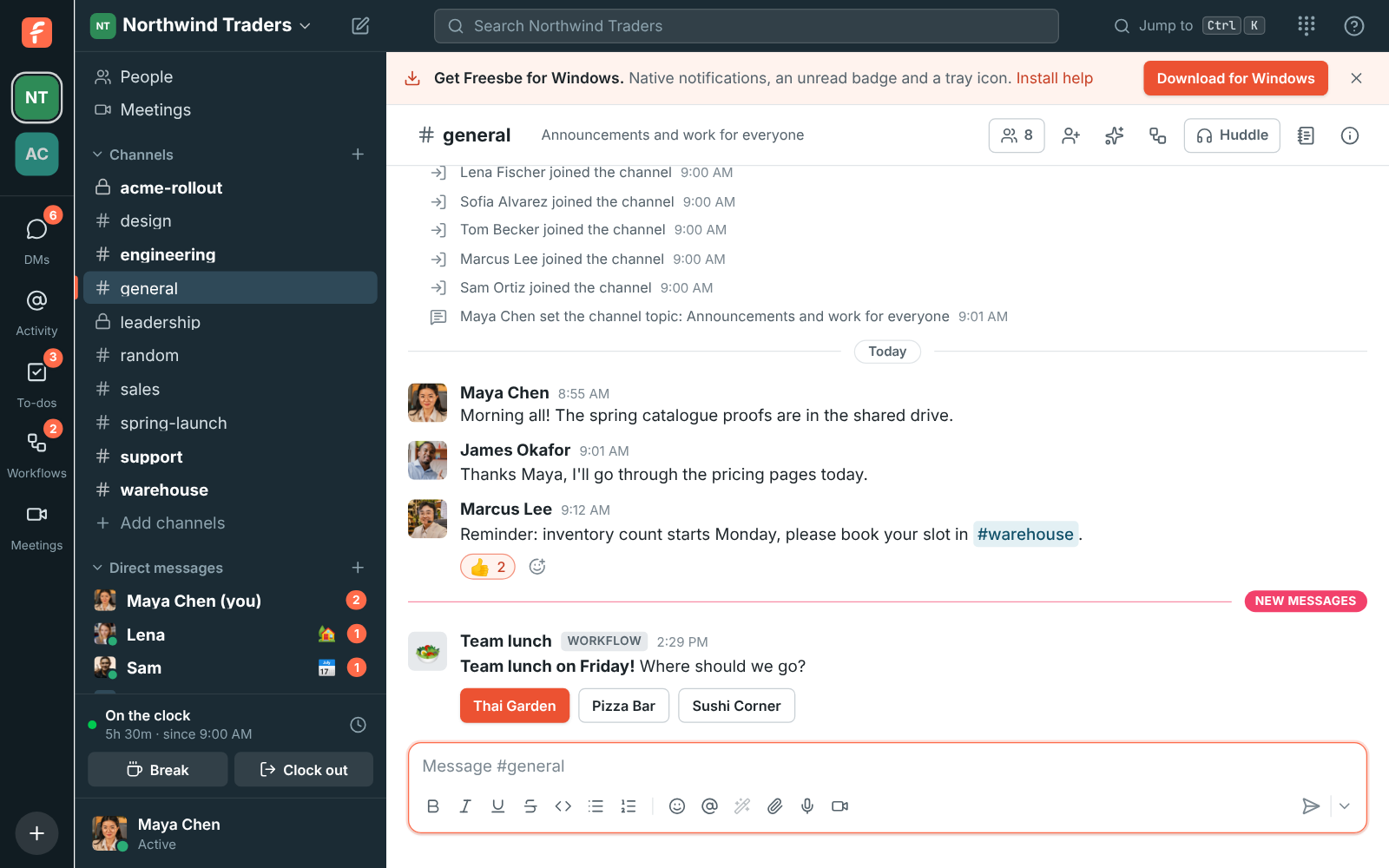
- In the browser, a banner at the top offers Download for … your computer, with a link to these install steps. Click × to hide it for good; it also goes away once you’ve used the desktop app. It waits until you’ve answered the notifications banner, and doesn’t show on phones or tablets.
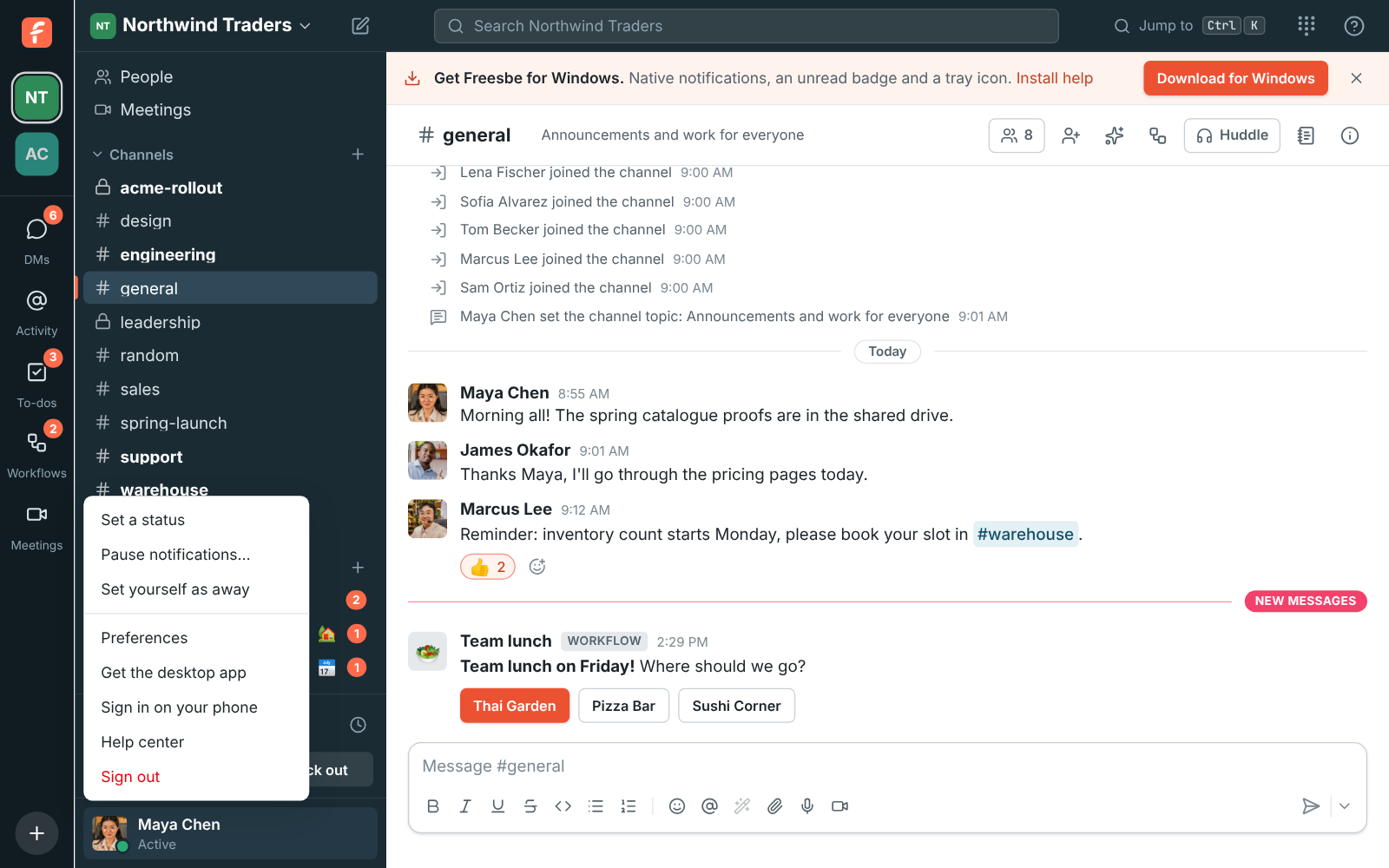
- Your account menu (your name at the bottom of the sidebar) has Get the desktop app at any time.
| System | Requirements | File |
|---|---|---|
| macOS | macOS 12 or later, Apple silicon or Intel | Freesbe-mac.dmg |
| Windows | Windows 10 or 11, 64-bit | Freesbe-Setup.exe |
| Linux | 64-bit, AppImage | Freesbe-x86_64.AppImage |
Install on macOS
Section titled “Install on macOS”The Mac app isn’t signed by Apple yet, so macOS warns you the first time.
- Open
Freesbe-mac.dmgand drag Freesbe to Applications. - Open Freesbe from Applications. macOS says it can’t be opened (or can’t check it for malicious software). Click Done or OK.
- Open System Settings → Privacy & Security, scroll to the message about Freesbe and click Open Anyway. Confirm with your password or Touch ID.
- Freesbe opens. You only need to do this once.
Because the Mac app is unsigned, it can’t update itself. When a new version is out, it offers to
open the download page; download the new .dmg and drag Freesbe to Applications again,
replacing the old one.
Install on Windows
Section titled “Install on Windows”- Run
Freesbe-Setup.exe. - If Windows shows Windows protected your PC, click More info, then Run anyway. This appears once, because the installer isn’t signed yet.
- Freesbe installs and opens. It updates itself from then on.
Install on Linux
Section titled “Install on Linux”- Download
Freesbe-x86_64.AppImage. - Make it executable:
chmod +x Freesbe-x86_64.AppImage(or tick Allow executing file as program in its properties). - Open it.
Pin Freesbe to the taskbar or Dock
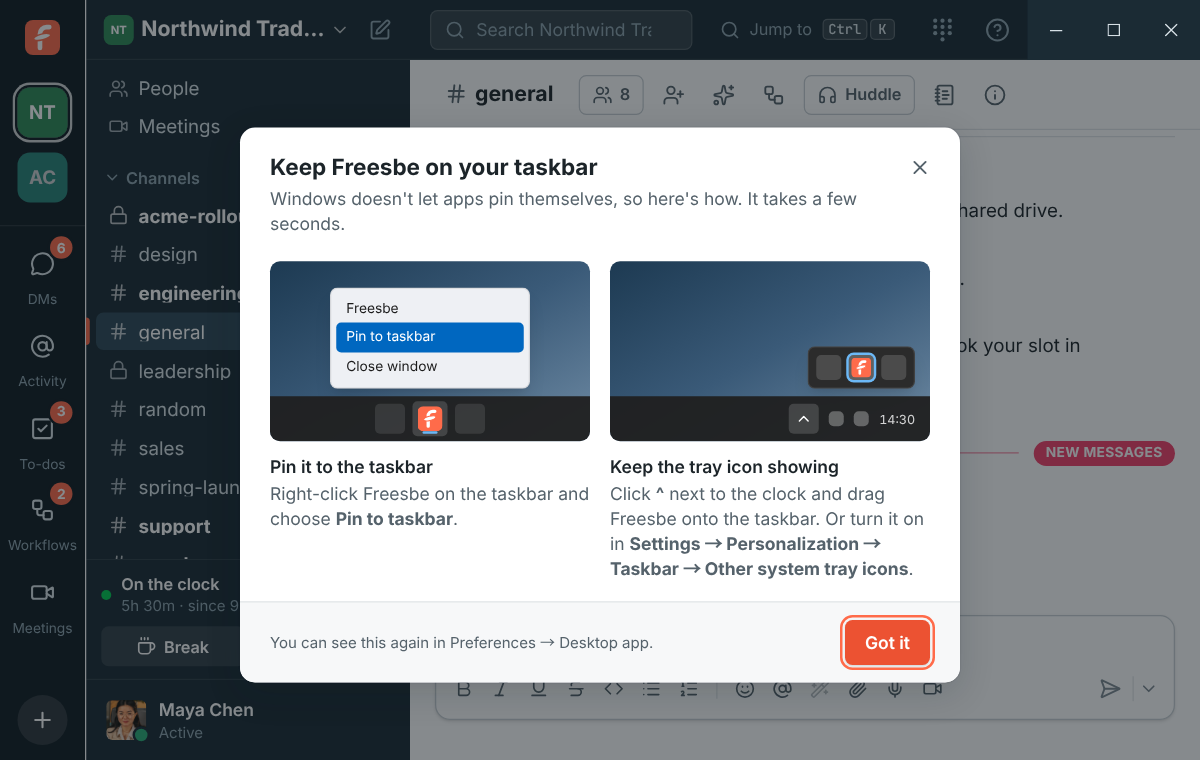
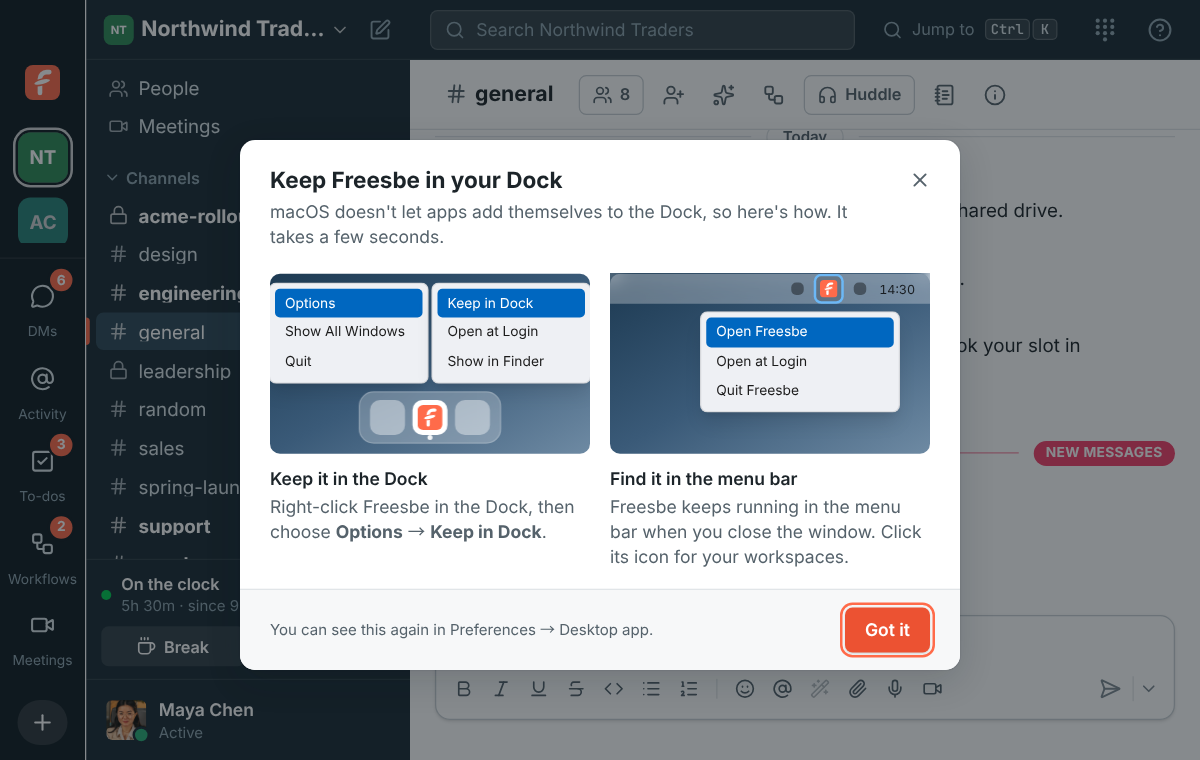
Section titled “Pin Freesbe to the taskbar or Dock”Windows and macOS don’t let an app pin itself, so the first time Freesbe opens on your computer it shows you how. Click Got it when you’re done; it won’t show again on that computer. To see it again, open Preferences → Appearance → Desktop app and click Show me how.
The installer already adds Freesbe to the Start menu and the desktop on Windows.
On Windows:
- Right-click Freesbe’s button on the taskbar and choose Pin to taskbar.
- Keep the tray icon showing: click the ^ arrow next to the clock and drag the Freesbe icon onto the taskbar. Or turn Freesbe on in Settings → Personalization → Taskbar → Other system tray icons (on Windows 10, Select which icons appear on the taskbar).
On a Mac:
- Right-click (or Control-click) Freesbe in the Dock and choose Options → Keep in Dock.
- Freesbe’s icon in the menu bar at the top of the screen stays there when you close the window. Click it for your workspaces.
Sign in
Section titled “Sign in”The app opens app.freesbe.net. Sign in with your email and password or a sign-in code right in the app. For Google, Microsoft or a passkey, the app opens your browser; sign in there, then click the button to go back to the app. See Sign-in and security.
If your company runs its own Freesbe server, choose Change Server… in the tray menu (or File → Change Server… on a Mac) and enter its address. The app remembers it.
The window
Section titled “The window”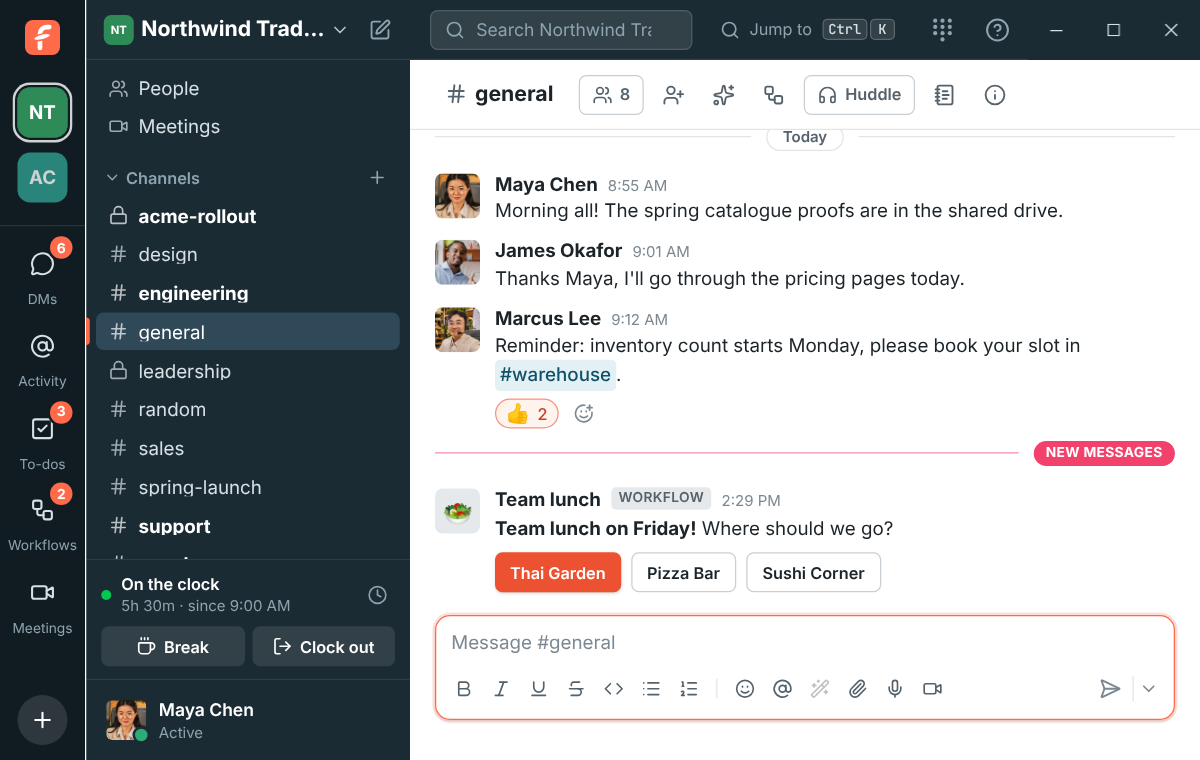
The app has no separate title bar. Its dark bar along the top, with search and Jump to, is the title bar: drag it to move the window, and double-click it to maximize. The minimize, maximize and close buttons sit at its right end on Windows and Linux, and the traffic lights at the top left on a Mac.
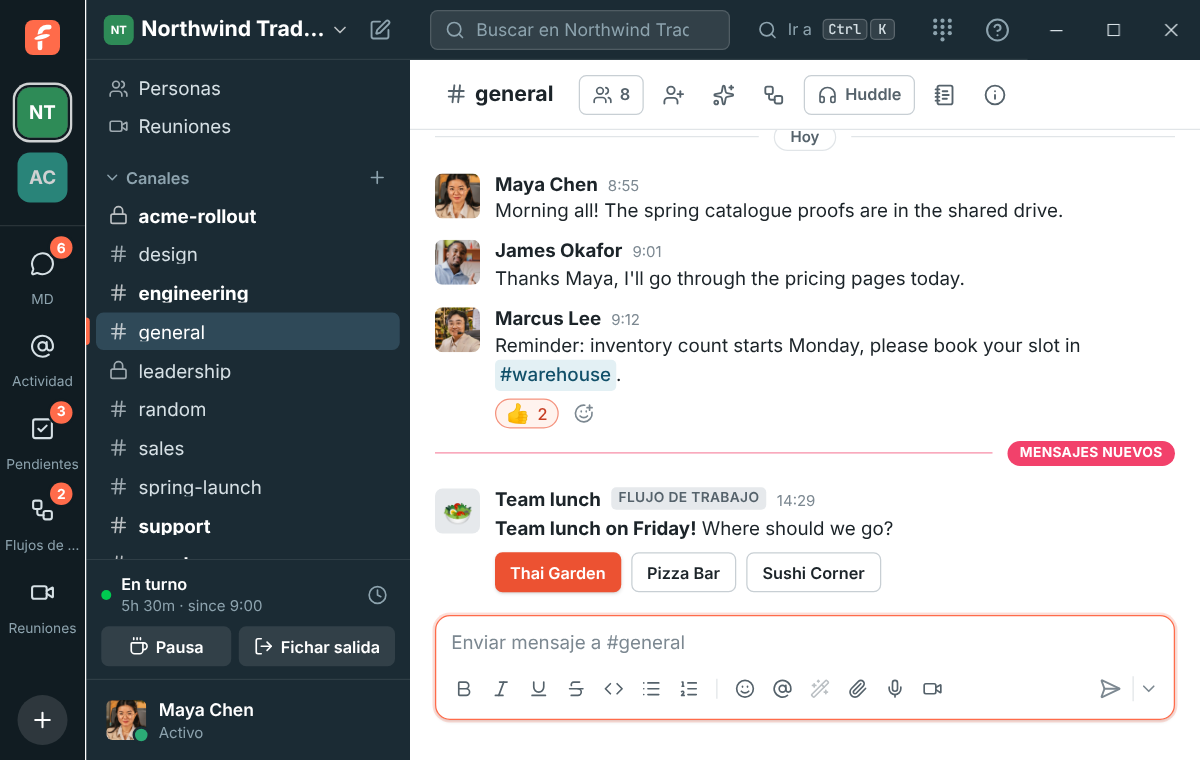
In Hebrew and Arabic the app is laid out right to left, but the window buttons stay where your computer puts them. On Windows and Linux the workspace rail starts just below them and the sidebar is a little wider, so the workspace name keeps its full room.
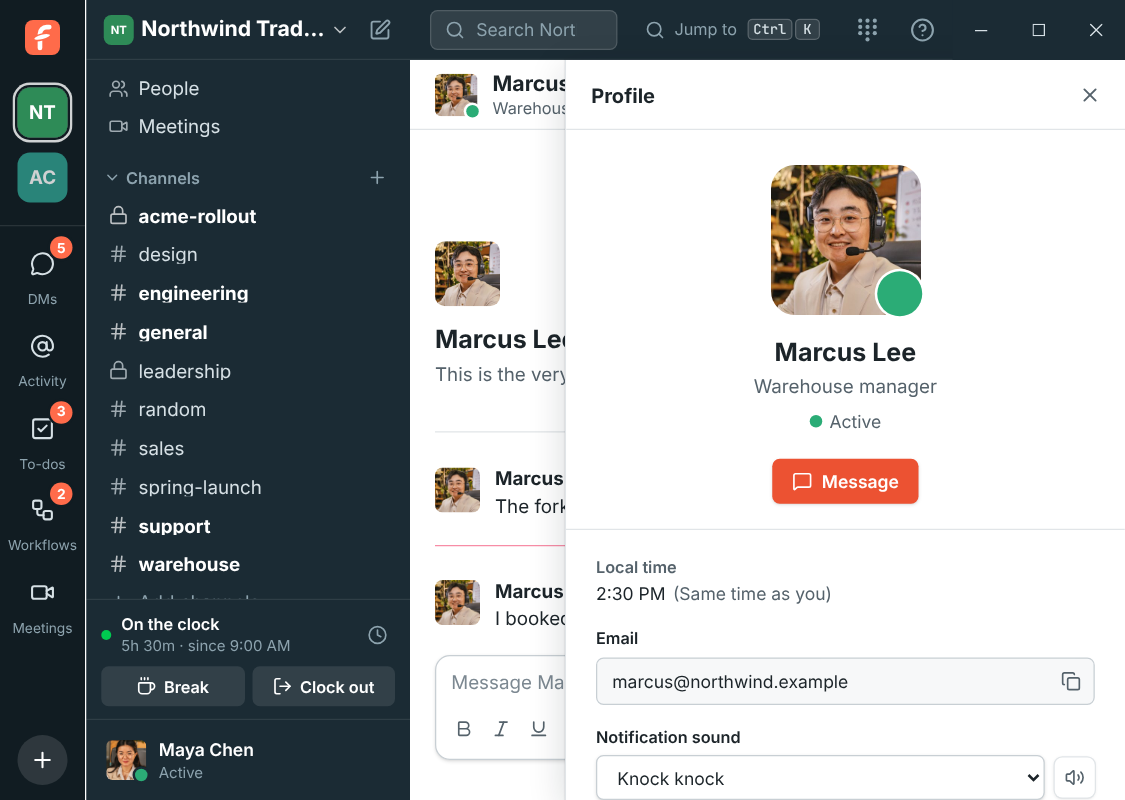
In a narrow window, a profile, channel details, a thread or search results open over the conversation, just below that bar, so their own close button (✕) never sits under the window buttons. Press Esc to close them too.
Dialogs open below that bar too. A picture you open full size keeps its Copy, Download and Close buttons in a bar at the bottom, well away from the window’s close button, so closing a picture never closes the app. Press Esc or click beside the picture to close it.
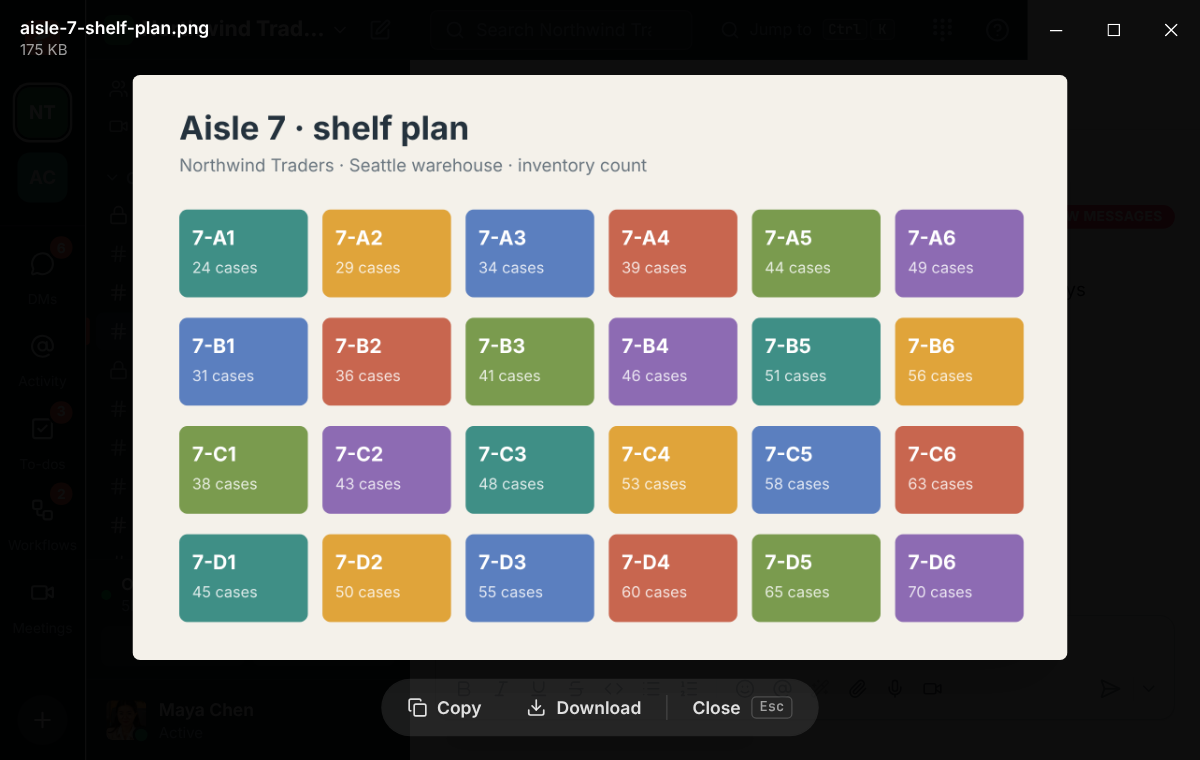
Right-click any picture for Copy Image, Save Image As… and Copy Image Address (desktop app 0.1.5 and later). Copy Image puts the picture itself on the clipboard, ready to paste into another app.
Zoom in and out
Section titled “Zoom in and out”Make everything in Freesbe bigger or smaller, the way you would in a browser or other chat apps:
- Ctrl++ (⌘++ on a Mac) zooms in. Ctrl+= works too, so you don’t need Shift.
- Ctrl+- (⌘+-) zooms out.
- Ctrl+0 (⌘+0) goes back to actual size.
- Hold Ctrl (⌘ on a Mac) and scroll the mouse wheel.
The levels go from 67% to 200%. A message at the bottom says the new level, with Reset to go back to 100%. Freesbe remembers the level, so it opens the same size next time. The window buttons and the bar along the top grow and shrink with everything else.
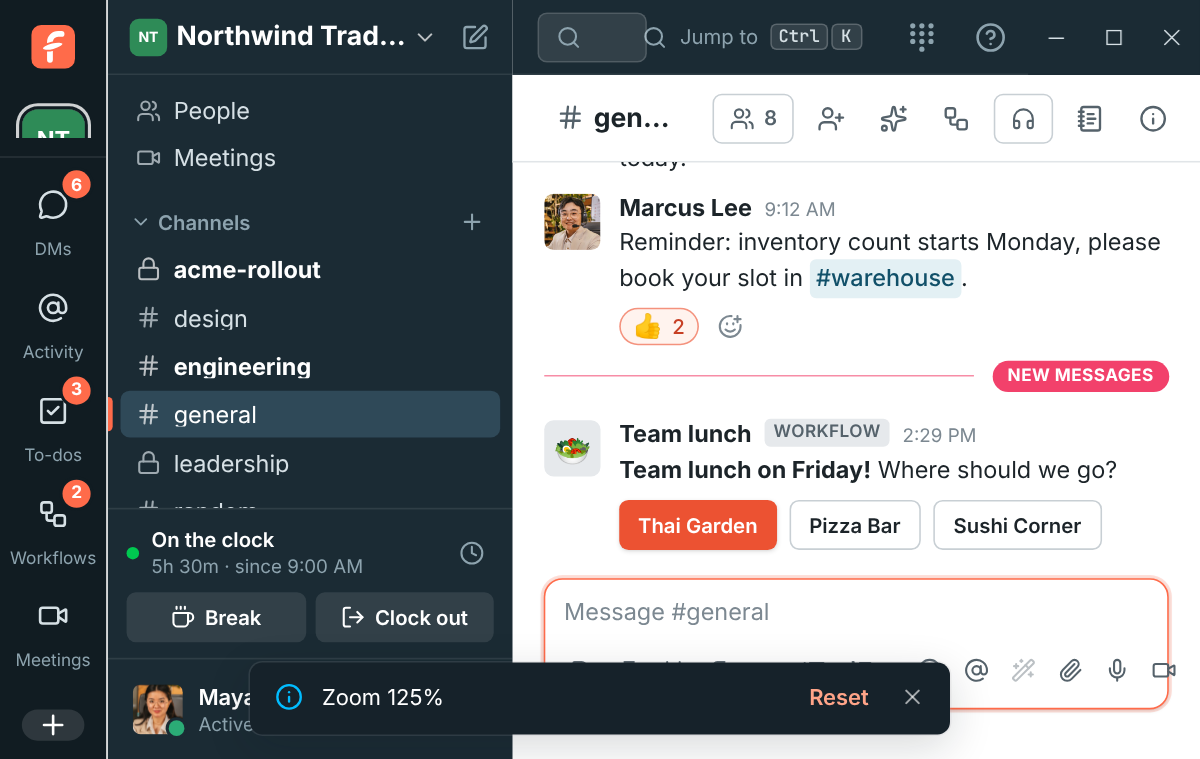
You can also pick the level in Preferences → Appearance → Desktop app → Zoom, or use View → Zoom In, Zoom Out and Actual Size in the menu bar on a Mac.
Ctrl+R (⌘+R) or F5 reloads the app. If you’re in a huddle or something is still uploading, Freesbe asks first.
Zoom needs version 0.1.5 of the desktop app or later. In a browser, use the browser’s own zoom.
Go back
Section titled “Go back”The app has no Back button, but you can still go back a page, as in a browser:
- Alt+← on Windows and Linux, ⌘+[ on a Mac.
- The back button on the side of your mouse, or a swipe to the right with three fingers on a Mac trackpad (when Swipe between pages is set to three fingers in your Mac’s settings).
- Alt+→ (⌘+]) goes forward again.
That helps when a link opened a page that fills the window, like a meeting that’s already over. Those pages also have Back to Freesbe. Going back needs the desktop app version after 0.1.9.
What the app adds
Section titled “What the app adds”- Notifications for DMs, mentions and thread replies, even with the window closed.
- An unread badge on the dock or taskbar icon.
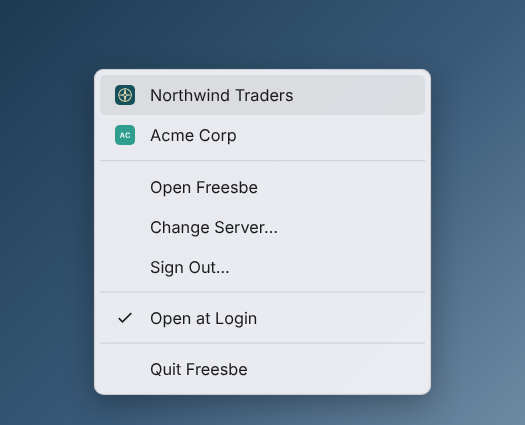
- A tray icon (the menu bar on a Mac). Right-click it (click on a Mac) for your workspaces, Open Freesbe, the punch clock, Sign In or Sign Out…, Open at Login, Check for Updates… and Quit Freesbe. See below. It, and the window icon on Windows and Linux, switch to a holiday version for Thanksgiving, Hanukkah, Christmas, Ramadan and Eid (version 0.1.5 and later).
- Workspaces and shortcuts on the taskbar or dock icon. See below.
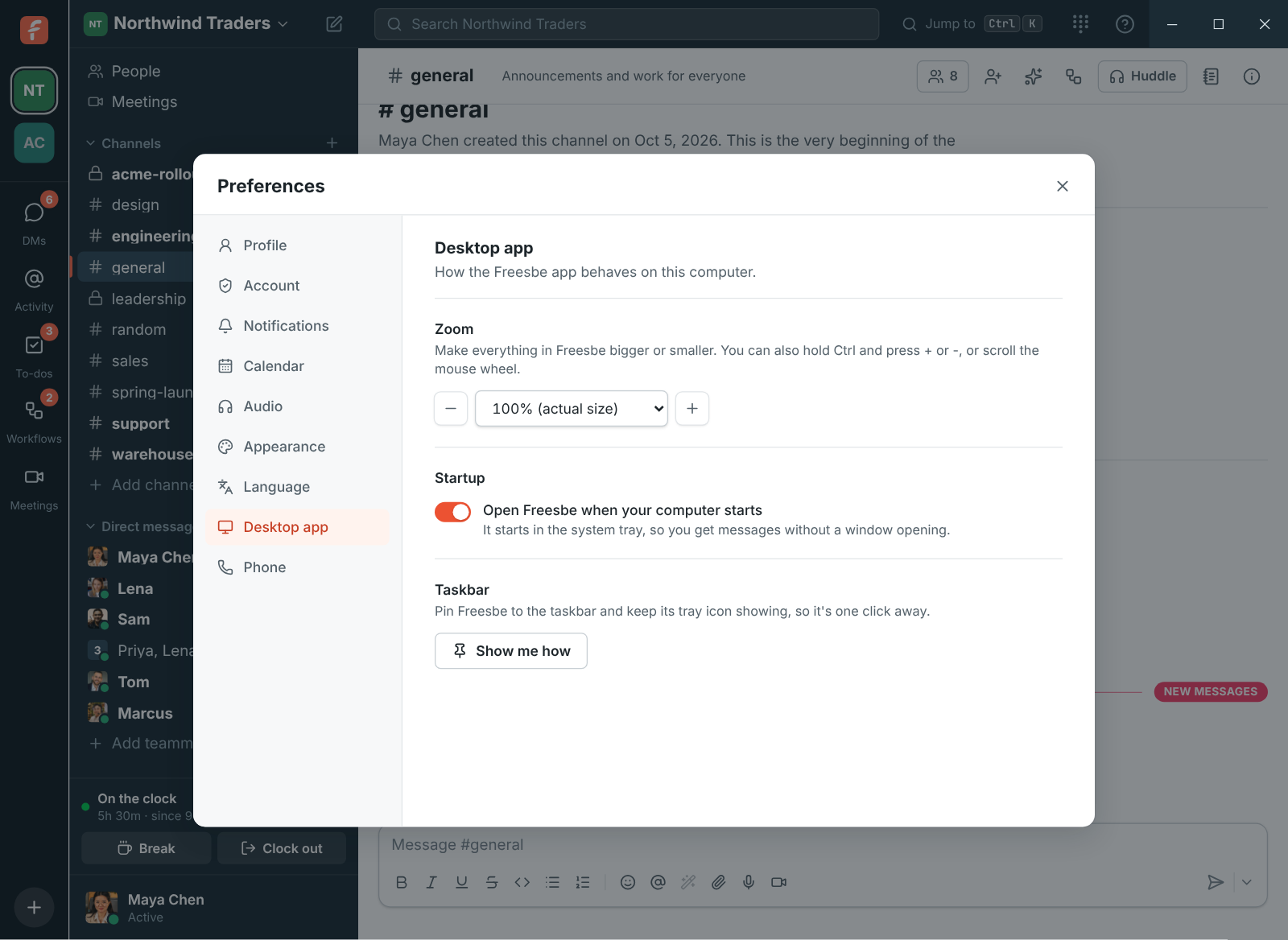
- Open at login, starting quietly in the tray. Turn it on in the tray menu or in Preferences → Appearance → Desktop app.
- Closing the window keeps Freesbe running in the tray, like other chat apps. Use Quit Freesbe to really quit.
freesbe://links that open straight in the app, and meeting links that go to the app instead of your browser (see Open links in the app).- A floating call window that opens on its own and stays on top of other apps when you minimize or hide Freesbe during a huddle or meeting, with the call’s controls and messages. See Keep the call in view.
- Meetings in a window of their own: Undock at the top of a meeting moves it to its own window beside Freesbe’s, and Dock brings it back. Needs version 0.1.12. See Undock the meeting into its own window.
- Pictures of each screen and window to share, so you know which is which before you share. See Choose what to share.
- A frame around what you share, so you always know what others see. See below.
- Remote control: let someone in a huddle control your shared screen to help you, after you allow it. Only the desktop app can be controlled.
Choose what to share
Section titled “Choose what to share”When you click Share screen in a huddle or meeting, the app shows a small picture of each of your screens and open windows, so you can tell your screens apart before anyone sees them.
- Click a screen or window, then Share. Double-clicking shares it straight away.
- Cancel, Esc or closing the picker shares nothing.
- With more than one screen, they’re numbered from left to right, the way they’re arranged in your computer’s display settings.
- On a Mac, the pictures stay blank until Freesbe is allowed to record the screen. The picker then says so, and Open System Settings takes you to Screen & System Audio Recording.
See what you’re sharing
Section titled “See what you’re sharing”When you share your screen or a window in a huddle or meeting, the app puts a coral frame around what everyone sees, and a You’re sharing bar at the top of the screen.
- Stop sharing on the bar stops it, the same as clicking Share screen again in the call. Drag the bar by its background if it’s in your way.
- Clicks go through the frame to whatever is underneath.
- On Windows, the frame and the bar are left out of what others see and of recordings. On macOS and Linux the system may still capture them, so others can see the frame’s edge too.
- When people in the call draw on your screen, their lines show on your screen itself, inside the frame, and fade away like theirs do. Your clicks still go through to your apps. Needs desktop app 0.1.11 or later; on macOS and Linux others may briefly see a line twice when the system captures it.
- A whole screen gets the frame around its edges. With more than one screen, it’s on the one you share.
- A window gets the frame around it on Windows, and the frame follows the window when you move or resize it, and hides while it’s minimized. When another app is in front of the shared window, it covers the frame too, so the frame never sits over what you’re working on. On macOS and Linux a shared window gets the bar, which names the window, but no frame.
- In a web browser, Freesbe can’t draw outside its own page, so there’s no frame. The browser shows its own sharing bar instead, with a Stop sharing button.
Open links in the app
Section titled “Open links in the app”Links like meet.freesbe.net/abc-defg-hij are ordinary web links, so your computer opens them in your
browser. Freesbe then passes them on to the desktop app, like Zoom does. A meeting link, an invite
or a link to a message that you open in the browser shows Opening Freesbe… and asks the
computer to open it in the app. If your browser asks first, allow it to open Freesbe.
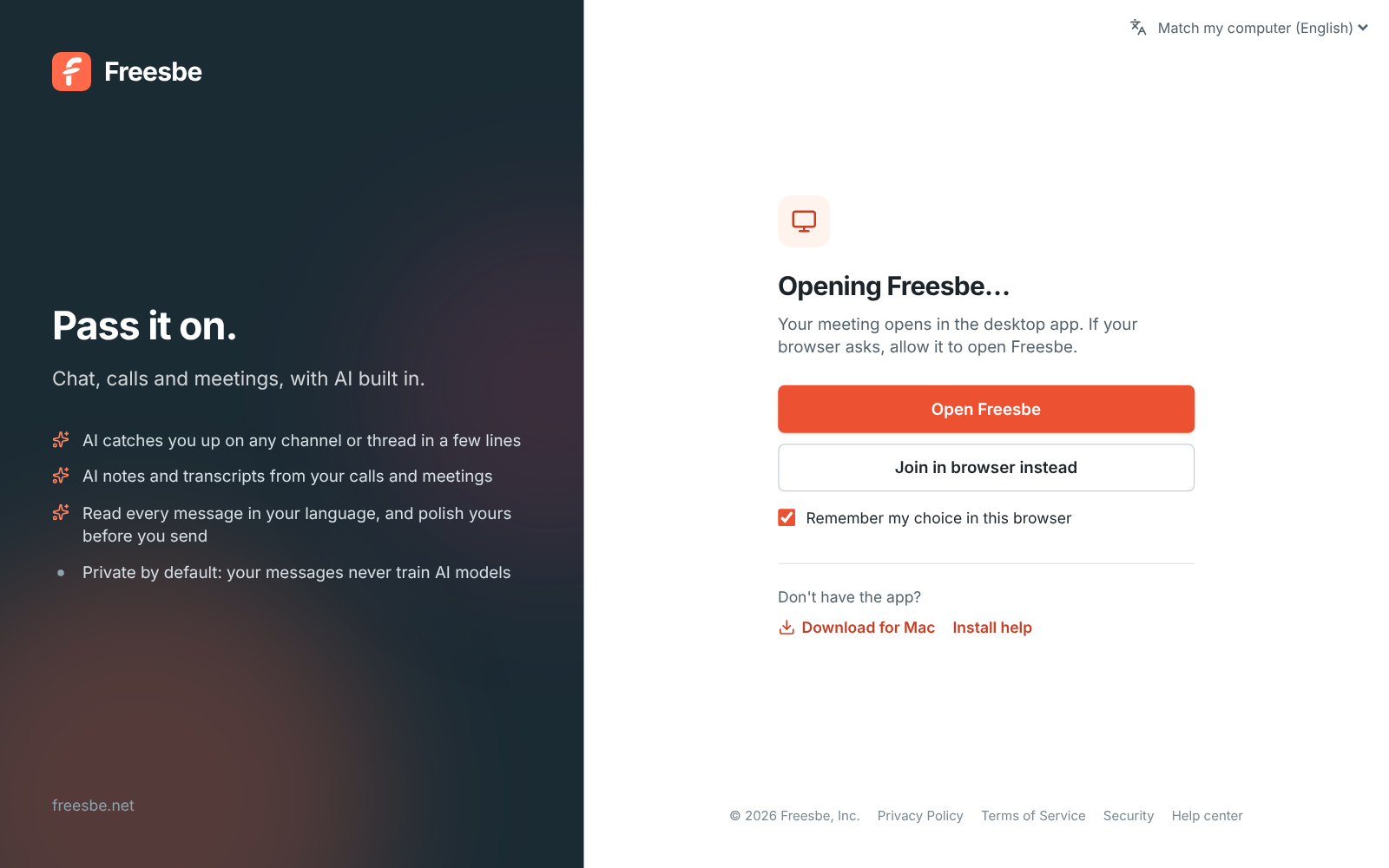
- Join in browser instead (or Continue in browser for other links) stays in the browser.
- Don’t have the app? links to the download for your computer.
- Remember my choice in this browser is on to start with: next time the browser goes to the app, or stays put, without asking.
The browser does this once it has seen you use the desktop app, or once you choose Open in desktop app on a meeting page. Guests, and anyone on a phone or tablet, stay on the web page. Reloading a page doesn’t send it to the app again.
To change your choice, open Preferences → Appearance → Desktop app in the browser and turn Open Freesbe links in the desktop app on or off.
Links to Freesbe that you click inside the app, such as a meeting link someone shared in a channel or DM, open right there in the window, without going through the browser. That includes meeting links on your company’s own domain.
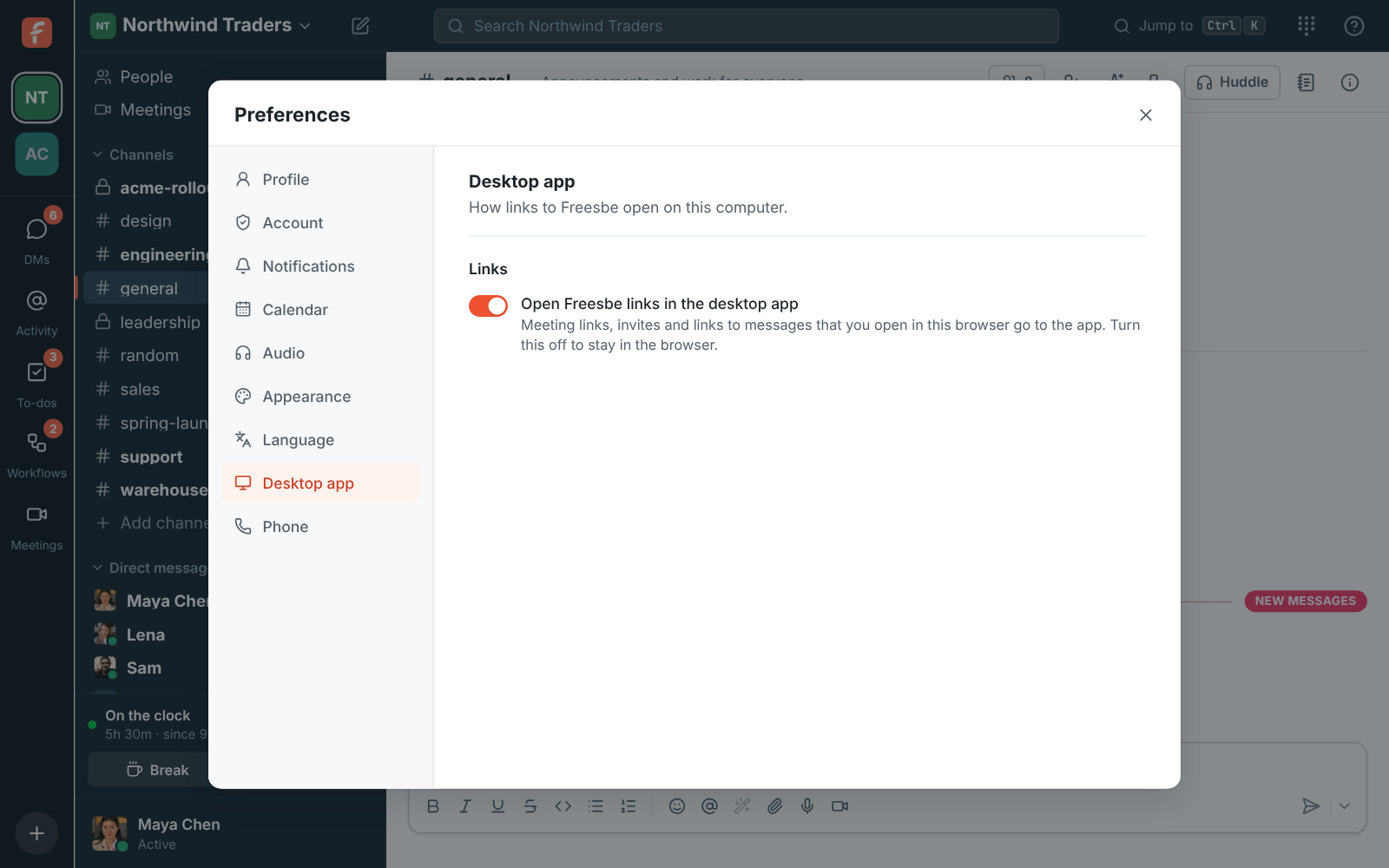
Inside Freesbe, in the app or a browser, a link to a Freesbe meeting, conversation or message that someone posted opens right there instead of in a new browser window.
Taskbar and dock menu
Section titled “Taskbar and dock menu”Right-click Freesbe’s button on the Windows taskbar, or its icon in the Mac dock, to get:
- Workspaces: each of your workspaces, with its logo (or its initials on a coloured tile when it has none). Pick one to switch to it, even if the window is closed.
- New Message opens a new direct message.
- Set Status opens the status dialog.
- Sign Out (it asks first), or Sign In when you’re signed out.
On Windows, pin Freesbe to the taskbar to keep these there while the app isn’t running. Right-click a workspace in the list and choose Remove from this list if you don’t want it there.
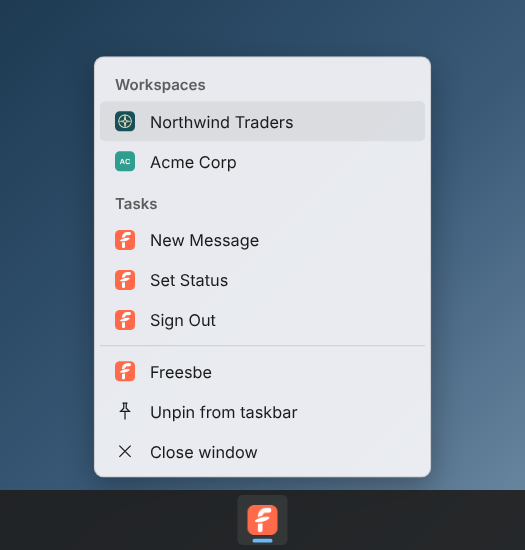
When a workspace admin changes the logo, the menu picks it up the next time the app loads it.
Tray menu
Section titled “Tray menu”The tray icon’s menu (the menu bar icon on a Mac) starts with the same workspaces and logos, so you can jump straight to one from there too.
Open at login
Section titled “Open at login”A new install of Freesbe on macOS or Windows opens whenever you sign in to your computer. It starts quietly in the tray (the menu bar on a Mac) and keeps you signed in, so messages and calls reach you without a window opening. Turn it off or on in Preferences → Appearance → Desktop app, or with Open at Login in the tray menu. Linux desktops have their own autostart settings instead. The same page has Show me how for pinning Freesbe.
If you also have Freesbe open in a browser, both keep working and only one alerts you. A browser tab on your computer shows Open in desktop app while the app is running. A browser on your phone or tablet doesn’t, since the desktop app can’t open there.
Updates
Section titled “Updates”Most of Freesbe updates without a new download: the app inside the window is the same one the browser loads, and it’s updated whenever Freesbe is. When a new version goes live, you see Freesbe has been updated and the window reloads into it after ten seconds. The browser does the same.
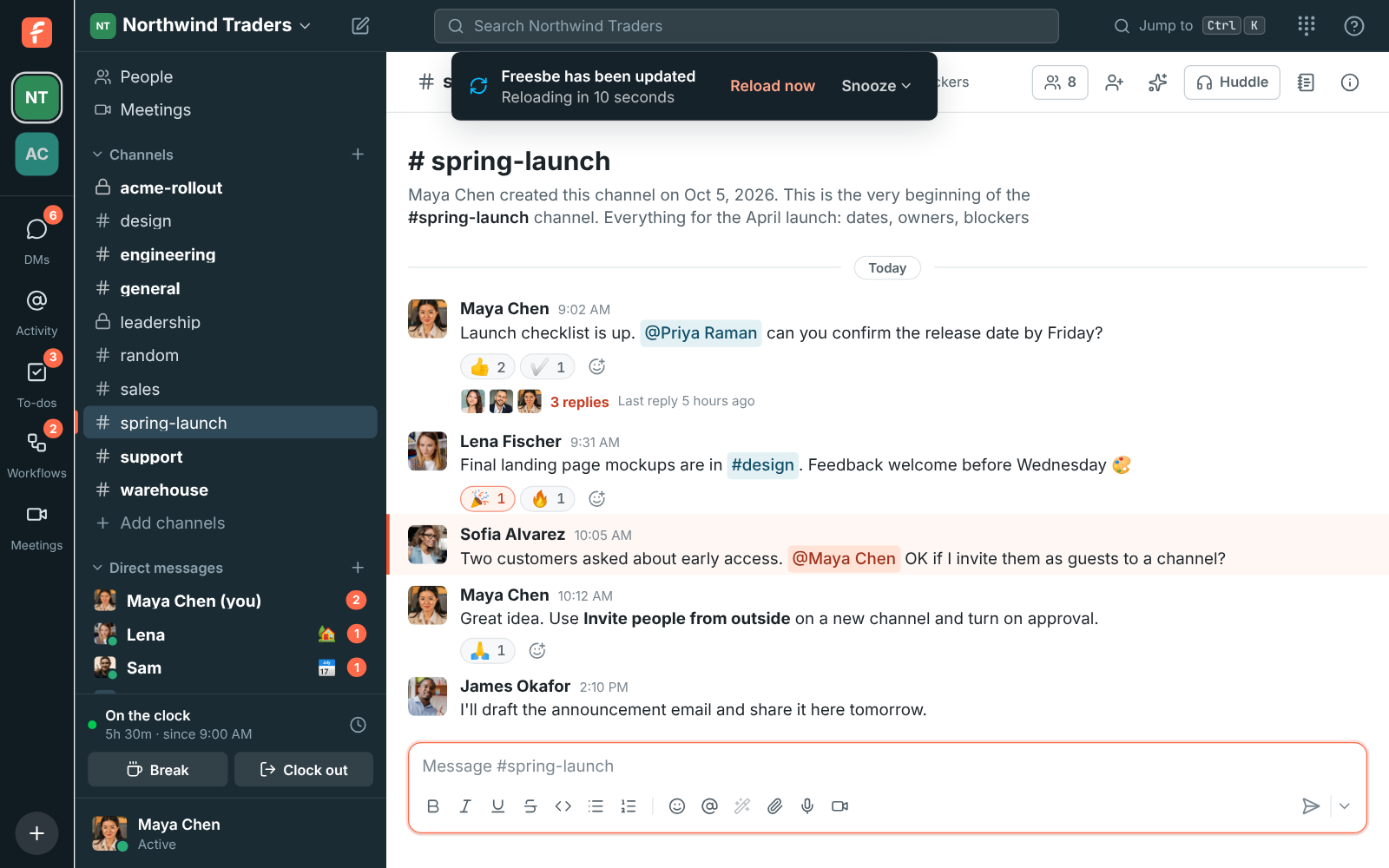
- Reload now reloads straight away. Snooze waits 15 minutes, an hour or four hours, then the notice comes back.
- It waits while you’re in a huddle or a meeting, while a file uploads or a recording saves, and while you’re typing, then starts counting once you’re done. Messages you’d typed but not sent are still there after the reload.
- A window you’ve closed to the tray, or a browser tab in the background, reloads without the notice, since nobody is looking at it.
- Your workspace may also be asked to reload by Freesbe’s team, such as after an urgent fix. It works the same way.
The desktop app itself (the window, tray and menus) updates separately. On Windows and Linux, it checks for a new version when it starts and every four hours and downloads it in the background. When it finds one just after starting, it installs it and reopens right away (from version 0.1.5; not during a call). Later on, it asks you to Restart Now or Later (it installs when you quit). Choose Check for Updates… in the tray menu to check right away.
Permissions on macOS
Section titled “Permissions on macOS”For calls, allow Freesbe under System Settings → Privacy & Security:
- Microphone for huddles and meetings.
- Camera for video.
- Screen & System Audio Recording to share your screen. macOS asks you to quit and reopen Freesbe after allowing it.
- Accessibility to let someone control your screen. Freesbe asks the first time someone requests control.
Freesbe doesn’t need Local Network. Calls always go through Freesbe’s servers, never straight between computers, so from version 0.1.11 macOS no longer asks whether Freesbe can find devices on your local network. If an older version asked, either answer is fine: calls work the same.
Answers come from the Freesbe guides and are written by AI, so check the linked guide before relying on one. Please don't include personal details such as emails or passwords.