
Support sessions
A support session is a call made for helping someone outside your workspace, like a customer. You start it in one click and send them a link, or read out a short code over the phone. They join from their browser without an account, show you their screen, and if they join from the Freesbe desktop app you can control their computer once they allow it.
Start a support session
Section titled “Start a support session”-
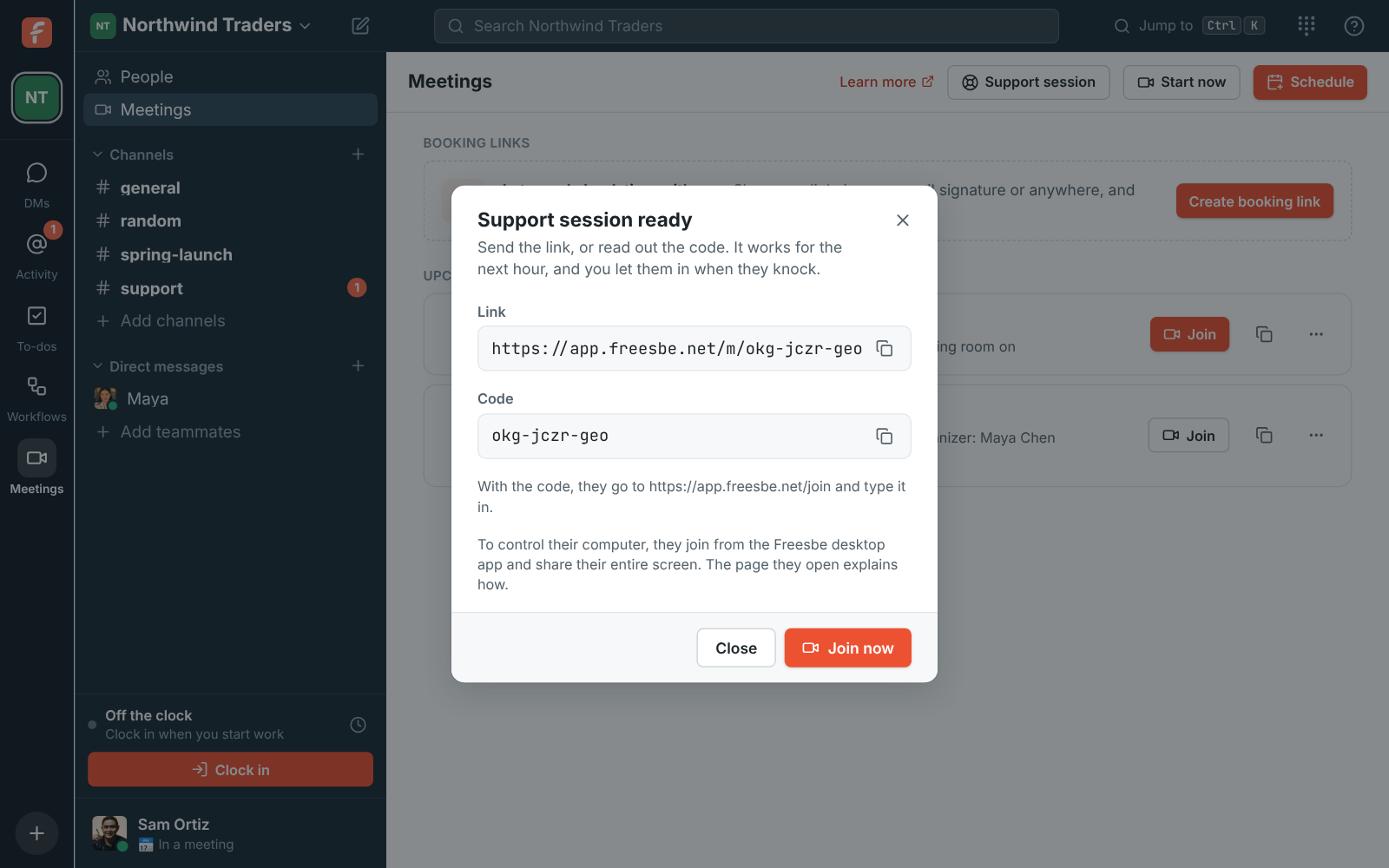
Open Meetings in the sidebar and click Support session.
-
Send the Link in an email or chat, or read out the Code. Each has a copy button.
-
Click Join now to wait in the call for them.
The session works for an hour from when you start it, and it has a waiting room: the customer knocks, and you click Admit in the call. Nobody gets in without you letting them in. The session also shows in your meetings list with a Support badge.
What the customer sees
Section titled “What the customer sees”The link opens a page with your workspace’s name and logo, who is helping them, and the steps. They type their name and click Ask to join.
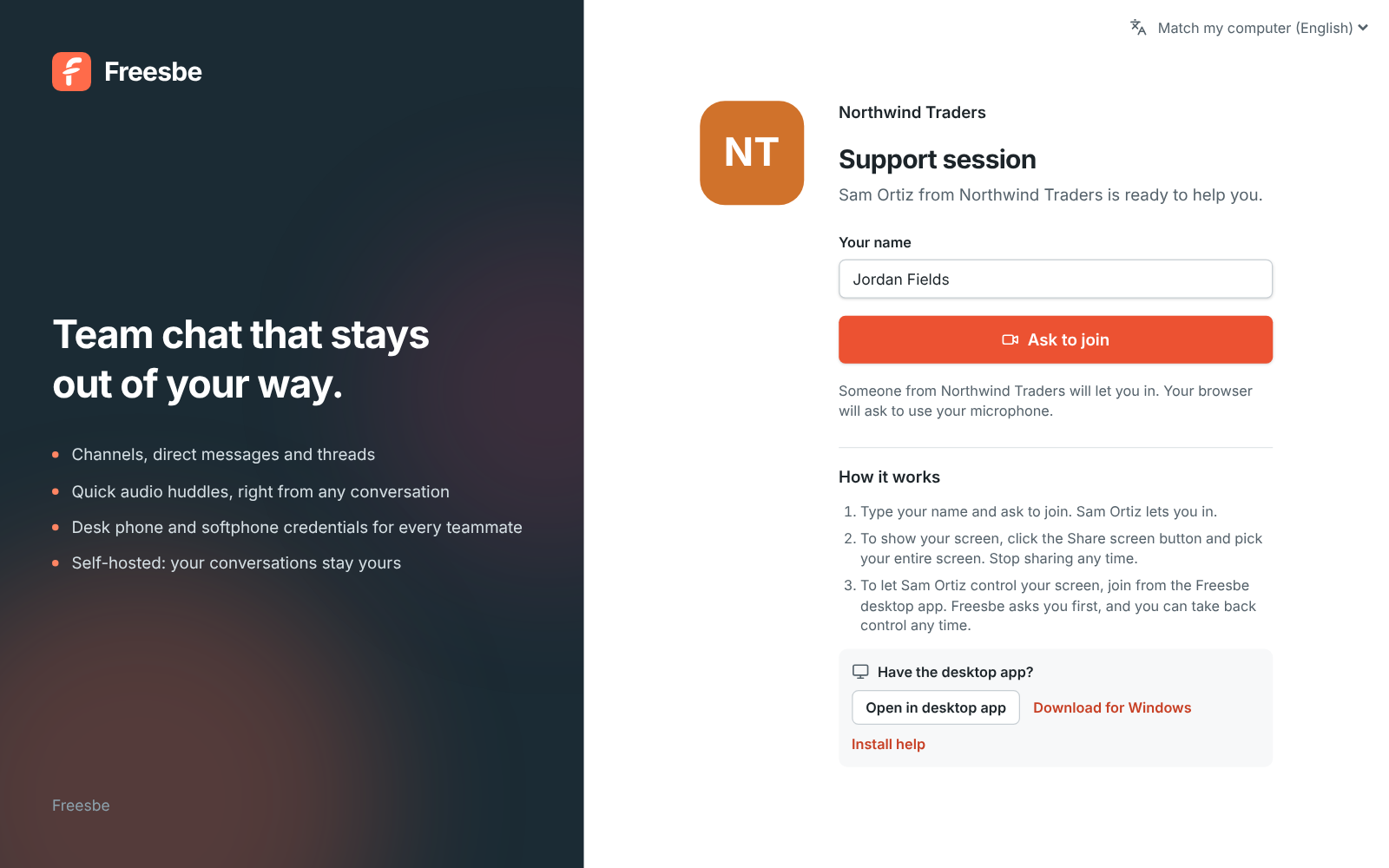
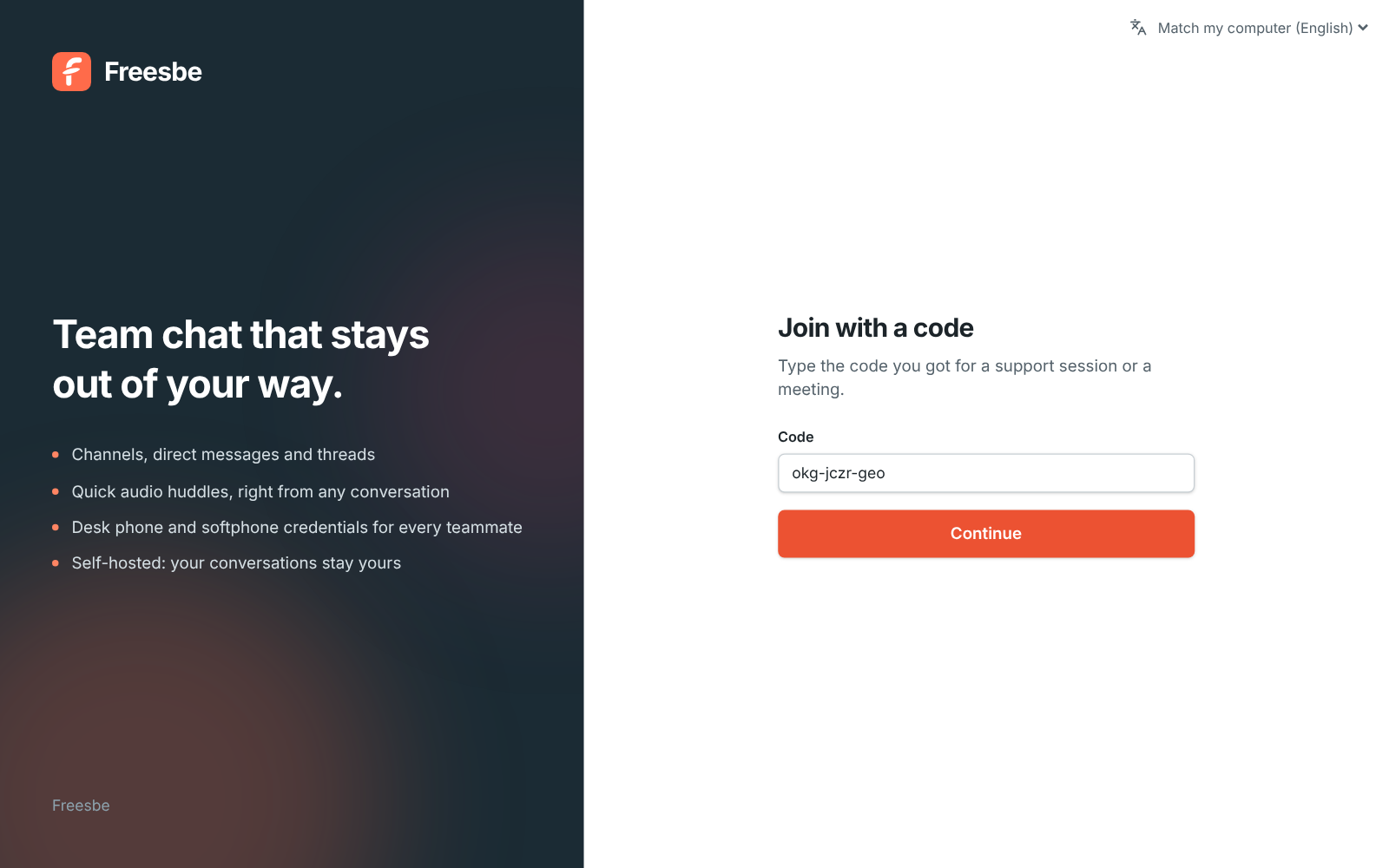
With the code instead of the link, they go to app.freesbe.net/join and type it in. Capitals and dashes don’t matter.
Send customers the link to this section so they know what to expect, or Get help from support below.
See and control their screen
Section titled “See and control their screen”Once they’re in, ask them to click Share screen and pick their entire screen. Their screen takes the big spot in the call.
To control it, they have to have joined from the desktop app (the page has Open in desktop app and a download link). Then click Request control under their screen.
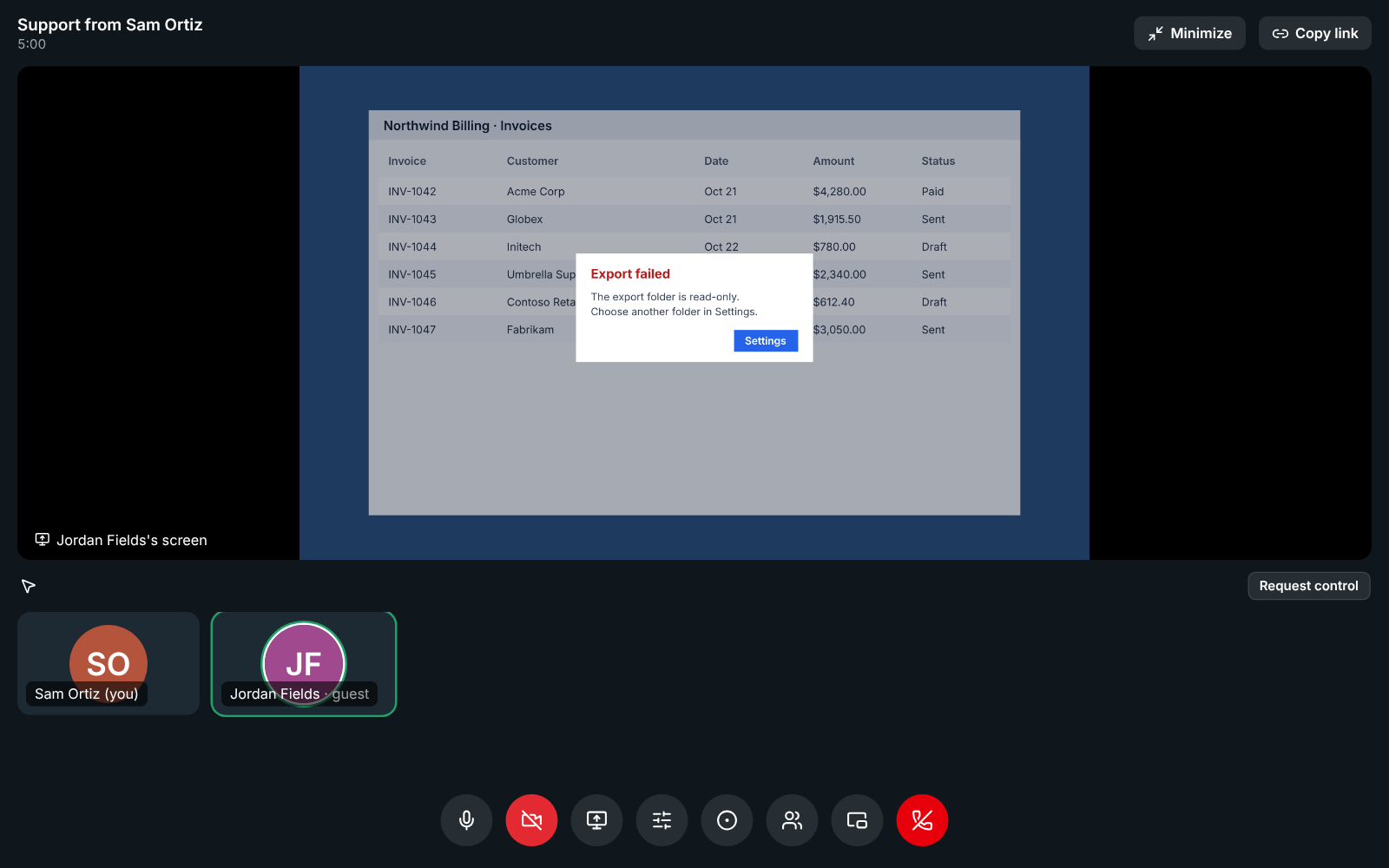
Their desktop app asks them in a window of its own, naming you and your company (see What the customer is asked). When they click Allow, a red bar says You’re controlling …’s screen. Click their screen once so it gets your keyboard, then work as usual. Click Stop control when you’re done.
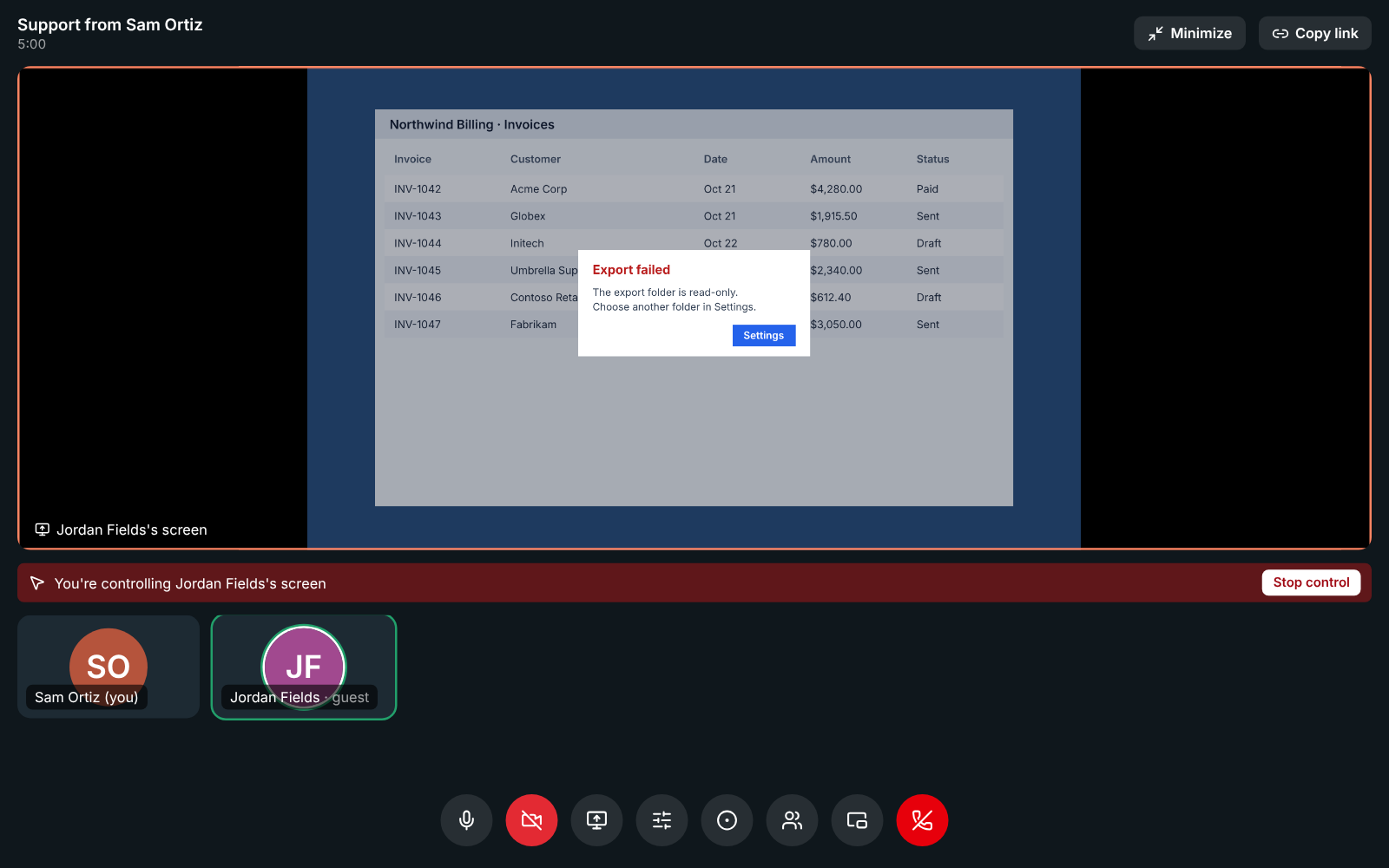
If they joined from a browser, the bar under their screen says so. Ask them to click Open in desktop app on their page (or install it first), and to share their screen again from there.
Everything else works as in Remote control: shortcuts are translated between Mac and PC, the customer presses Esc to take back control at once, and stopping the screen share or leaving ends it.
What the customer is asked
Section titled “What the customer is asked”Before anyone controls their computer, the customer’s desktop app asks them in a window of its own that a web page can’t draw or click. It names the person asking and your workspace, plus your custom domain once it’s active, since a name alone could be anyone:
- It says what you’ll be able to do: move their mouse, type, and open apps and files until they stop.
- It tells them to allow it only if they asked your company for help, and that Freesbe never asks for control. That’s the warning that stops support scams.
- It says how to stop (Esc, or Stop on the red bar), that the session is recorded (when it is), and that your company keeps a record.
- Don’t allow is the default button, so pressing Enter or closing the window says no. They’re asked again for every request.
While you’re in control, the bar at the top of their screen names you and your company:
When it ends, they’re told who had control and for how long, for example Sam Ortiz from Northwind Traders no longer controls your screen. Control lasted 6 min. The page they joined from also reminds them to share their screen or give control only to a company they asked for help.
The company name and the stronger warning need version 0.1.9 of the desktop app. Older versions still ask every time, with the shorter … wants to control your screen.
Help someone on an Android phone
Section titled “Help someone on an Android phone”Customers on an Android phone join from the Freesbe app, without signing in. Once they share their screen and allow it, you can control the phone too.
- Their screen shows up in the call like a computer’s. Click to tap, drag to swipe, hold the button down to long-press, and scroll with the mouse wheel.
- Typing goes into the text field that’s selected on the phone. Ctrl+V pastes, Ctrl+A selects everything.
- The bar under their screen has Back, Home and Recent apps, the phone’s own buttons. Esc works as Back.
- The phone asks them the same way a computer does: You’re about to give Sam Ortiz from Northwind Traders control of your phone, with the same warning, and the red bar names your company.
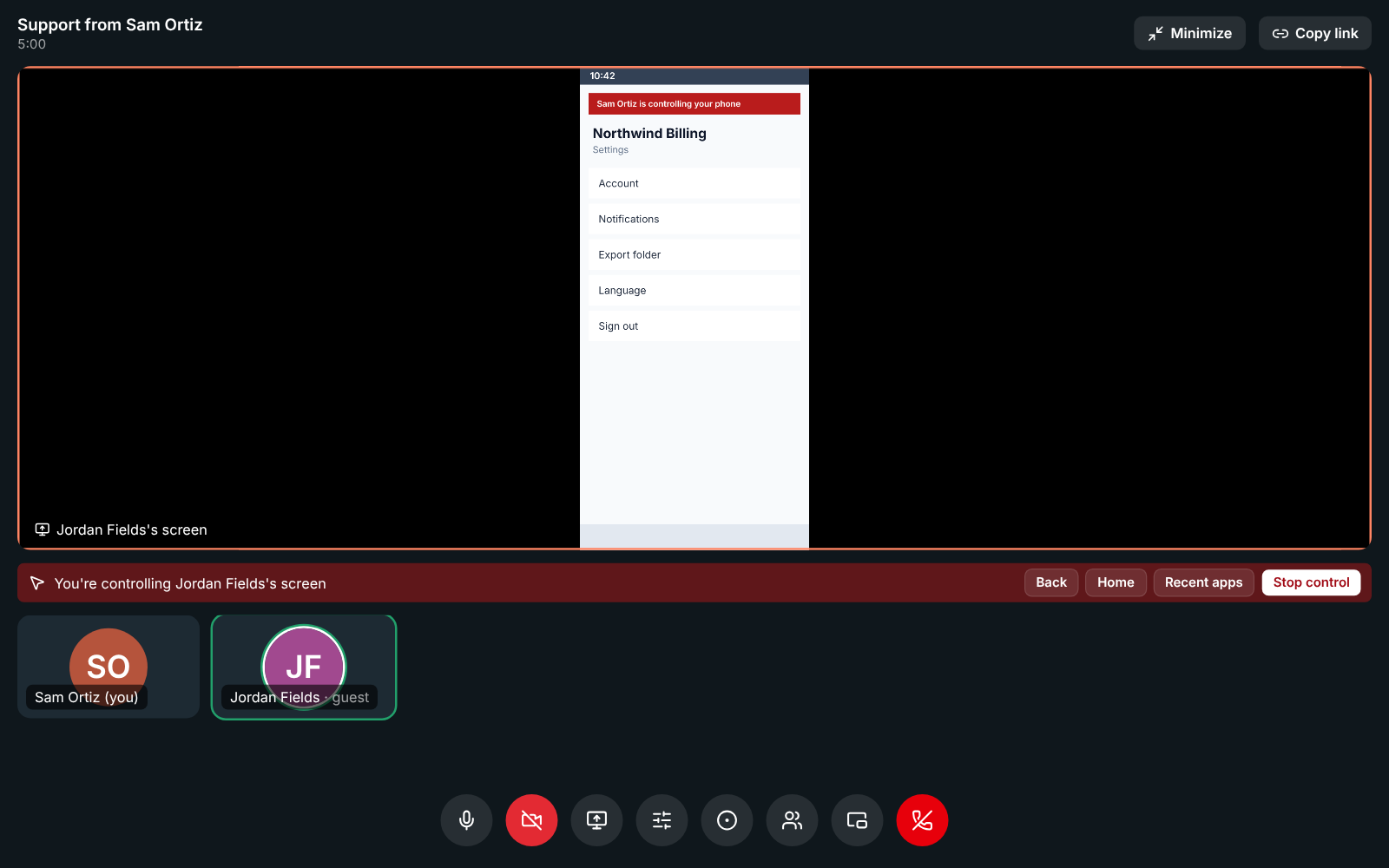
What can’t be done from afar: unlocking the phone, typing a PIN or password on the lock screen, and screens Android protects, such as some banking apps, which show up black.
Get help from support
Section titled “Get help from support”If a company that uses Freesbe sent you a support link or code:
- Open the link, or go to app.freesbe.net/join and type the code. On an Android phone, see On an Android phone below.
- Type your name and click Ask to join. The person helping you lets you in.
- To show your screen, click Share screen at the bottom of the call and pick your entire screen. You can stop sharing at any time.
- To let them control your computer, join from the Freesbe desktop app: download it, then click Open in desktop app on the page. You don’t need an account.
- When they ask for control, Freesbe shows You’re about to give … from … control of your screen, with the name of the person and their company. Only click Allow if you asked that company for help; Freesbe itself never asks you for control. While they’re in control, a red bar at the top of your screen says who it is. Press Esc or click Stop to take back control at any time, and Freesbe tells you how long it lasted.
On a Mac, Freesbe asks for Accessibility permission the first time. See On a Mac: allow Accessibility once.
On an Android phone
Section titled “On an Android phone”- Install the Freesbe app. You don’t need an account.
- Open the support link on the phone, or open the app and tap Got a code from support? Join with a code on the sign-in screen.
- Type your name and tap Ask to join.
- Tap Share screen, then Start now in the window Android shows. A screen-sharing notification stays on while you share.
- To let them control the phone, the first time only: tap Open Settings on the call screen, go to Accessibility → Freesbe remote support (on some phones under Installed apps or Downloaded apps) and turn it on. Then go back to Freesbe.
- When they ask, Freesbe shows You’re about to give … from … control of your phone. Tap Allow only if you asked that company for help, or Don’t allow. While they’re in control, a red bar at the top of the screen says so. Tap Stop on it, or Stop sharing in Freesbe, to take back control at any time.
You can turn Freesbe remote support off again in Settings whenever you like. It only works during a support session you joined, and Freesbe asks you every time.
On an iPhone, you can join with the code and talk with them; sharing your screen from an iPhone isn’t available yet.
Who can start one
Section titled “Who can start one”- Members of a workspace on the Corporate or Enterprise plan, once an admin has turned on Remote control in Workspace settings → Security & compliance → Remote control. Guests can’t start support sessions.
- Support sessions are recorded whenever your workspace allows recordings. Recording starts by itself as soon as the customer is let in, from the app of the member who has been in the call longest (or from whoever gets control, if that app couldn’t). Everyone in the call sees the red REC badge and hears the tone, and the customer’s consent window says The session is recorded. Nobody can stop the recording while the call goes on, hosts and admins included: it ends when the call ends, or when the member recording it leaves (then the next member in the call picks it up). The recording and its notes show up under Meetings like any other meeting’s.
- Support sessions, and so their recordings, are part of the Corporate and Enterprise plans.
- Admins see every control request in the remote control log, with the customer’s name and Support session next to the date.
- For each session the customer allowed, What they agreed to shows the exact words their app showed them when they clicked Allow, in their language. Keep it as your record of consent.
Answers come from the Freesbe guides and are written by AI, so check the linked guide before relying on one. Please don't include personal details such as emails or passwords.