
Single sign-on
Admins can require everyone in a workspace to sign in with their work account from Google, Microsoft or either. Requiring SSO comes with the Corporate and Enterprise plans.
Turn it on
Section titled “Turn it on”- Sign in with the provider you’re about to require. Freesbe won’t let you require Google while you’re signed in with a password, so you can’t lock yourself out.
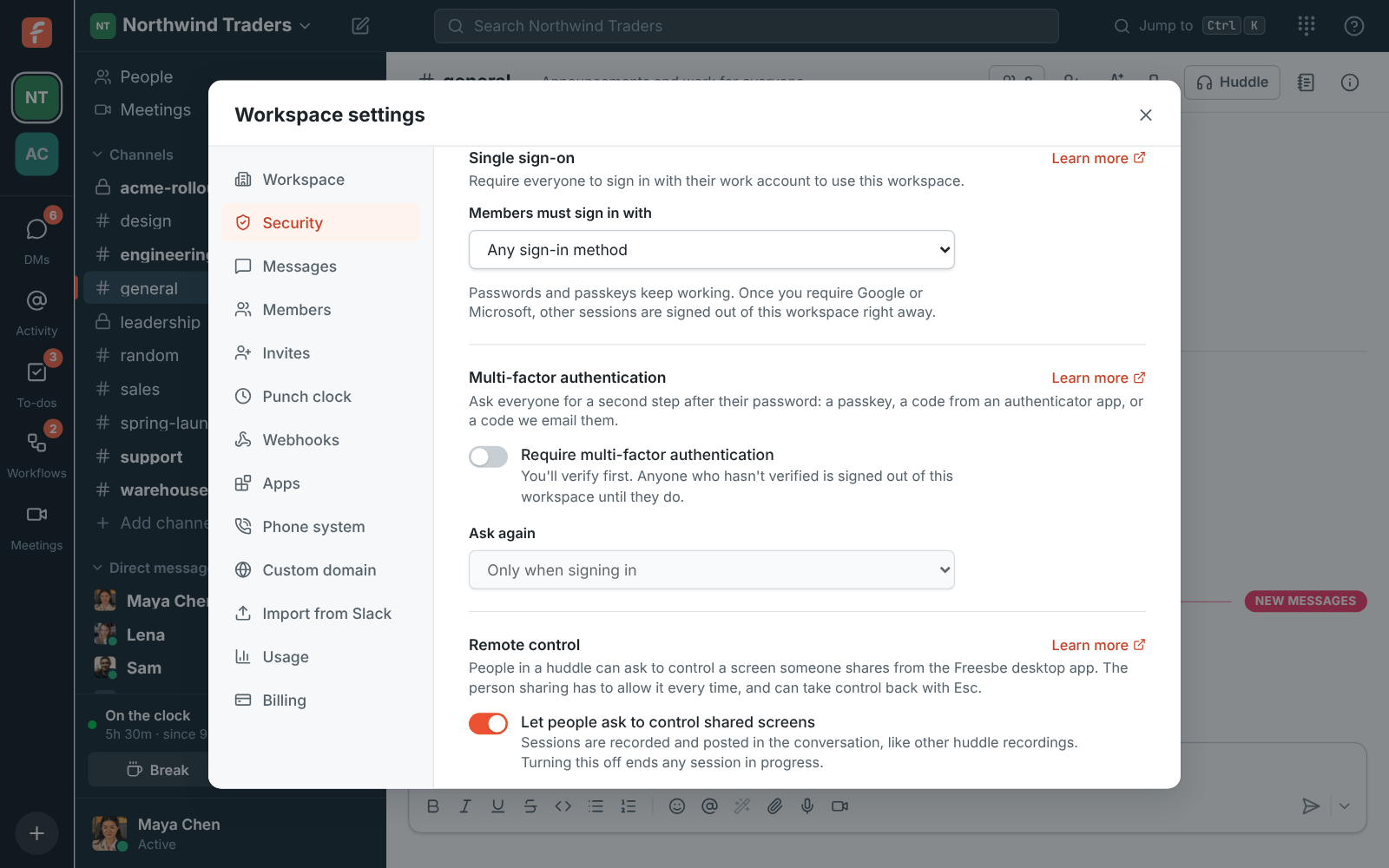
- Open Workspace settings → Security & compliance → Sign-in → Single sign-on.
- Under Members must sign in with, choose Google, Microsoft or Google or Microsoft.
Choose Any sign-in method to turn it off again.
What changes for people
Section titled “What changes for people”- Anyone using the workspace with a password, a sign-in code or a passkey is signed out of that workspace right away and asked to continue with the required provider. Their Freesbe account stays the same: signing in with the provider links it to their account.
- Linking works when the provider’s address matches their Freesbe email. If it doesn’t, they can connect the provider in Preferences → My account → Sign-in → Google and Microsoft first.
- Other workspaces they belong to aren’t affected.
- Emailed sign-in codes don’t open the workspace.
- Scripts that signed in with a password lose access to the workspace too. See API and webhooks.
Which accounts can sign in
Section titled “Which accounts can sign in”For Microsoft, work, school and personal accounts can sign in, unless your Freesbe server is set up to accept only work and school accounts, or only your organization’s directory. For Google, any Google account with a confirmed address can sign in.
Requiring single sign-on decides how people sign in, not who can join: people need an invite, or an address at one of the workspace’s email domains. Together they cover a whole company: everyone at your domain can join on their own, and has to sign in with your Microsoft or Google work accounts.
Answers come from the Freesbe guides and are written by AI, so check the linked guide before relying on one. Please don't include personal details such as emails or passwords.