
Recordings, transcripts and notes
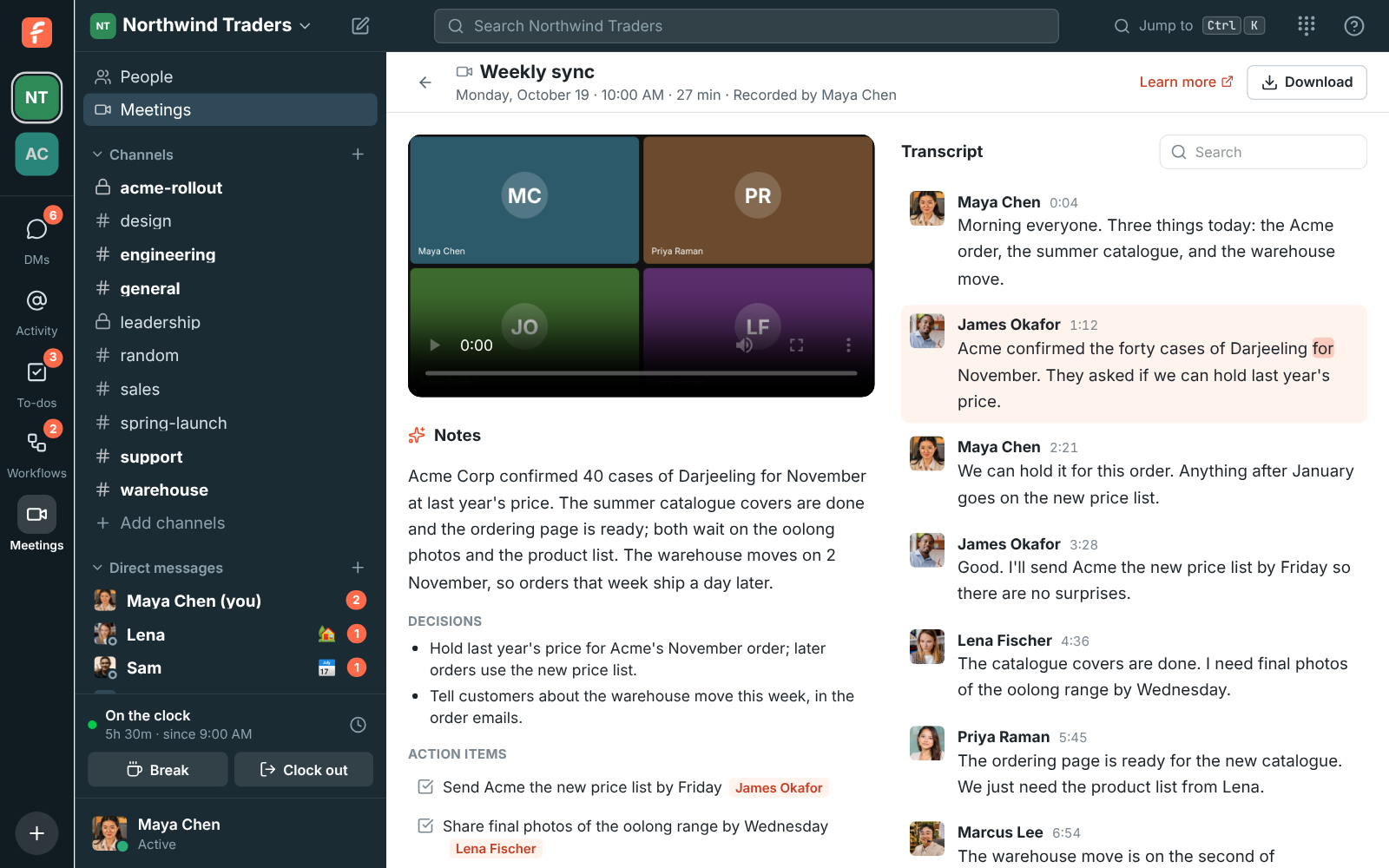
Record a huddle or a meeting, or just transcribe a huddle, and Freesbe writes up the call for you once it ends: a transcript that says who said what, and notes with a summary, the decisions made and the action items, with who they’re for.
Record a call
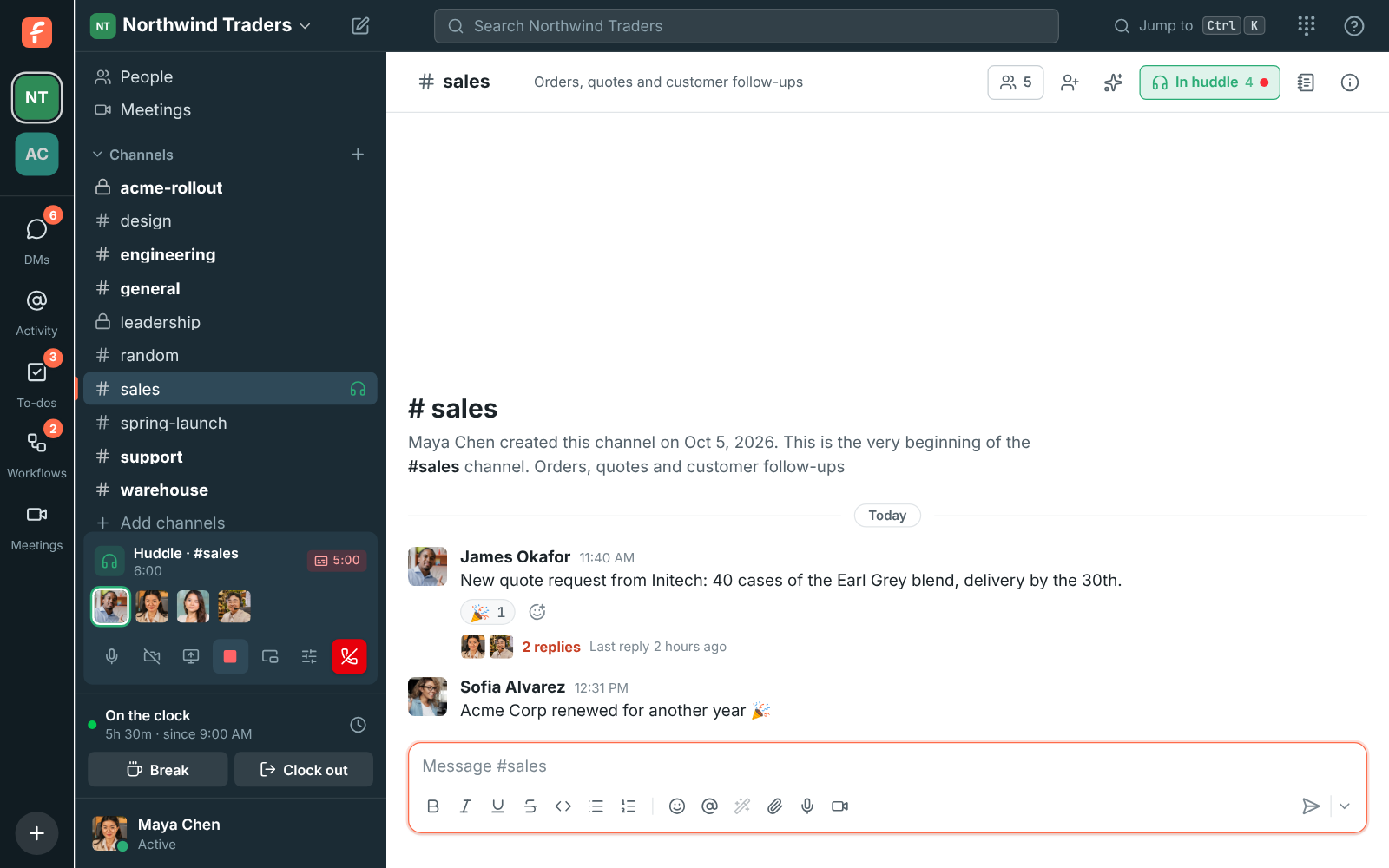
Section titled “Record a call”- In a huddle, click Record the huddle in the huddle’s controls. See Huddles.
- In a meeting, click Record the meeting at the bottom of the call. Anyone from the workspace in the meeting can start it; guests can’t.
The record button keeps the same icon and lights up red while the call is being recorded; click it again to stop. Your workspace decides who can start and stop recordings. See Who can start and stop recordings.
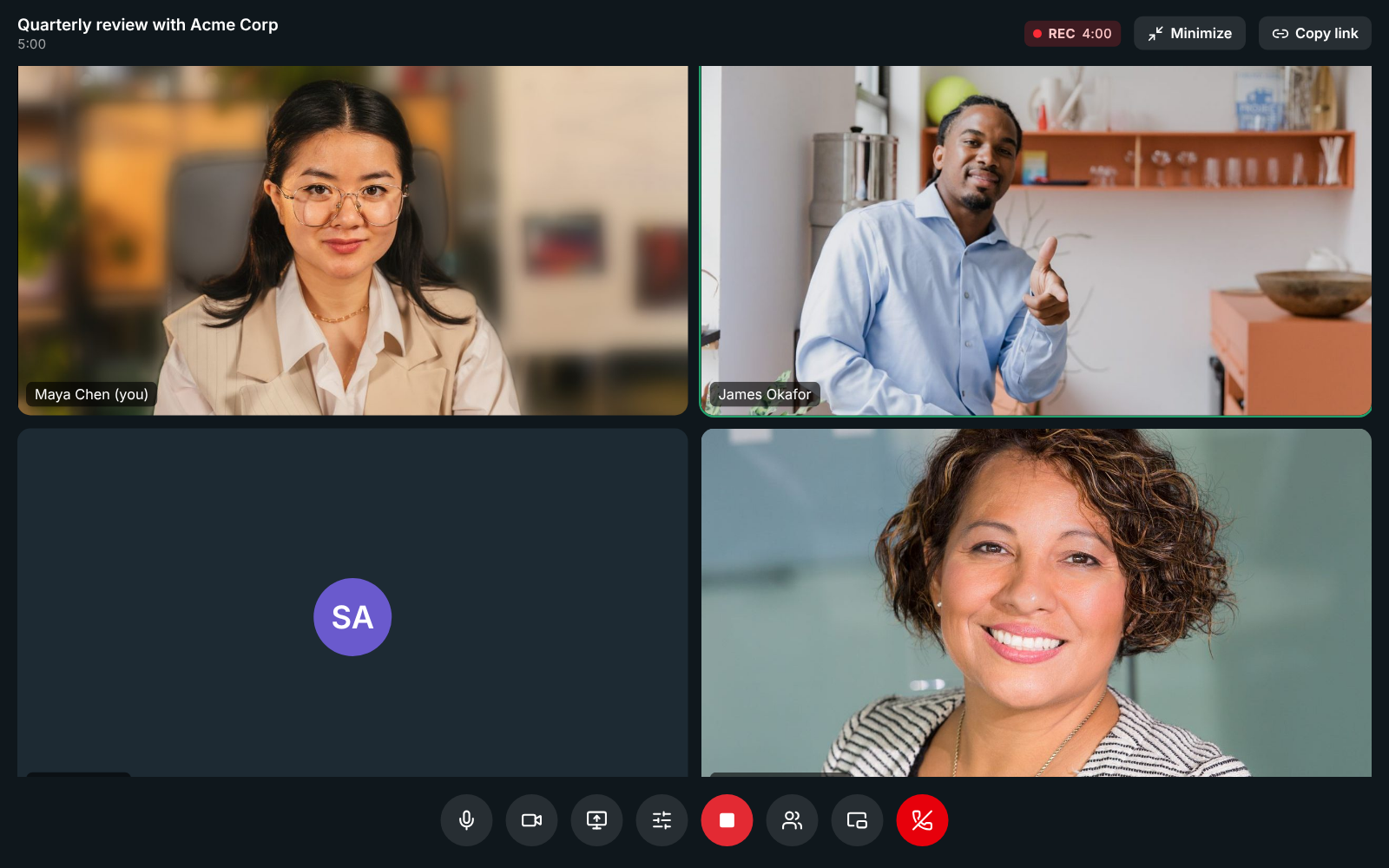
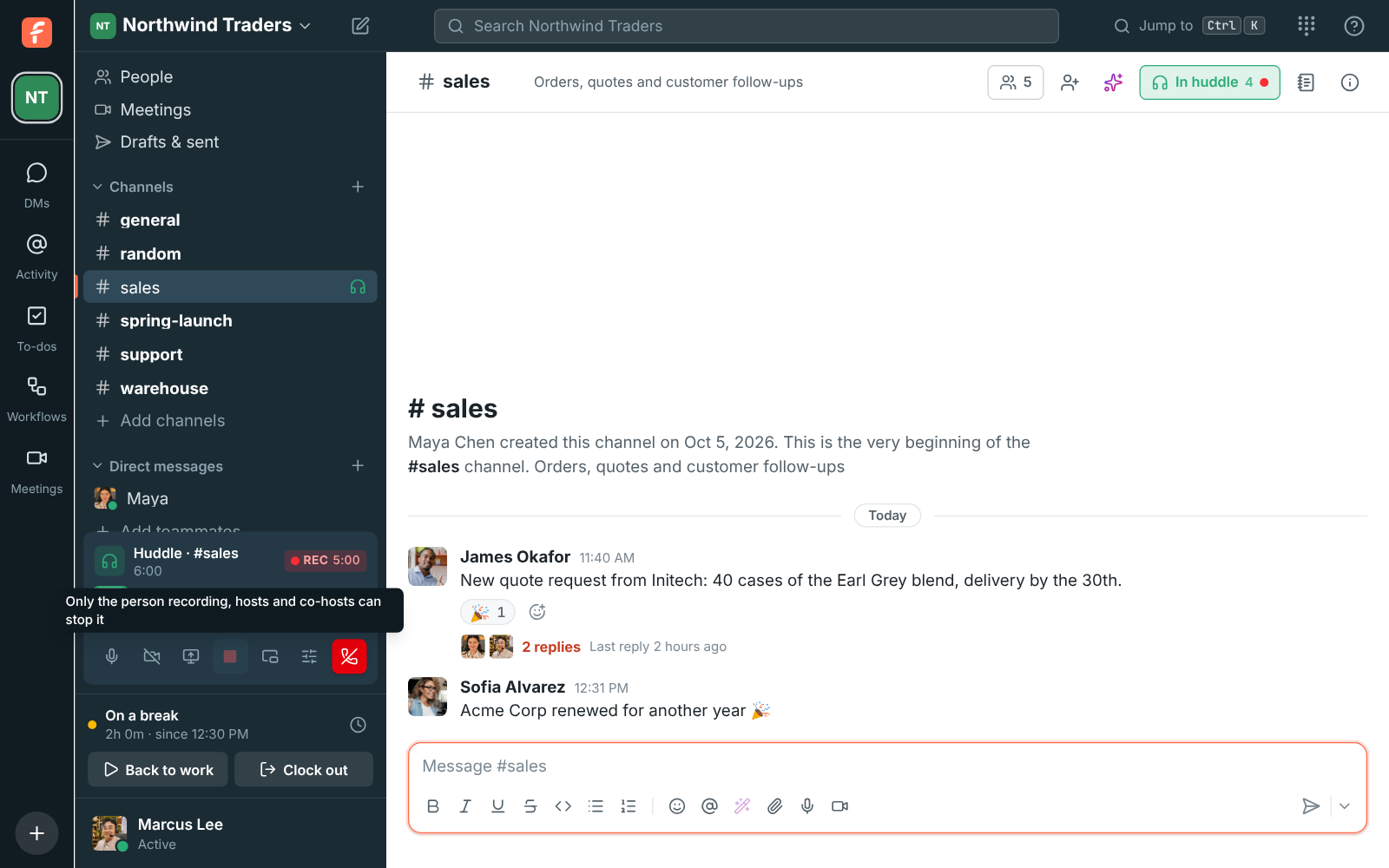
Everyone in the call hears a tone and sees a red REC badge with who is recording. By default, the person recording, the call’s hosts and co-hosts, and owners and admins can click Stop recording. A recording also stops when the person recording leaves, when the call ends, and after 4 hours.
The recording is made by the app of the person who started it, in the desktop app or a browser, and uploaded every few seconds, so a crash or a dropped connection keeps what was already recorded.
Transcribe a huddle without recording it
Section titled “Transcribe a huddle without recording it”When you want the notes but not a video, click Transcribe (the captions button) in the huddle’s controls. Only the call’s audio is captured, to write the transcript and notes; nothing is recorded or posted as a video.
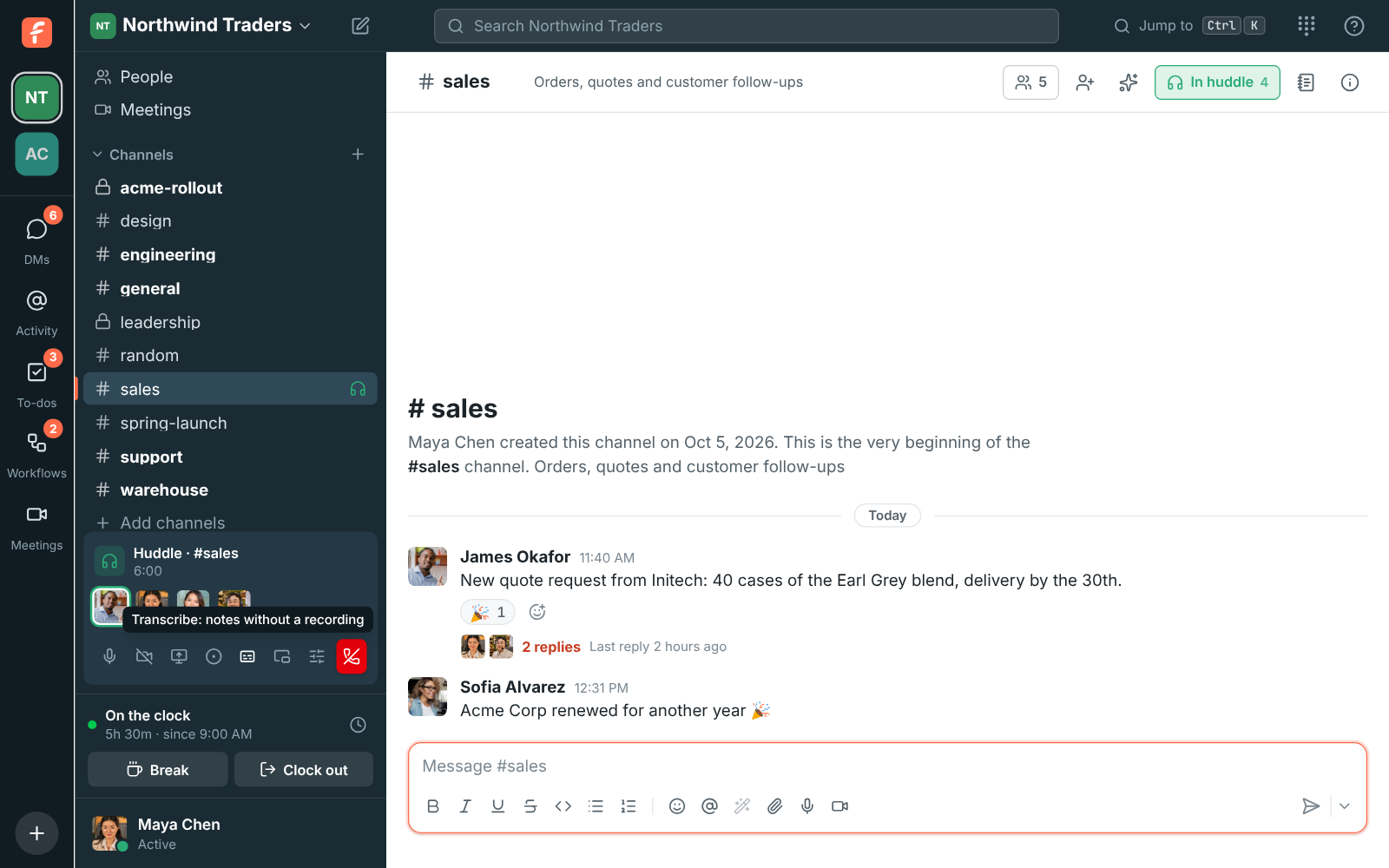
Everyone in the huddle hears a tone, sees a captions badge with the time, and gets a line in the conversation saying who started transcribing. The same people who can stop a recording can click Stop the transcript. When it stops, the notes are posted in the channel or DM a minute or two later, with a link to the full transcript.
Transcribe every huddle
Section titled “Transcribe every huddle”Admins can have every huddle transcribed without anyone asking: turn on Transcribe every huddle in Workspace settings → Calls & meetings → Recordings. Once a second person joins a huddle, the app of the person who’s been in it longest starts a transcript. Everyone is told as usual, and the people who can stop a recording can stop it; a transcript someone stopped isn’t started again in that huddle. These transcripts start whoever’s app it is, whatever the rule for who can record. If the person transcribing leaves, another person’s app takes over and the rest of the call gets its own notes.
Transcripts are made by the desktop app or a browser. Someone in a huddle only from the phone app can’t transcribe it, so another person’s app does.
Who can start and stop recordings
Section titled “Who can start and stop recordings”An admin picks who controls recordings and transcripts under Who can start and stop recordings in Workspace settings → Calls & meetings → Recordings.
| Choice | Who can start | Who can stop |
|---|---|---|
| Everyone in the call | Anyone from the workspace | Anyone from the workspace |
| Whoever started it, hosts and co-hosts (default) | Anyone from the workspace | The person recording, hosts, co-hosts, owners and admins |
| Only hosts and co-hosts | Hosts, co-hosts, owners, admins | The person recording, hosts, co-hosts, owners and admins |
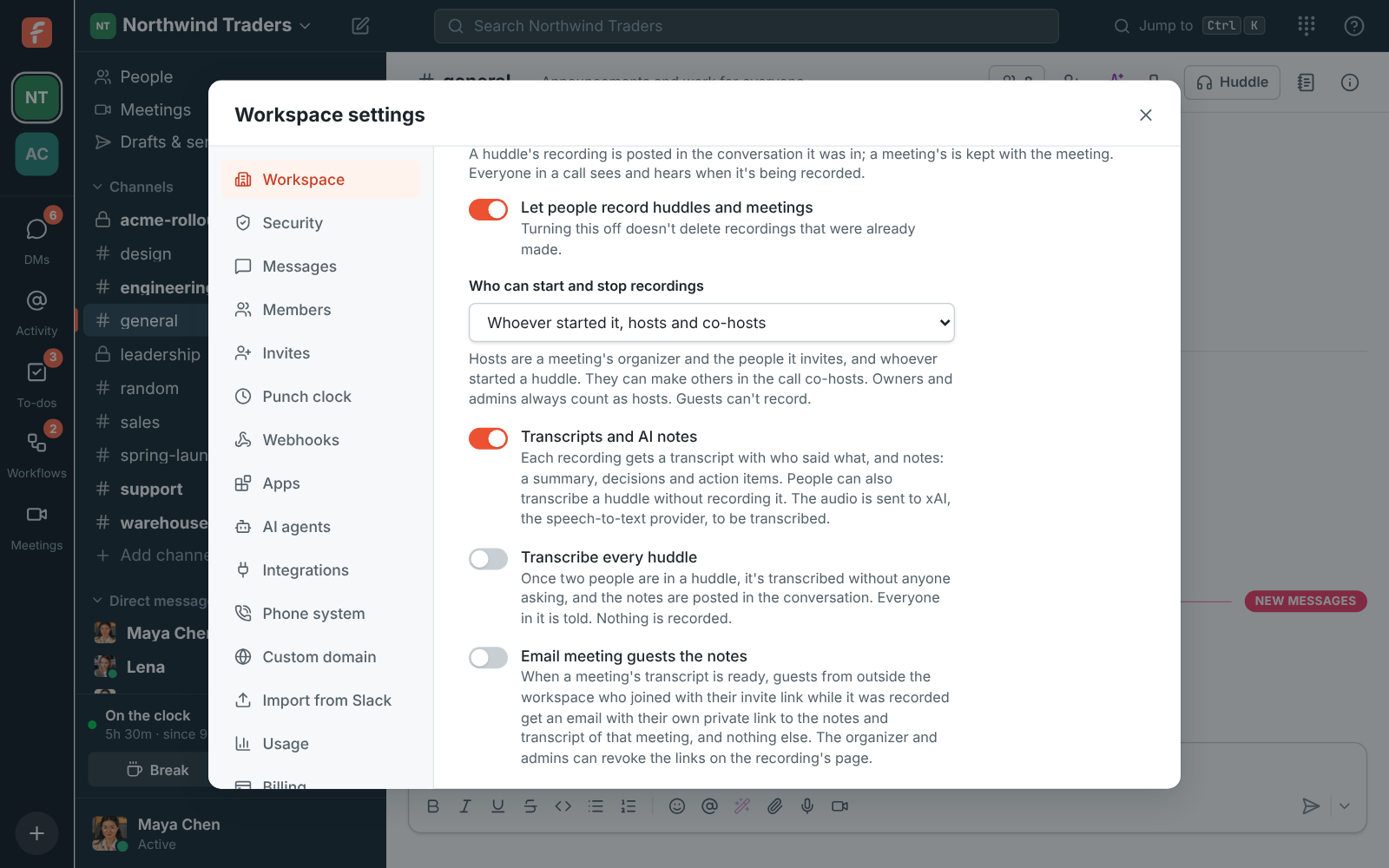
- Hosts are a meeting’s organizer and the people from the workspace it invites. In a huddle, the host is whoever started it. Owners and admins always count as hosts.
- Guests never start or stop recordings, whatever the choice, in huddles or in meetings.
- The person recording can always stop their own recording.
If you can’t stop the recording, the Stop recording button is greyed out, and hovering it says who can.
Make someone a co-host
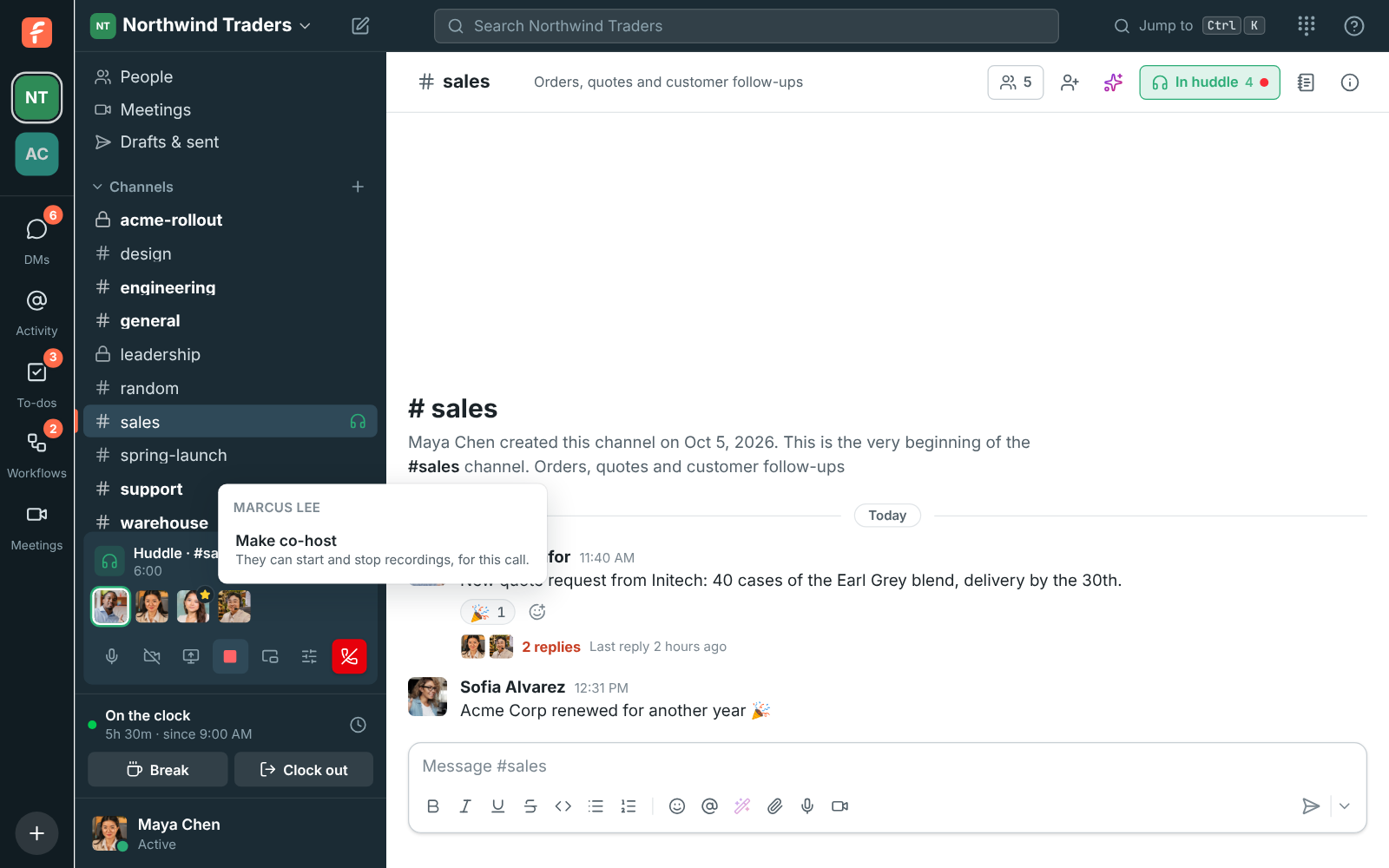
Section titled “Make someone a co-host”A host can make someone else in the call a co-host. Co-hosts can start and stop recordings like a host, and make more co-hosts, until the call ends.
- In a huddle, click the person’s face on the huddle card and choose Make co-host. A star shows on co-hosts’ faces.
- In a meeting, open People, click … next to the person and choose Make co-host. Co-hosts are marked co-host in the list.
Choose Remove as co-host to undo it. Guests can’t be co-hosts.
Where recordings go
Section titled “Where recordings go”- A huddle’s recording is posted in the channel or DM the huddle was in. The notes follow as a reply in the recording’s thread, and Notes and transcript under the video opens the recording page.
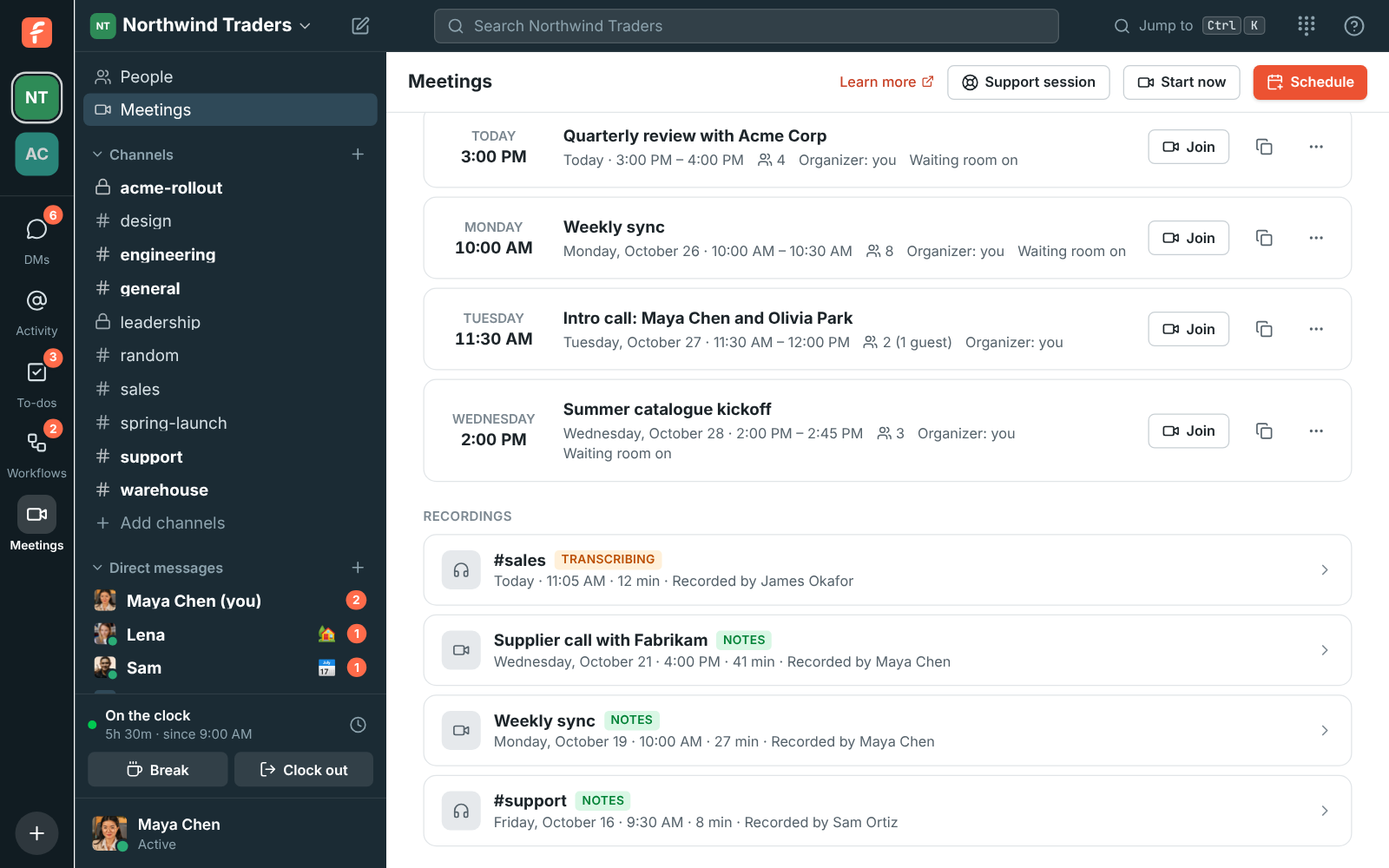
- A meeting’s recording is kept with the meeting. Find it under Meetings → Recordings.
- A huddle you only transcribed has its notes posted in the channel or DM, and is listed under Meetings → Recordings too, with no video.
The Recordings list on the Meetings page shows every recording you can see, huddles and meetings, newest first. A recording shows up there as soon as it stops:
- Saving…: the recording is being put together. It plays a minute or so later, and the list updates by itself.
- Transcribing: it’s saved, and the transcript and notes are on the way.
- Notes: the notes are ready.
- Couldn’t save: nothing usable reached Freesbe, for example because the recording app lost its connection the whole time. If part of an upload fails while you’re recording, Freesbe tells you then, and keeps what arrived.
Who can see a recording:
- A huddle’s recording: the people in the channel or DM it was in.
- A meeting’s recording: the organizer, the teammates the meeting invited, everyone from the workspace who was in the call, and workspace admins.
- Either: the people and channels it was shared with. People from outside the workspace only ever see a meeting’s notes and transcript, on a page of their own, when someone shares it outside the workspace.
Notes and transcript
Section titled “Notes and transcript”The notes and transcript are usually ready a minute or two after the call ends. You can leave the page while they’re written.
- Notes: a short summary, the decisions, and the action items with who they’re for. Click Add to my to-dos next to an action item to put it on your to-do list.
- Transcript: who said what, with times. Click any line to play the recording from there, or click a word to start from that word. While it plays, the line being spoken is highlighted, the word being said is marked, and the transcript scrolls along with it. Scroll it yourself and it stops following for a few seconds. Search the transcript from the box at its top.
- Download saves the notes and the transcript as a text file.
- Meeting chat: for a meeting, what people wrote in the call’s chat and the files they sent, under the notes. See Meeting chat.
Before you play it, the video shows a frame from its first second rather than a black screen. The full screen button in the video’s corner fills the screen with it; press Esc to come back. In the desktop app it needs version 0.1.6 or later.
Names come from who was talking in the call at the time. A voice Freesbe couldn’t match to a person is shown as Speaker 1, Speaker 2 and so on. Transcripts work in many languages; the notes are written in the language of the call.
Say who a speaker is
Section titled “Say who a speaker is”Click a name in the transcript, such as Speaker 2, to say who it is: pick someone from your workspace, or type a name for someone who isn’t in it, like a customer, and click Call them “…”. Every line that voice said gets the new name, and so do the action items that were for it. Anyone in the workspace who can see the recording can do this; you can change a name again the same way if you picked the wrong person.
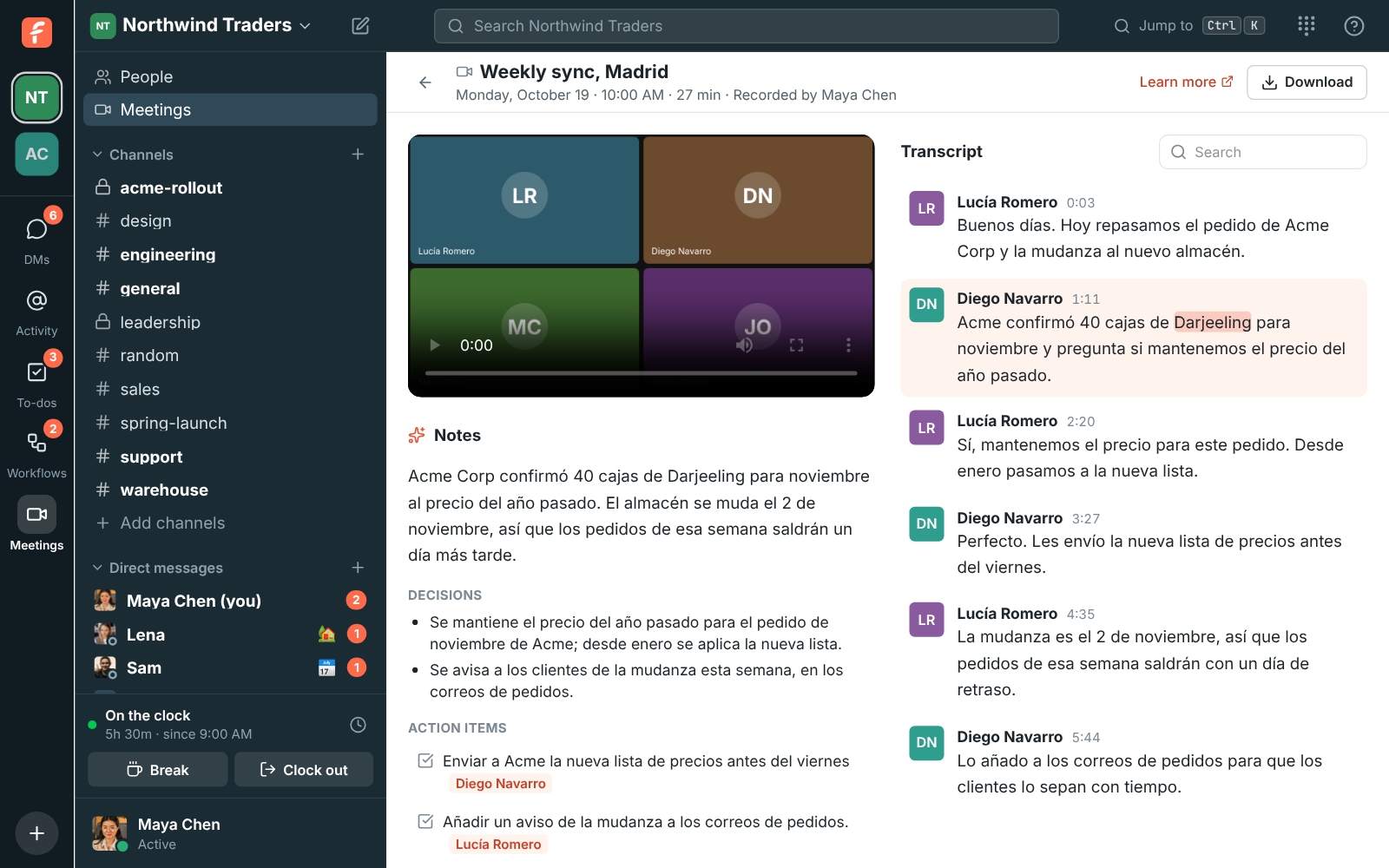
Hebrew and Arabic read right to left: each line of the transcript, the summary, every decision and every action item takes the direction of its own text, so a Hebrew sentence that mentions an English name still lines up on the right. A call that mixes languages shows each line its own way.
Transcripts made before word times were kept highlight the whole line rather than each word.
If a transcript didn’t work, the recording page says so and anyone who can see the recording can click Try again.
If the page says Nobody could be heard in this recording but you know people talked, click Try again: the recording’s audio is kept for 30 days for that. A recording still gets its transcript when the recorder closed the app right after stopping it, and keeps the speakers’ names: the recorder’s app sends who was talking every 30 seconds while it records. If a name is still missing, say who the speaker is.
Share a recording
Section titled “Share a recording”Click Share at the top of a recording’s page to send it to someone who wasn’t in the call: a teammate who missed the meeting, or the channel for the project it was about.
- Under In the workspace, type a name or a channel, and pick as many as you like.
- Add a message if you want, and click Share.
Each person gets it in your DM with them, and a channel gets it as a message everyone in it can see, people who join later too. The card in the message shows the title, when it was, how long it ran and the start of the summary; Watch or Notes and transcript opens the recording’s page, with the video, notes and transcript.
Who can see it in the dialog lists who has the recording: the people from the call, and each person and channel it was shared with, with who shared it. Whoever shared it, the meeting’s organizer, whoever recorded it and admins can Remove a share. Removing it doesn’t delete the message, but the people it reached can’t open the recording any more, unless they could anyway.
Anyone in the workspace who can see a recording can share it; guests can’t.
Share a meeting outside the workspace
Section titled “Share a meeting outside the workspace”A meeting’s notes and transcript can go to people outside the workspace too, such as a customer who joined on the plain meeting link or a colleague of theirs who wasn’t there. An admin turns this on first, with Share meetings outside the workspace in Workspace settings → Calls & meetings → Recordings; it’s off until then.
Then the meeting’s organizer, whoever recorded it and admins can switch the Share dialog to Outside the workspace:
- Anyone with the link makes a link you paste wherever you like. It’s copied as soon as it’s made.
- Email it to someone sends the link to an address, with a short note saying you shared it.
- Works for sets how long it works, up to the workspace’s limit (7 days unless an admin changed it).
- Include the video lets the link play the recording too, when the admin allows it. Leave it off to share only the notes and transcript.
The link opens a page with that meeting’s notes and transcript, read only, and the recording if you included it. Nothing else from the workspace is on it: no channels, no people besides the speakers’ names, no other meetings. Teammates can’t be sent an outside link: share it with them in the workspace instead.
Links in the dialog lists every outside link: who it’s for, whether and how often it was opened, and until when it works. Copy a link you made again with the copy button, or Revoke one so it stops working at once.
Share the notes with meeting guests
Section titled “Share the notes with meeting guests”With outside sharing on, Email meeting guests the notes sends the notes to the meeting’s guests on its own (it’s on unless an admin turns it off). When a meeting’s transcript is ready, each guest who joined with their own invite link while the meeting was recorded gets an email, in the language their browser uses, with a private link of their own. Guests who came in on the plain meeting link didn’t give an address, so they don’t get one: share it with them by hand. People from the workspace see the recording in Freesbe as usual.
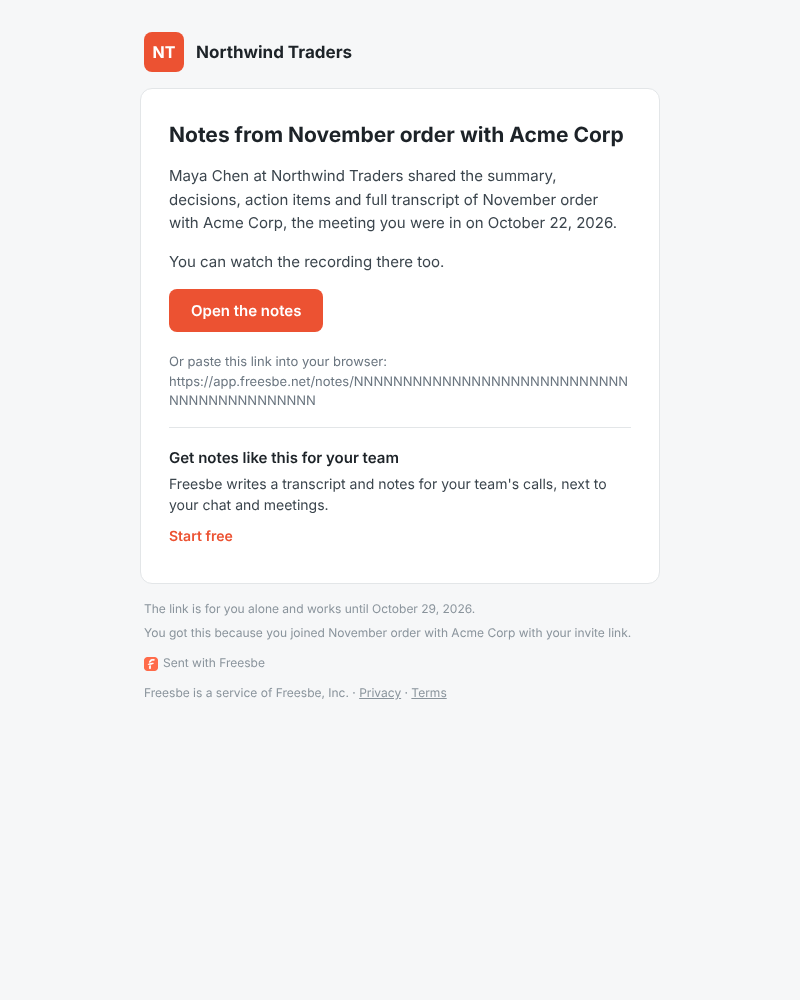
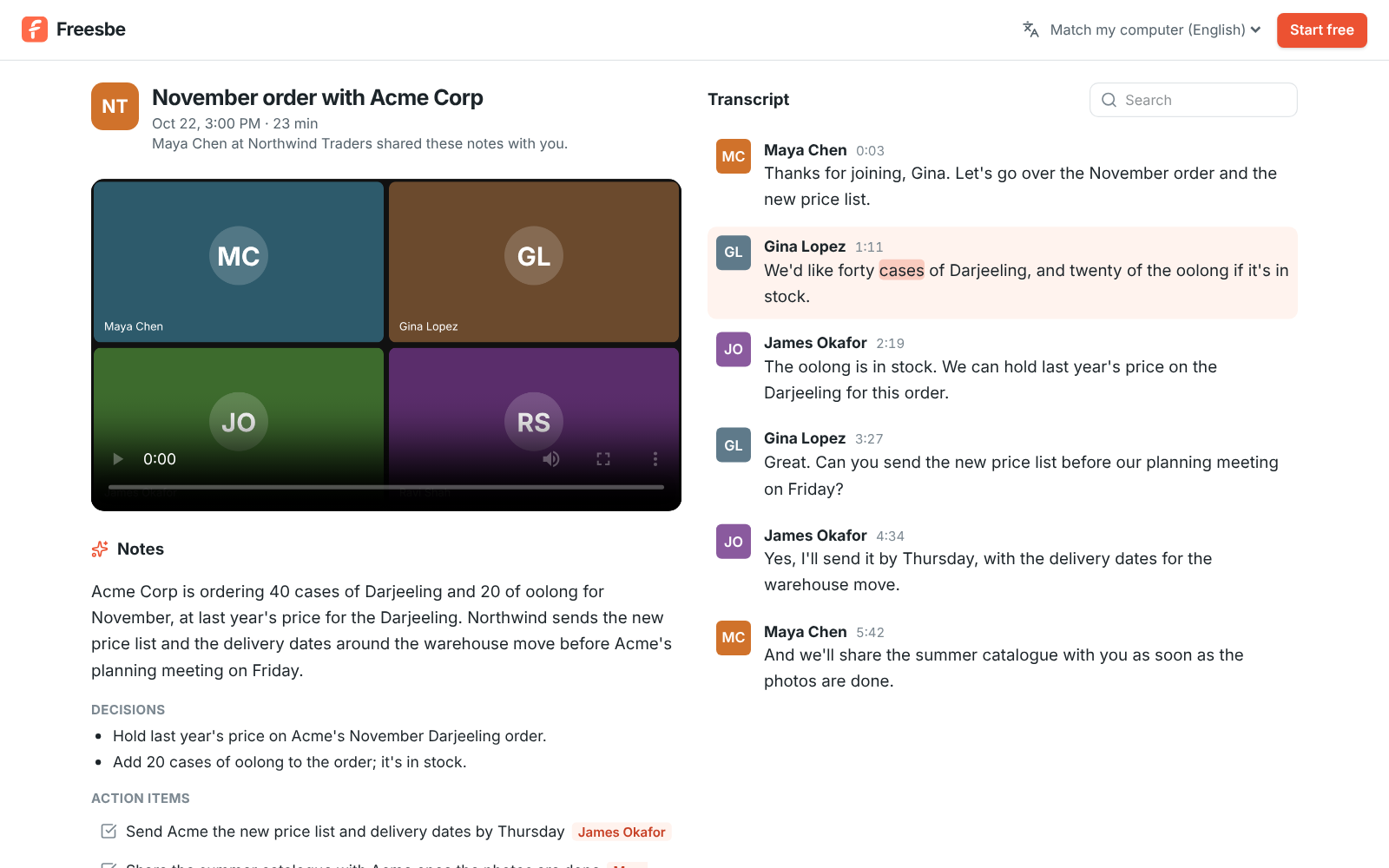
Guests’ links include the recording when the admin allows it.
When outside links stop working
Section titled “When outside links stop working”Each link works for the days it was made for, and stops working sooner when:
- the meeting’s organizer, whoever recorded it or an admin revokes it,
- the recording is deleted, by hand or by the workspace’s rule for deleting recordings,
- or an admin turns Share meetings outside the workspace off. Turning off Allow the recording stops the links playing it, too.
On the recording’s page, Shared outside the workspace lists the same links as the dialog. The organizer, the recorder and admins can Revoke one, or Revoke all.
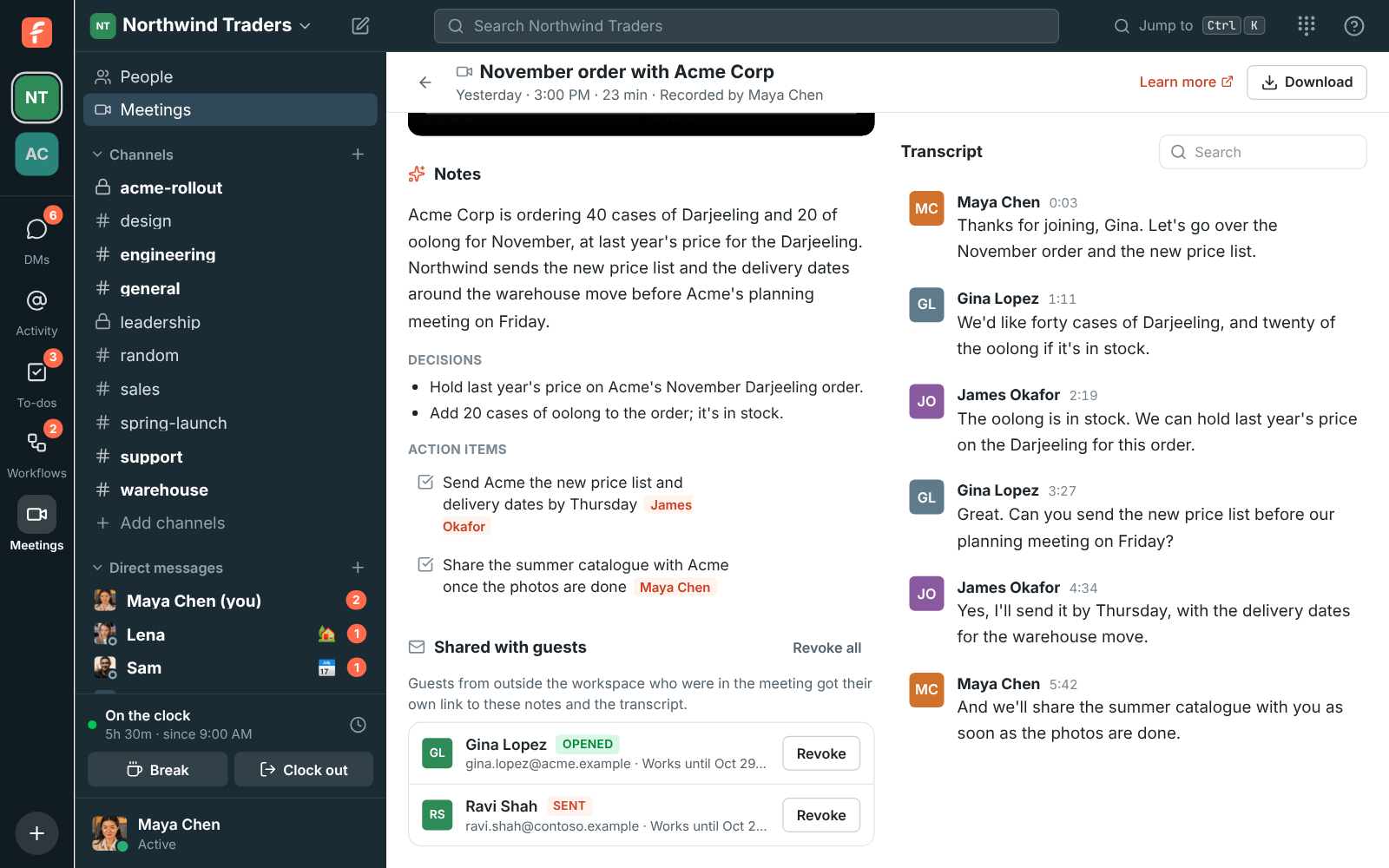
Each link is long and can’t be guessed, and search engines are told not to list the page. Anyone a link is passed on to can open it, though, so revoke a link when that’s a worry.
Privacy
Section titled “Privacy”The call’s audio is sent to xAI, our speech-to-text provider, to be transcribed, and the transcript to xAI’s model to write the notes. The audio is kept for 30 days so a transcript can be tried again, then deleted. The transcript and notes are deleted with the recording, including when an admin’s rule deletes recordings after a number of days.
Admins can turn transcripts and notes off, or turn recording off altogether, in Workspace settings → Calls & meetings → Recordings. With recording off, people can still transcribe huddles; with transcripts off, they can’t. Recordings made while transcripts are off don’t get them later.
What each plan includes
Section titled “What each plan includes”| Plan | Transcripts and notes |
|---|---|
| Free | 3 transcripts a month |
| Business | 10 hours per person a month, shared across the workspace |
| Corporate and Enterprise | No set limit |
When a workspace has used its transcripts for the month, recordings are still saved; they just don’t get a transcript, and the recording page says why. Transcribe doesn’t start, and says why. Once there’s room again, after an upgrade or next month, click Try again on the recording. See Plans.
Answers come from the Freesbe guides and are written by AI, so check the linked guide before relying on one. Please don't include personal details such as emails or passwords.