
Huddles
A huddle is a call that lives in a channel or DM. Anyone in the conversation can start one or drop in, with up to 20 people at once.
Start or join a huddle
Section titled “Start or join a huddle”- In a channel or DM, click Huddle at the top right. Your browser asks to use your microphone the first time; click Allow.
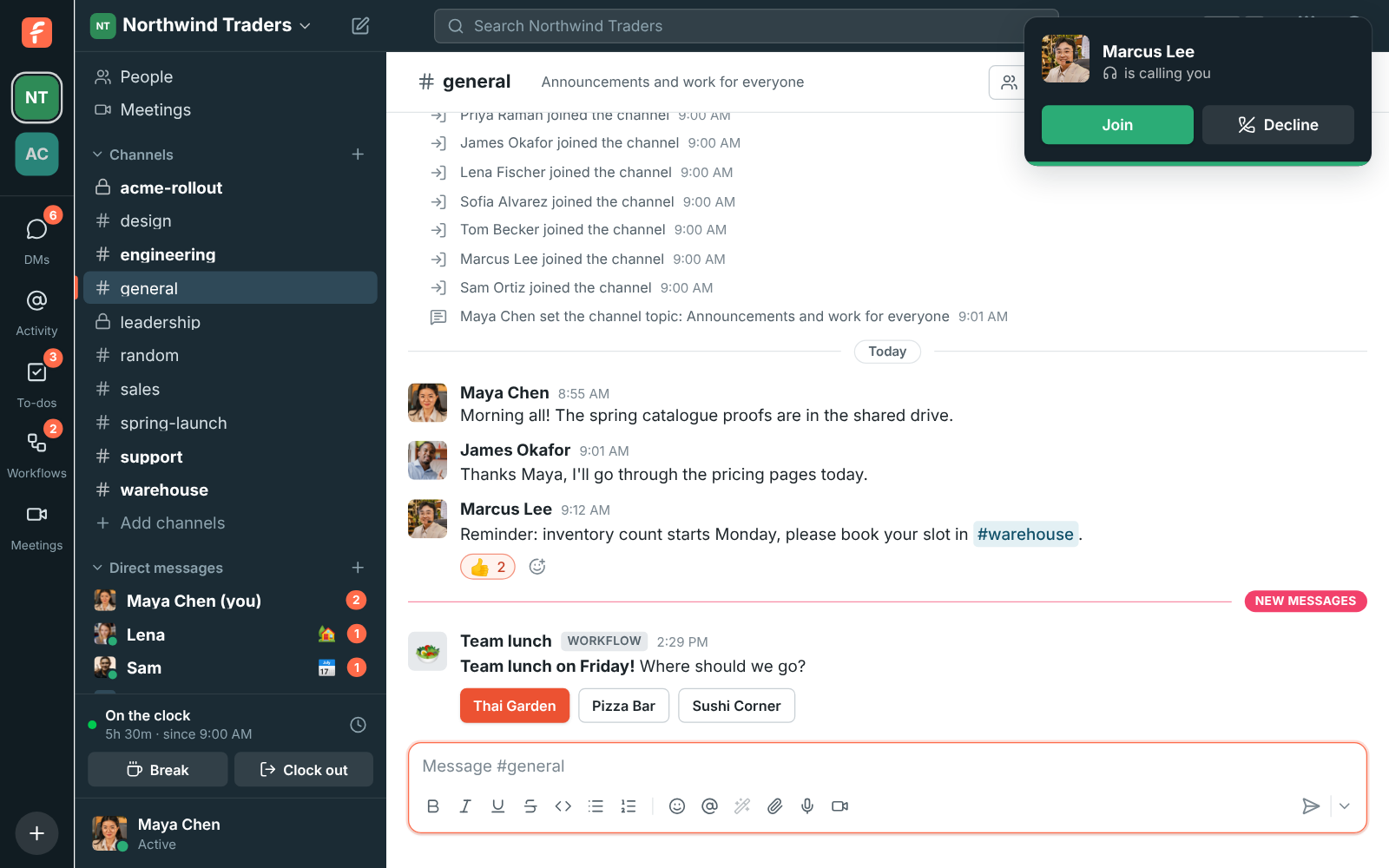
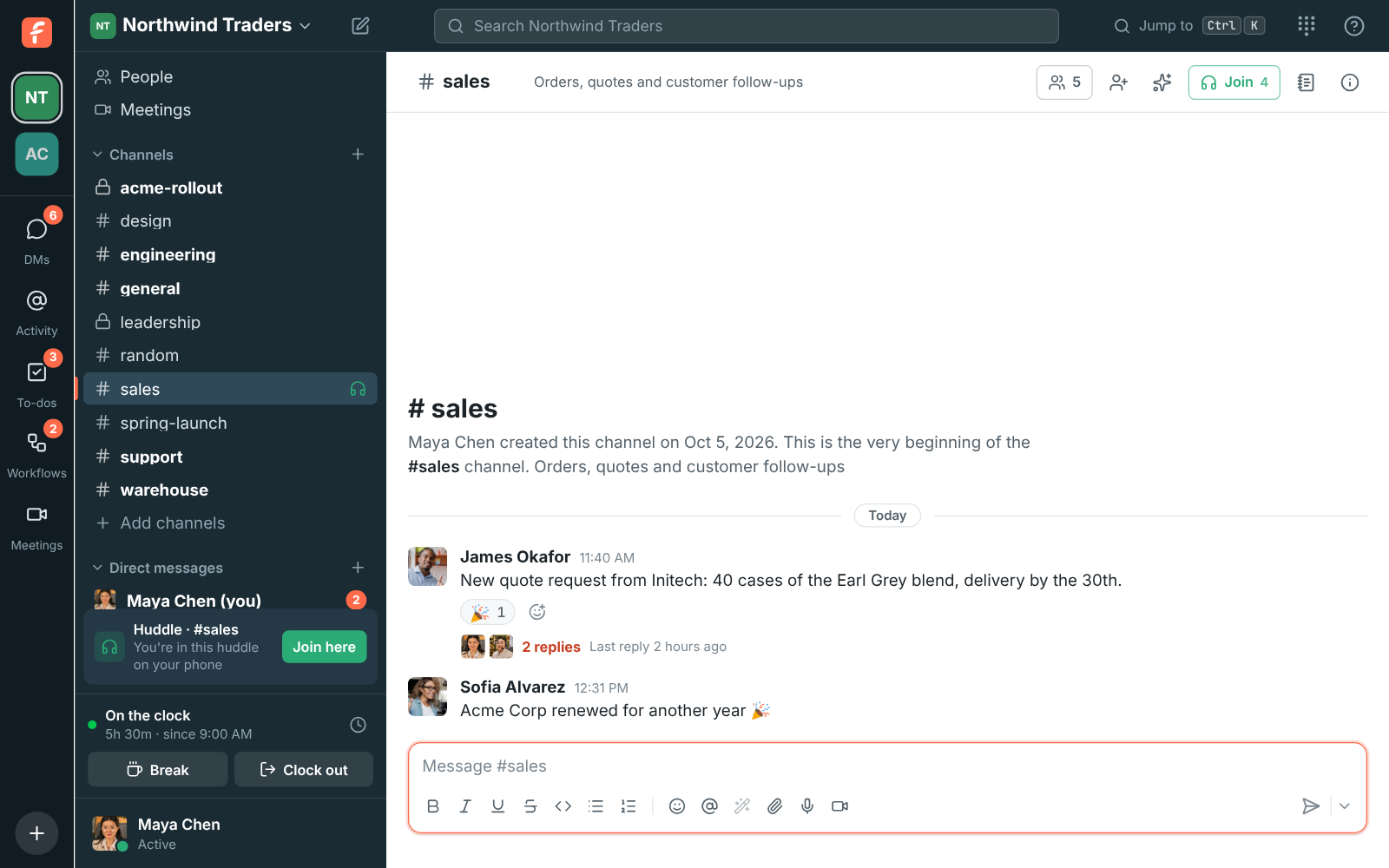
- If a huddle is already going, the button says Join, and the conversation shows a huddle icon in the sidebar.
- In a DM, starting a huddle rings the other people for 30 seconds. They see is calling you with Join and Decline, on every device they’re signed in on.
- In a channel, nobody is rung. People see the huddle icon and the Join button instead.
You need to be a member of a channel to start a huddle in it.
On your phone, join and start huddles in the Freesbe app. See Huddles in the mobile app.
Missed calls
Section titled “Missed calls”When a huddle in a DM rings you and you don’t pick up, Freesbe makes sure you know:
- In the DM, a red Missed huddle from … card with Call back takes the place of the call. It makes the DM unread and counts on your badge, like a mention.
- A notification says Missed huddle from … once the ringing stops, and stays until you deal with it. In Chrome and Edge it has Call back and Message; elsewhere, click it to open the DM. On your phone, the ringing notification turns into a missed one, with Call back and Message (see the mobile app).
- Activity lists it with your mentions, and Activity → Calls keeps your call history.
The ringing stops after 30 seconds, or sooner when the caller hangs up. If you click Decline, the call isn’t missed: the DM just says you declined. The person who called sees You called … · no answer with Call again. In a group DM, only the people who didn’t join get the missed call.
Paused notifications and a DM set to Nothing keep the notification quiet, but the card is still there when you look.
Your calls
Section titled “Your calls”Activity → Calls lists the huddles in your DMs, newest first: the ones you missed in red, the ones you took with how long they lasted, and the ones you made, with No answer when nobody picked up. If you call from Freesbe with the phone system, its calls are in the same list. Click Call back or Call to call again, or a call to open the DM.
During a huddle
Section titled “During a huddle”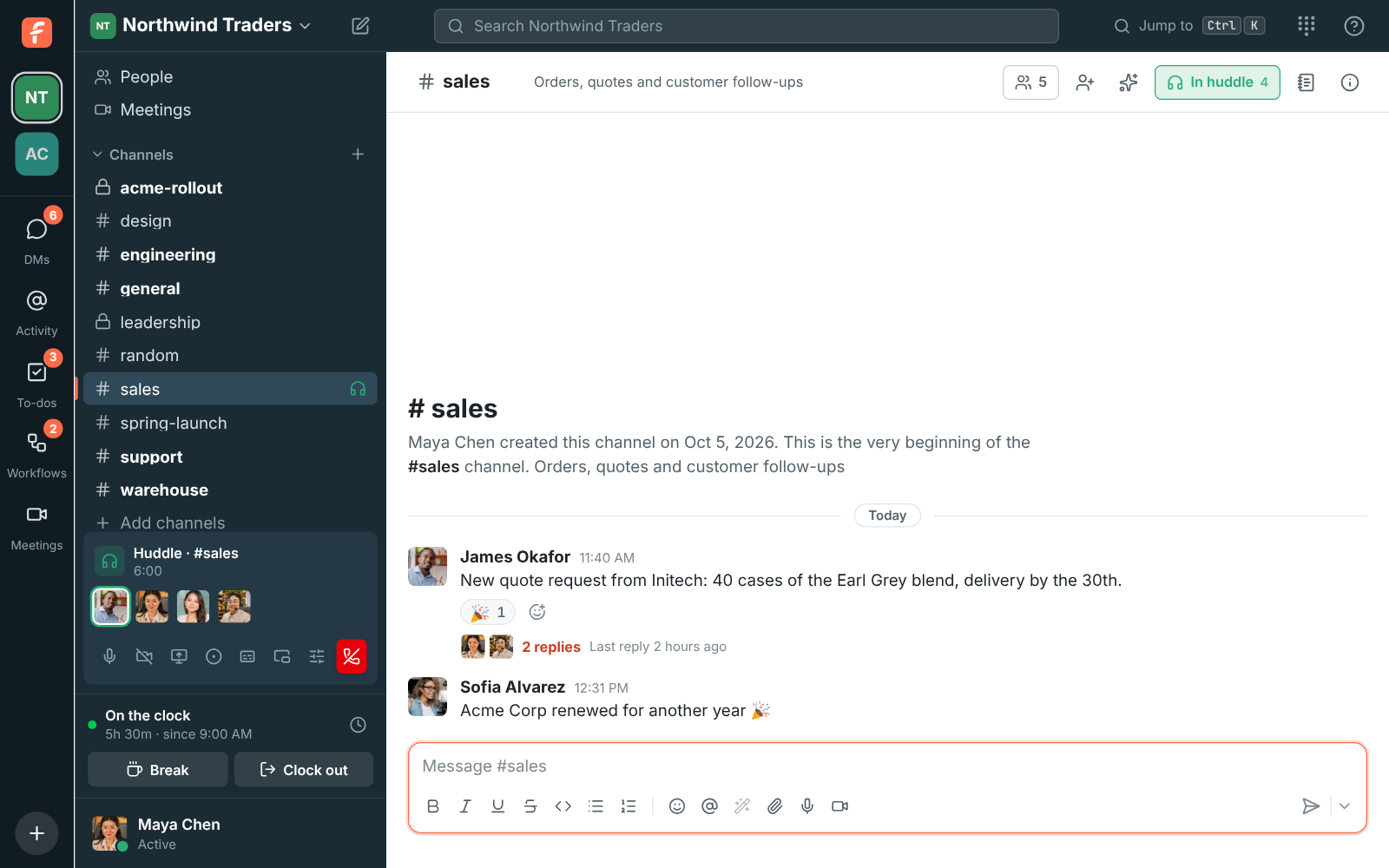
The huddle bar in the sidebar shows who’s talking and how long the call has run. When someone joins, everyone else hears a soft chime, and a quieter one when someone leaves, in huddles of up to 8 people. To turn it off, use Play a sound when someone joins or leaves in Preferences → Calls & audio → Audio.
Its buttons:
- Mute / Unmute your microphone.
- Turn on camera to add video. People’s cameras show in the huddle window; click one to show it large.
- Share screen to show a window, tab or your whole screen. A shared screen takes the main spot. The button stays lit while you share; click it again to stop. In the desktop app, a frame goes around what you share so you can see what others see (details). Others can draw on it, and ask to control it if your admin allows remote control.
- Record the huddle. See Recordings.
- Transcribe to get a transcript and notes without recording. See Transcribe a huddle.
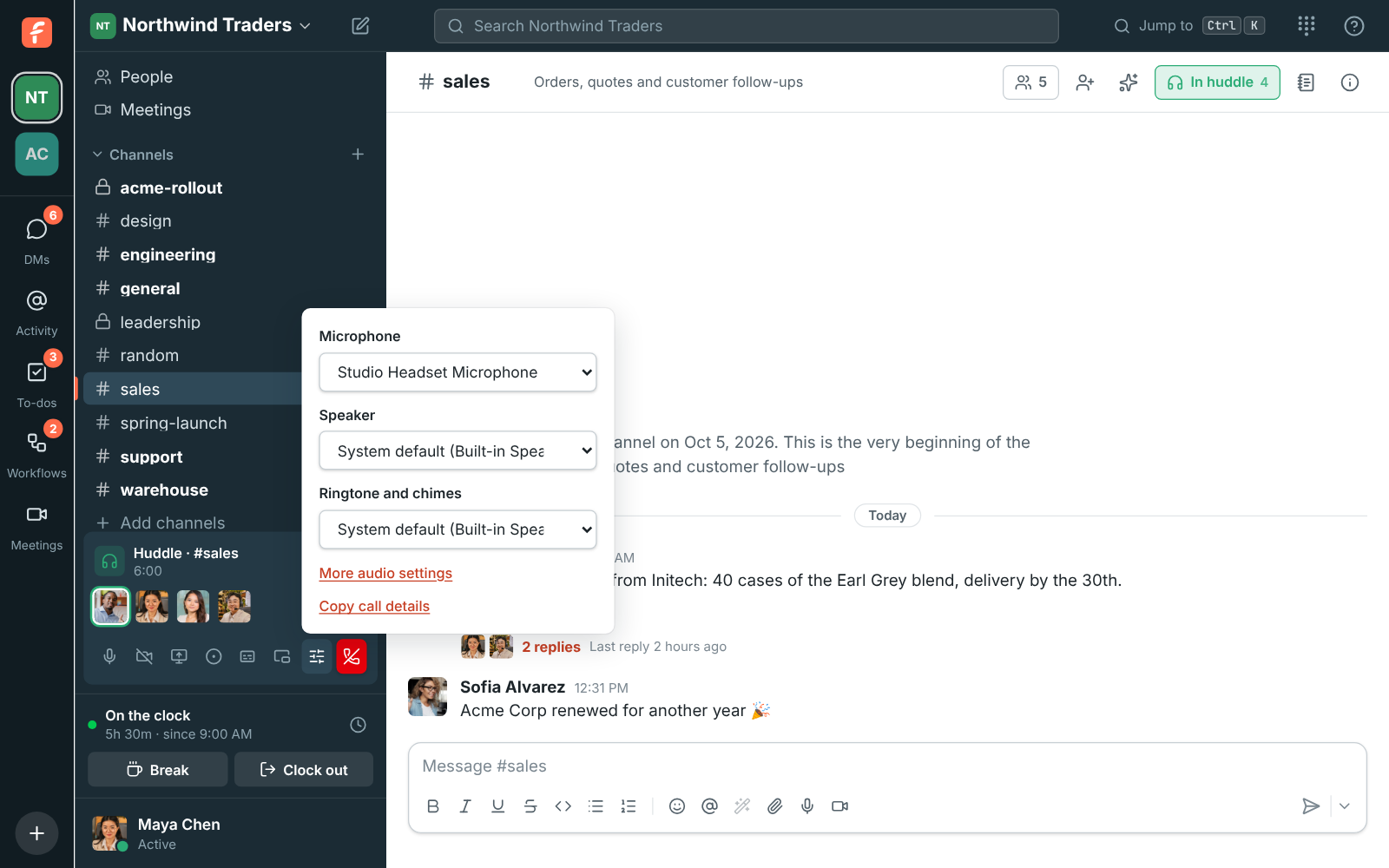
- Audio and video devices picks the microphone, camera, your camera’s background (blur or a picture; also in the huddle video’s header, see Keep the call in view), noise cancellation, the speaker for the call, and where the ringtone and chimes play. More audio settings opens Preferences → Calls & audio → Audio.
- Reactions and raise hand opens the reaction bar. See Reactions and raised hands.
- Pop out the huddle (in a browser) opens the call in its own small window. The desktop app does this on its own, so it has no such button. See Keep the call in view.
- Leave huddle is the red hang-up button at the end of the row. The huddle ends when the last person leaves.
Everyone at the same volume
Section titled “Everyone at the same volume”Voices are evened out, so a quiet microphone is turned up and a loud one down, and recordings get the same even levels. To hear one person louder or quieter, click their face in the huddle bar (hosts choose Volume…), or right-click their video, and drag the slider from 0% to 200%. Freesbe remembers it for that person on this device. See Everyone at the same volume in meetings.
Reactions and raised hands
Section titled “Reactions and raised hands”Click Reactions and raise hand in the huddle bar and tap an emoji: it floats up over your face in the huddle bar for everyone in the huddle. When someone has their camera or screen on, it also rises from the bottom corner of the huddle video with your name under it, and pops up on your camera if it’s on. Each emoji moves its own way, as in meetings. The round button beside the emoji picks your skin tone for 👍 👏 and 👎. Raise hand puts a ✋ on your face and tells the others you’d like to speak, with a soft chime; click Lower hand when you’re done. It works the same as in meetings.
While you’re alone in a huddle, waiting music plays just for you (it never goes into the call). Pick Lo-fi, Drift, Sunny, Classic, Bossa or Off from the music button in the huddle bar. The Android app plays it too: see During a huddle.
Draw on a shared screen
Section titled “Draw on a shared screen”While someone shares their screen, click Draw under it in the huddle video and draw over the screen to point something out. Everyone in the huddle sees the line as you draw it, in your own colour with your name next to it, and it fades away about 2 seconds after you let go. Click Stop drawing, or press Esc, to use the screen as usual. It works the same as in meetings: everyone keeps their colour for the whole huddle, several people can draw at once, and nothing is saved.
Whoever started the huddle, its co-hosts, and workspace owners and admins can click Turn drawing off for everyone under the screen, and Let everyone draw to turn it back on. The next huddle starts with drawing on.
Keep the call in view
Section titled “Keep the call in view”When you switch to another browser tab during a call, Freesbe opens a small floating window with the call, so you can keep an eye on it. In the desktop app, the floating window stays on top of your other apps when you minimize or hide Freesbe. Some browsers (Safari and Firefox, or Chrome when automatic picture-in-picture is off for Freesbe) only open it from Pop out the huddle. While the call floats, the huddle video inside Freesbe steps aside, so there’s only ever one.
The floating window has the call’s own controls: Mute, Turn on camera, Share screen, Reactions, Raise hand, Leave call, and More options (⋯) with:
- In-call messages: the huddle’s conversation beside the video. The video shrinks to one small tile so the messages get the room, and what you send goes to the channel or DM the huddle is in.
- Backgrounds and effects: blur or a picture behind you, as in Preferences → Video.
- Transcribe the call, when your workspace allows transcripts.
- Back to the call returns to Freesbe and closes the window.
You can also drag the huddle video around inside Freesbe, make it bigger or smaller, or hide it. Made bigger, the video covers only the conversation, so the sidebar stays free: pick any channel or DM and the video shrinks back to its corner while you read and reply. Press Esc or Make smaller to shrink it yourself.
With your camera on, Backgrounds and effects in the huddle video’s header changes your background while the huddle goes on: pick a blur, a picture or No effect and your camera changes straight away.
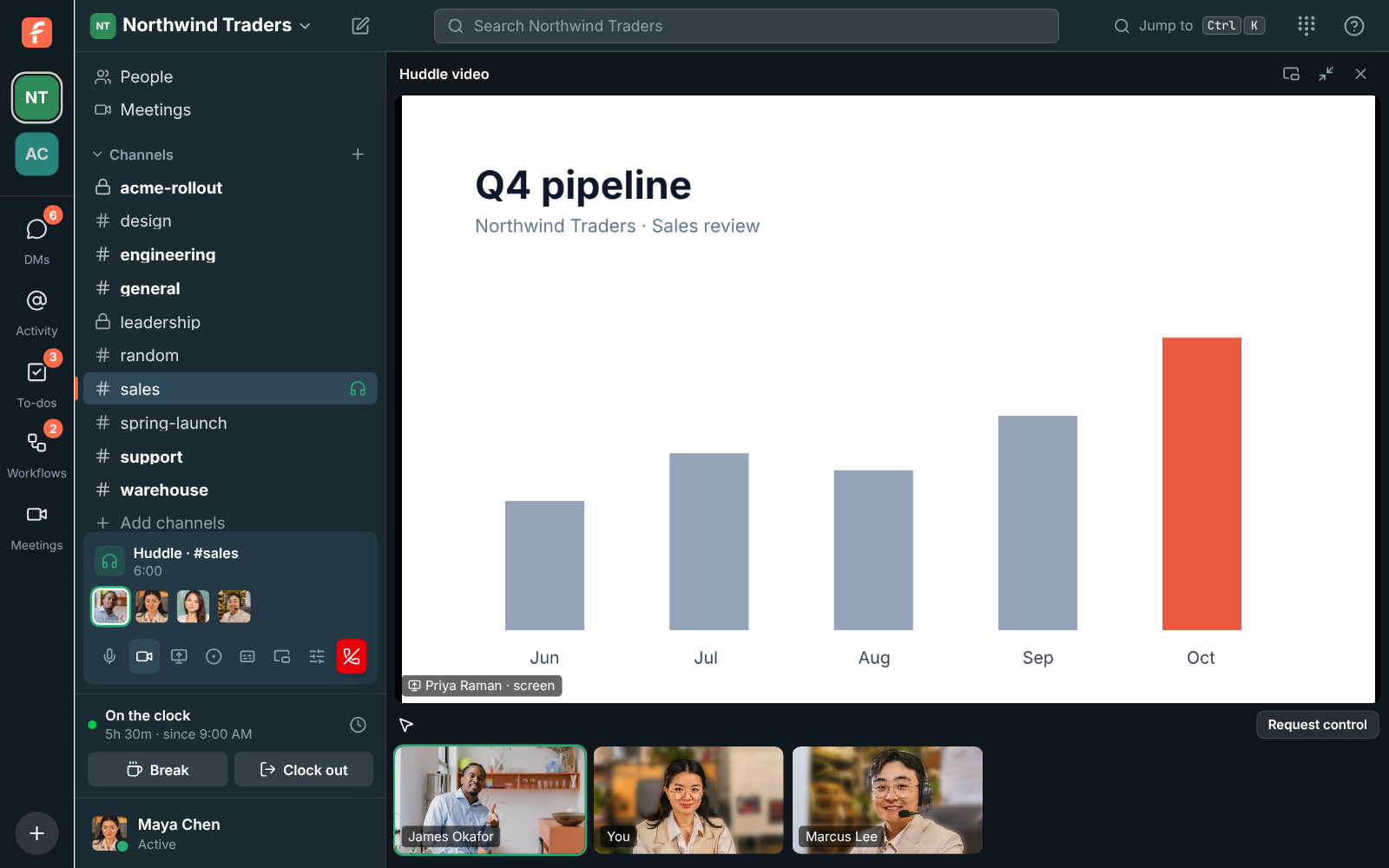
Made bigger with someone sharing, the huddle lays out like a meeting: the screen fills the space and cameras sit beside it. Layout in the huddle video’s header, Hide people and full screen (F) work as in meetings. When two people share, each screen gets a tab above it, and Show both puts them side by side.
Move a huddle to another device
Section titled “Move a huddle to another device”Started a huddle on your phone and just sat down at your computer? Open Freesbe there and the sidebar shows You’re in this huddle on your phone with Join here. Click it and the call moves over without anyone noticing a drop: the others keep hearing you, and your phone hangs up on its own. It works the same in any direction between the desktop app, a browser and the mobile app.
You’re only ever in a huddle on one device at a time, so joining from a second device always moves the call rather than adding you twice.
Recordings
Section titled “Recordings”Anyone from the workspace in a huddle can record it, unless an admin has turned recording off or allows only hosts and co-hosts. Whoever started the huddle is its host, and can make others co-hosts from the menu on their face. See Who can start and stop recordings.
- Everyone in the huddle hears a tone and sees a REC indicator, and the channel gets a line saying who started recording. People who haven’t joined see a red dot on the huddle button.
- The recording mixes everyone’s audio and combines cameras and screen shares into one video.
- By default, the person recording, the huddle’s host and co-hosts, and owners and admins can stop it. It also stops when the person recording leaves, and after 4 hours.
- When it stops, the recording is posted in the conversation by the person who recorded it. They and admins can delete it.
- A minute or two later, notes follow as a reply in the recording’s thread: a summary, decisions and action items. Notes and transcript under the video opens the full transcript, with who said what. See Recordings, transcripts and notes.
Recordings are uploaded every few seconds while they run, so a crash or a dropped connection keeps what was already recorded. Admins can also have recordings deleted automatically after 30, 90 or 365 days. See Workspace settings.
When video is off
Section titled “When video is off”If the workspace has used its monthly video allowance, Turn on camera and Share screen are off until the 1st, and anyone sharing at the time sees why. Voice keeps working. See Usage limits.
Call quality
Section titled “Call quality”Freesbe keeps an eye on how well everyone’s sound gets through during a call.
- A weak connection shows on someone’s face. If someone’s audio reaches you choppy or with gaps, a small signal icon shows next to their name on their video, or on their face in the huddle bar. Point at it to read what it means. When the icon is on your own face, the call is losing some of your sound on the way out, so others may hear you cut out. Moving closer to your Wi-Fi, plugging in a cable or closing big downloads usually helps. The icon goes away by itself once the sound gets through cleanly again.
- A weak connection keeps the sound first. If your connection stays weak for more than a few seconds, Freesbe stops bringing in other people’s cameras (their pictures show instead), sends your own camera smaller and your sound a little leaner, so voices keep getting through. Shared screens keep showing. A note in the huddle bar says so; click Show video anyway to bring the cameras back for the rest of the call. Once your connection has been fine for half a minute, everything comes back by itself.
- Sometimes we ask how the call sounded. After about one call in five that lasted a minute or more, a small card asks How did the call sound? Click Good, or Not great and pick what was wrong: Echo, Background noise, Choppy or cut out, Too quiet or Delay. It goes away by itself if you ignore it.
When you leave a call, your app sends Freesbe a short note about how the sound travelled: how much audio went missing or had to be patched over, how long it took to arrive, and which app and kind of connection you used. It never includes anything that was said or shown. We use it to find and fix what makes calls sound bad.
If you can’t hear or be heard
Section titled “If you can’t hear or be heard”- Check the microphone and speaker in Audio and video devices, or test them in Preferences → Calls & audio → Audio.
- If Freesbe shows There’s a problem with your microphone, allow microphone access in your browser or system settings, then click Try again.
- On a Mac using the desktop app, allow Freesbe under System Settings → Privacy & Security → Microphone (and Camera and Screen & System Audio Recording for video and screen sharing).
- On strict office networks, calls go through a relay automatically. If you still can’t connect, ask your IT team to allow WebRTC traffic.
- Calls fix themselves when they can. If someone’s sound stops reaching you, Freesbe asks for it again after a few seconds. If you’re talking but your microphone sends the others silence, Freesbe notices within about 10 seconds and repairs it: with Advanced AI noise cancellation on, it switches to Standard for the rest of the call and tells you so (your setting stays as you chose it). If someone’s sound arrives but doesn’t play, Freesbe plays it the plain way instead. If your network changes in the middle of a call, for example a VPN turning on or off, the call reconnects and makes sure the others get your new audio. The Freesbe app on your phone does the same when it moves between Wi-Fi and mobile data. A camera or shared screen that doesn’t come through is asked for again too, a little later each time, until it shows.
- If the connection drops for a moment, the call shows Reconnecting and keeps trying for up to 30 seconds, so you stay in the meeting without having to leave and join again. If the connection to the call server stops working, a meeting starts it over by itself within about 20 seconds. A camera or shared screen stops then: turn it on again.
- A signal icon on someone’s face or video means their connection is weak, not that something is wrong on your side. See Call quality.
- Still stuck? Open Audio and video devices and click Copy call details. It copies what your app is sending and receiving: whose audio arrives, how much, how much sound your microphone sent, which noise cancellation is on, and any errors from the call server. It also lists the cameras and screens showing on your device, any it’s still waiting for, and whether your device is the one recording. Paste it into a message to whoever is helping you, ideally from the person who can’t hear and the person who isn’t heard.
- Freesbe support can also see these details without anyone copying them: your app saves them when you leave a huddle or meeting, and when it repairs your sound, with people shown by an id rather than their name and nothing about what was said. They’re kept for 90 days.
See also People can’t hear me, or I can’t hear them in the knowledge base.
Answers come from the Freesbe guides and are written by AI, so check the linked guide before relying on one. Please don't include personal details such as emails or passwords.