
Getting started
Freesbe works in any modern browser at app.freesbe.net, and as a desktop app for macOS, Windows and Linux. Your account, messages and settings are the same everywhere.
Sign up your team
Section titled “Sign up your team”Anyone can start a workspace for their company at app.freesbe.net/signup, or from Start free on freesbe.net. Your first workspace gets a free 14-day trial of Business, with no credit card needed. After that it moves to Free unless you choose a plan.
-
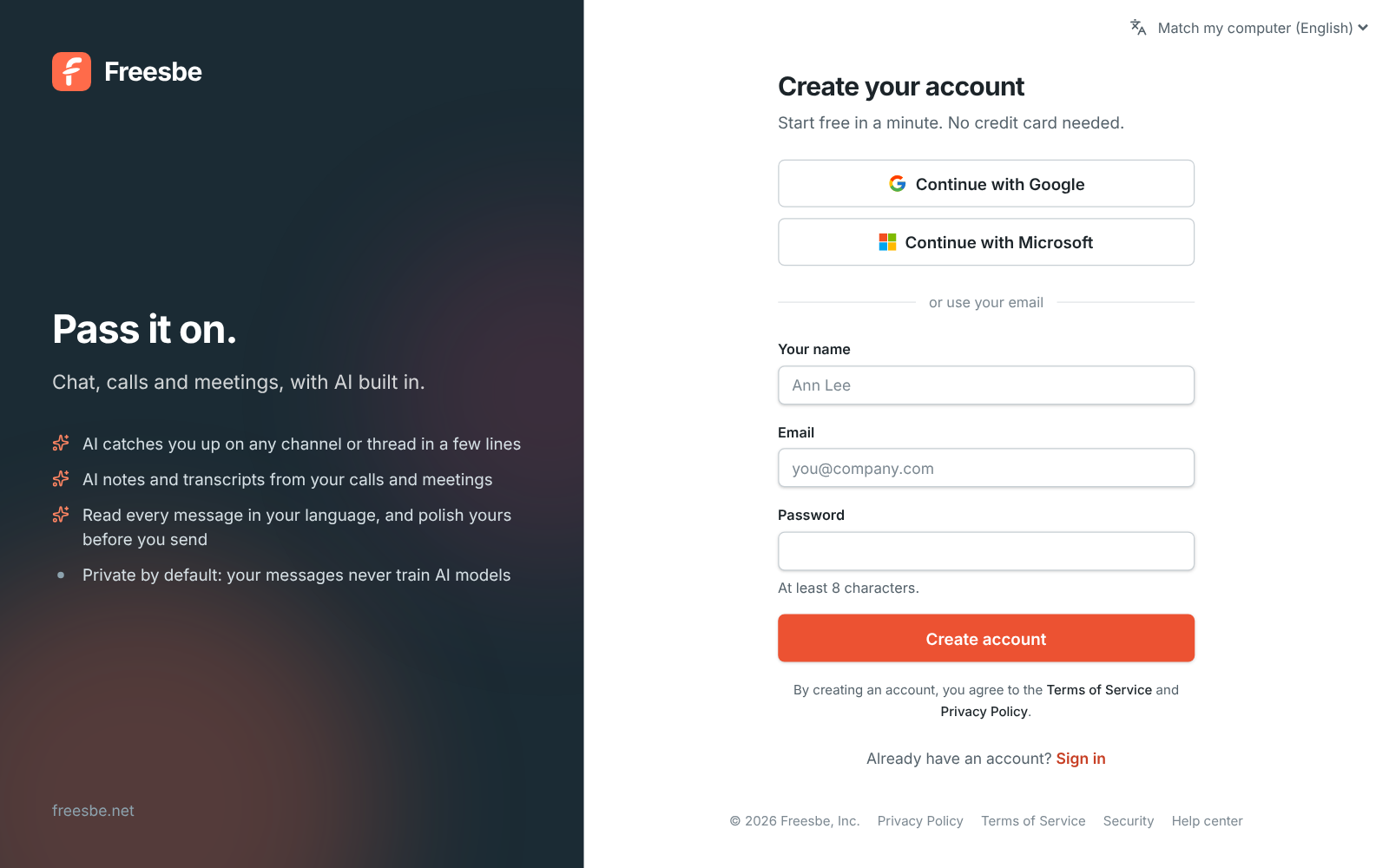
Continue with Google or Microsoft, or enter your name, work or personal email and a password. Temporary inboxes can’t sign up. Tick I agree to the Terms of Service and Privacy Policy to create the account: Freesbe won’t make it without the tick. The line under the box says what the terms come down to, with a link to the two-minute summary. Continuing with Google or Microsoft agrees to them too, as the note under those buttons says. Read them any time at freesbe.net/terms and freesbe.net/privacy, linked at the foot of every sign-in screen.
Now and then our automatic checks want a second look at a new account. If we can’t create it, the page says so with a reference: write to support@freesbe.net and quote it. Sometimes we let you in and ask the owner to confirm who they are before the new workspace gets going.
-
If you used a password, Freesbe emails you a 6-digit code. Enter it to confirm your address. Google and Microsoft accounts are confirmed already.
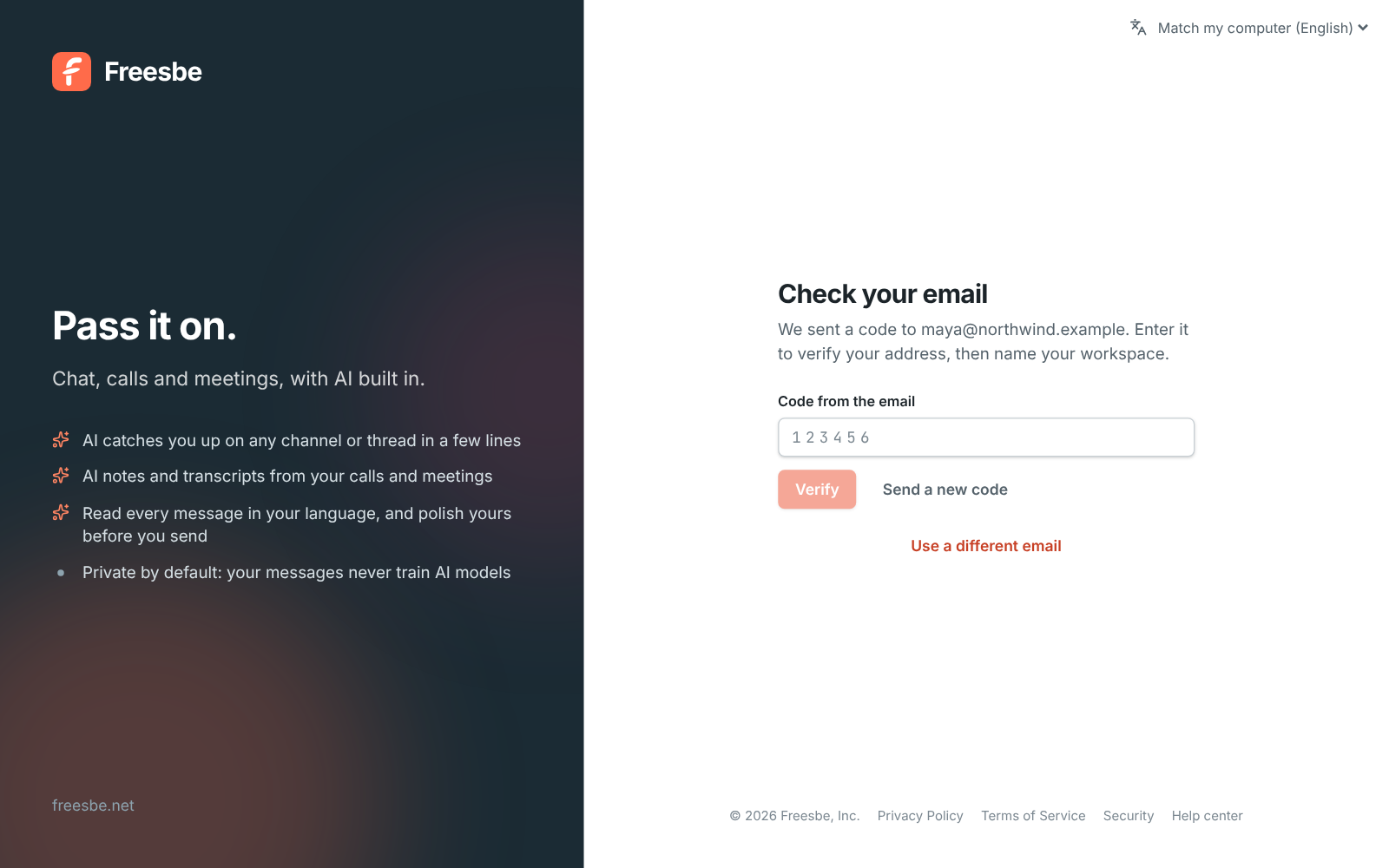
If your company already has a Freesbe workspace that takes people from your email domain, you see it here under Join your team: click Join and you’re in, no invite needed. See Join by email domain.
-
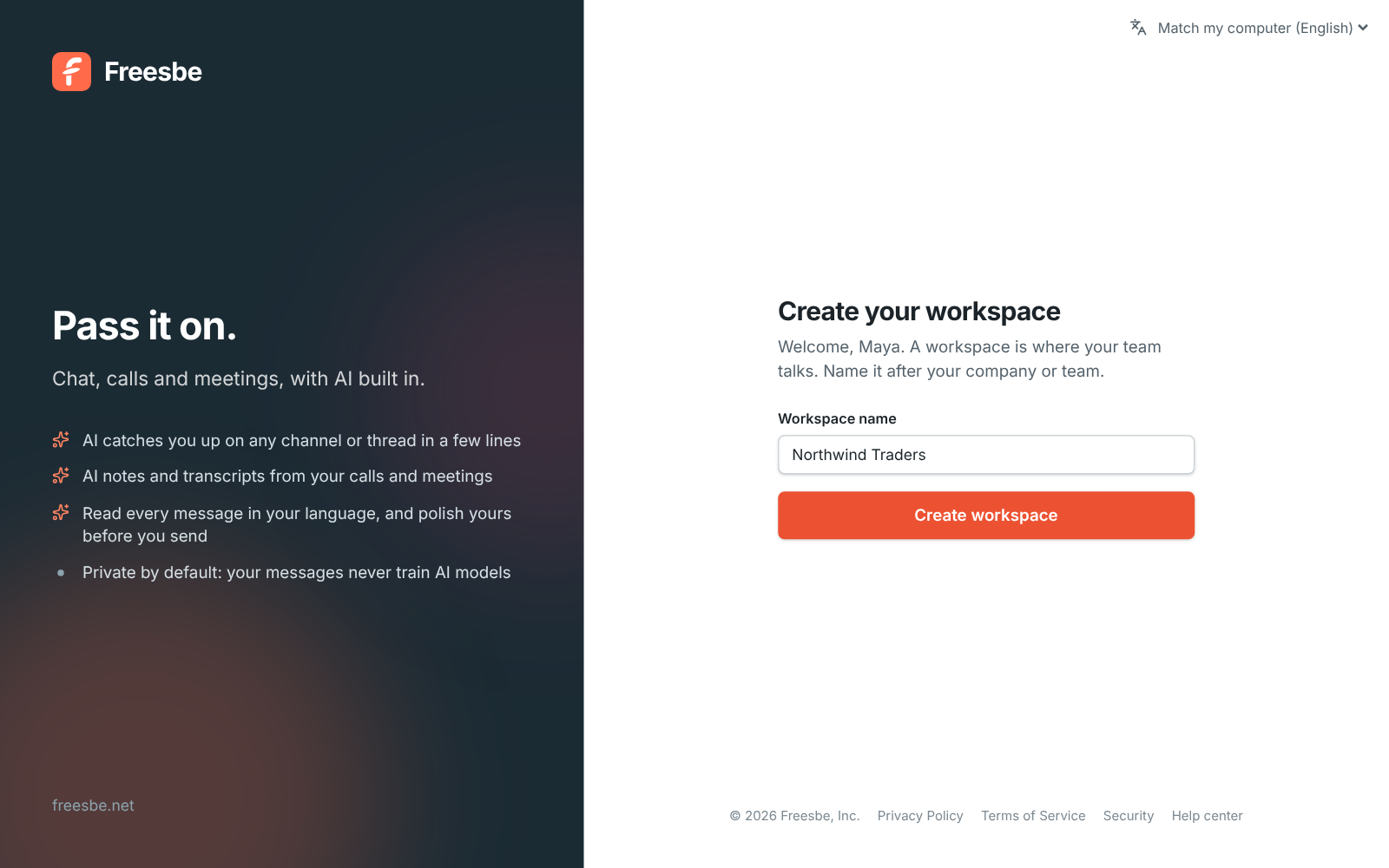
Name your workspace after your company or team, and choose where its data is stored: the European Union or the United States, guaranteed to stay there, or Asia-Pacific or Oceania, close to your team. The closest one is already picked. See Data residency.
-
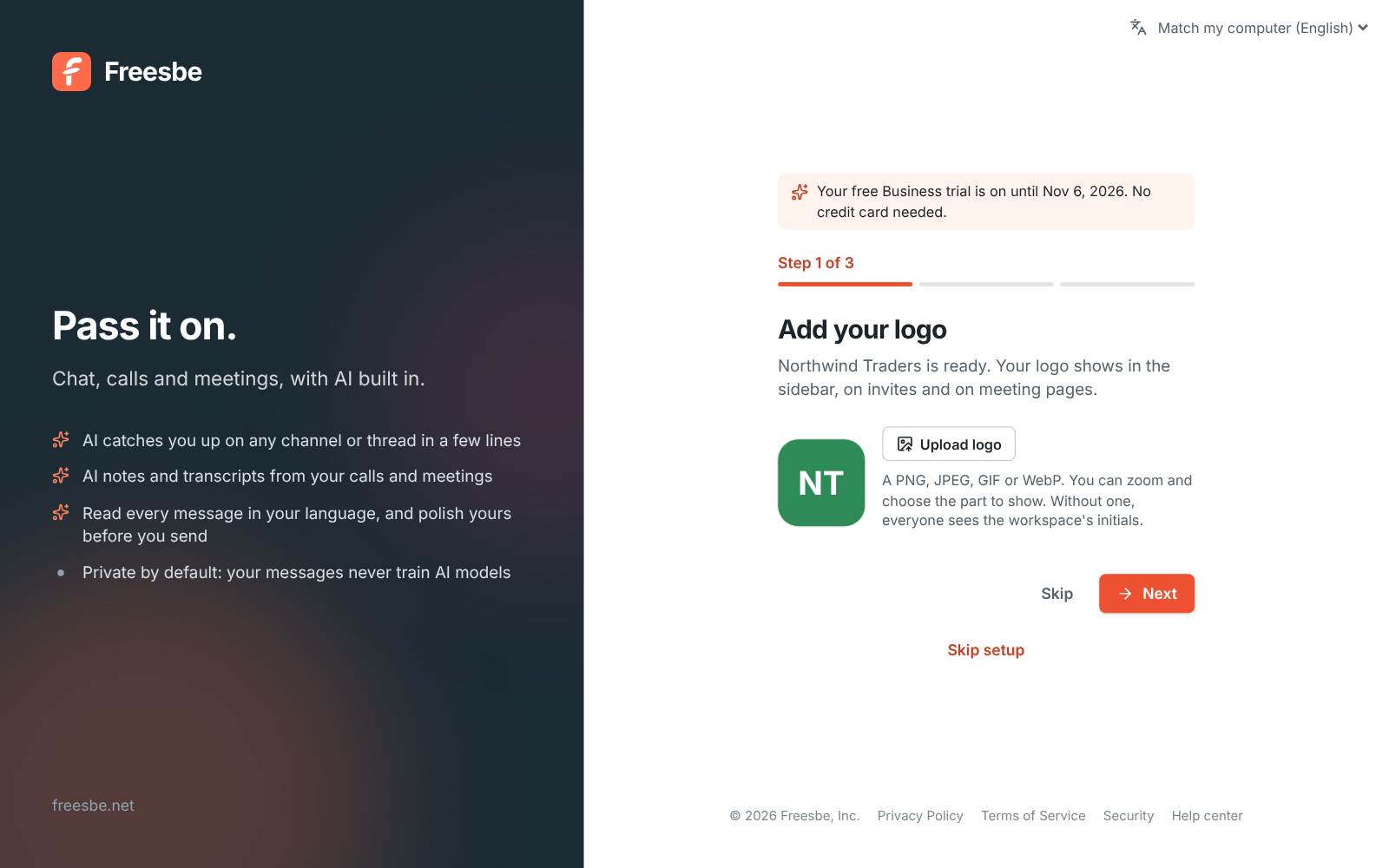
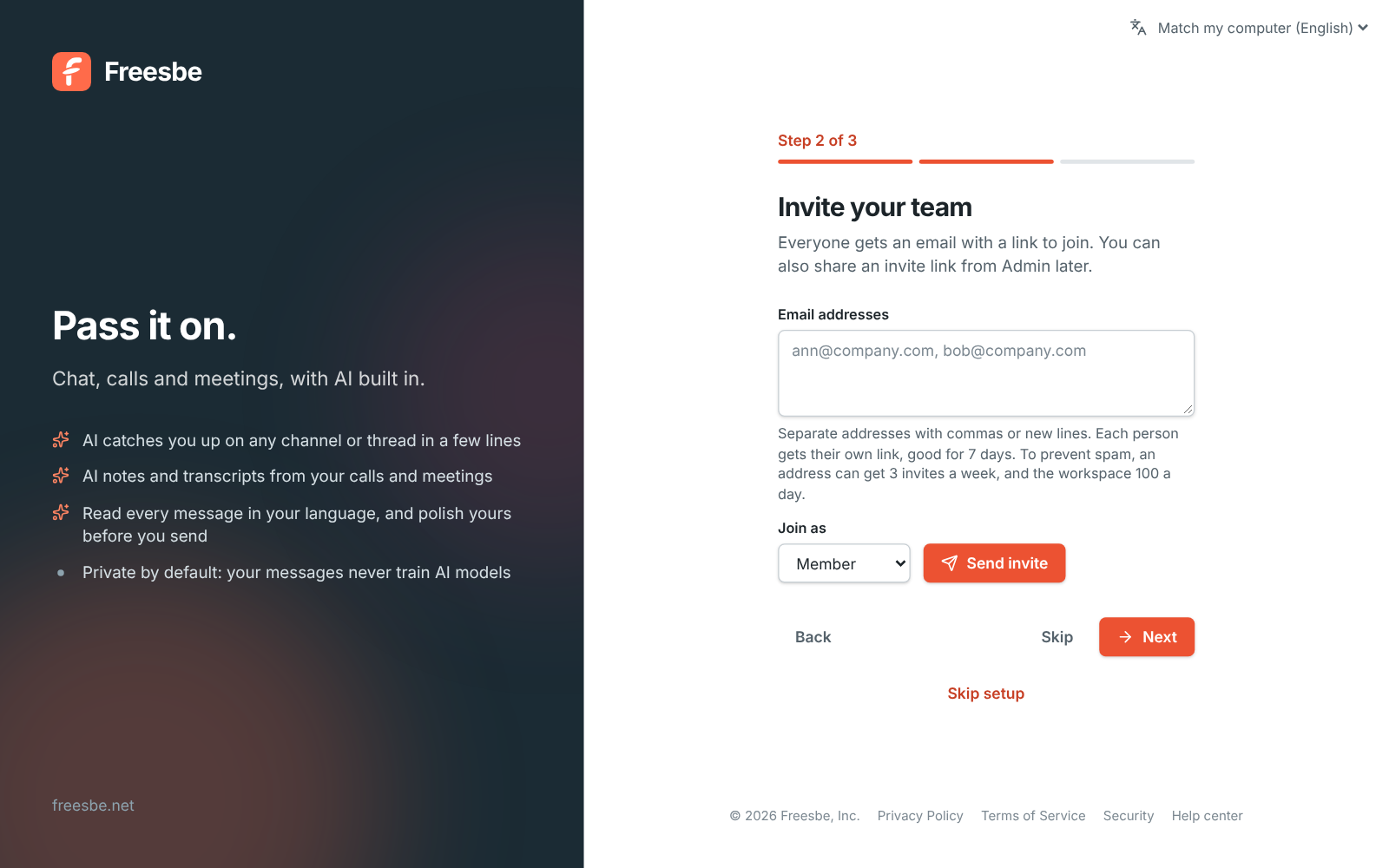
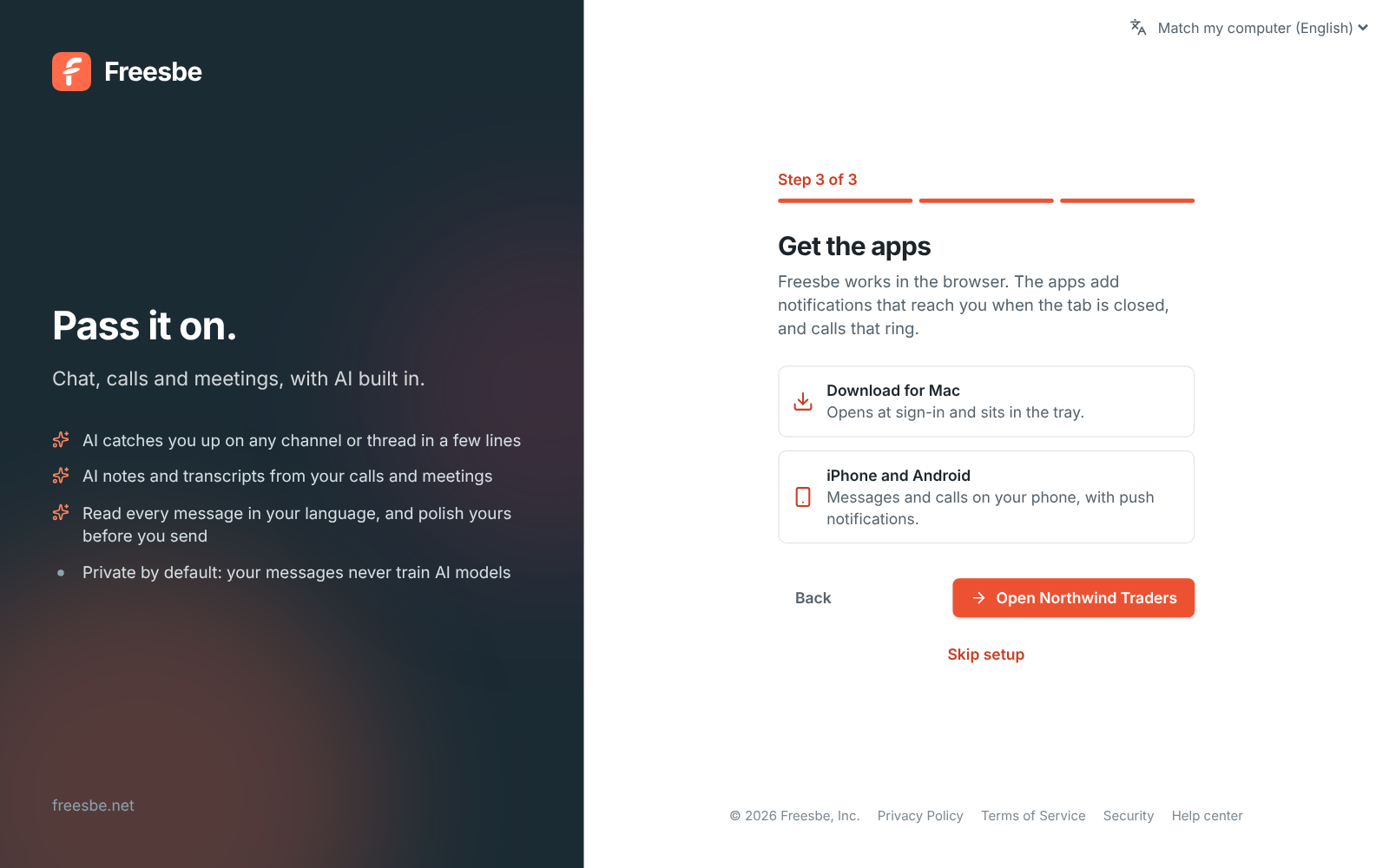
Three short steps follow, and you can skip any of them. They’re all in Admin later:
- Add your logo, shown in the sidebar, on invites and on meeting pages.
- Invite your team by email. Everyone gets a link to join.
- Get the apps for your computer and phone.
You can do all of this on your phone too: in the mobile app, tap New to Freesbe? Create an account on the sign-in screen. See Create an account.
To keep Freesbe free of spam, each person can create up to two workspaces of their own, and only a few new accounts can come from the same network each day. If you need more, contact support.
Join your team
Section titled “Join your team”To join a workspace that already exists, use an invite from someone in it.
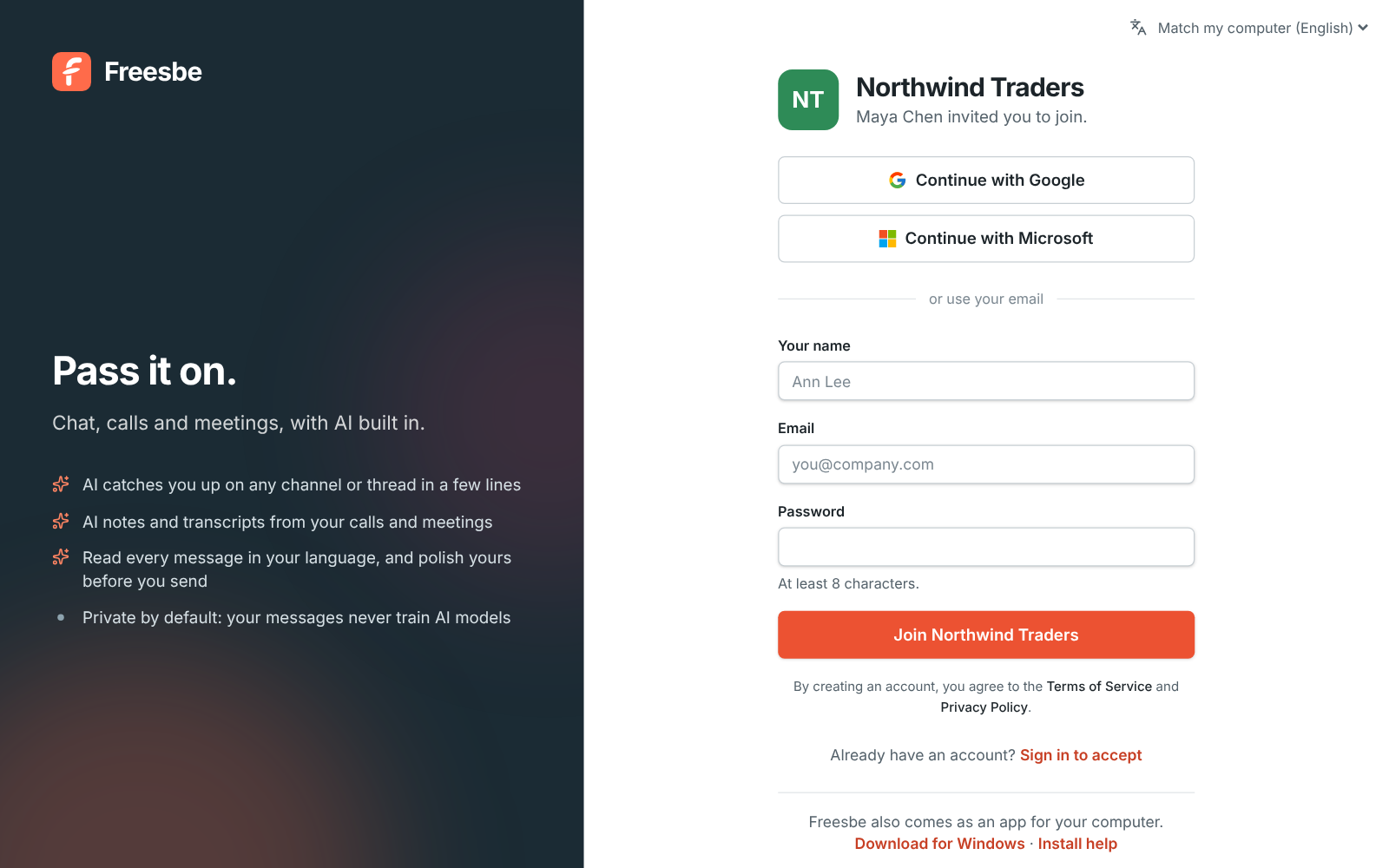
- Open the invite link you were sent, or the Join … button in the invite email.
- Create your account with your name, email and a password, or continue with Google, Microsoft or a passkey. See Sign-in and security.
- You land in the workspace, usually in its general channel.
- Install the desktop app if you like: the invite email and the invite page link straight to the download for your computer.
If you sign up with a password, Freesbe emails you a 6-digit code to confirm your address. Enter it in the banner at the top of the app, or click the link in the email. Signing up through an emailed invite, or with Google or Microsoft, counts as confirmed already.
Find your way around
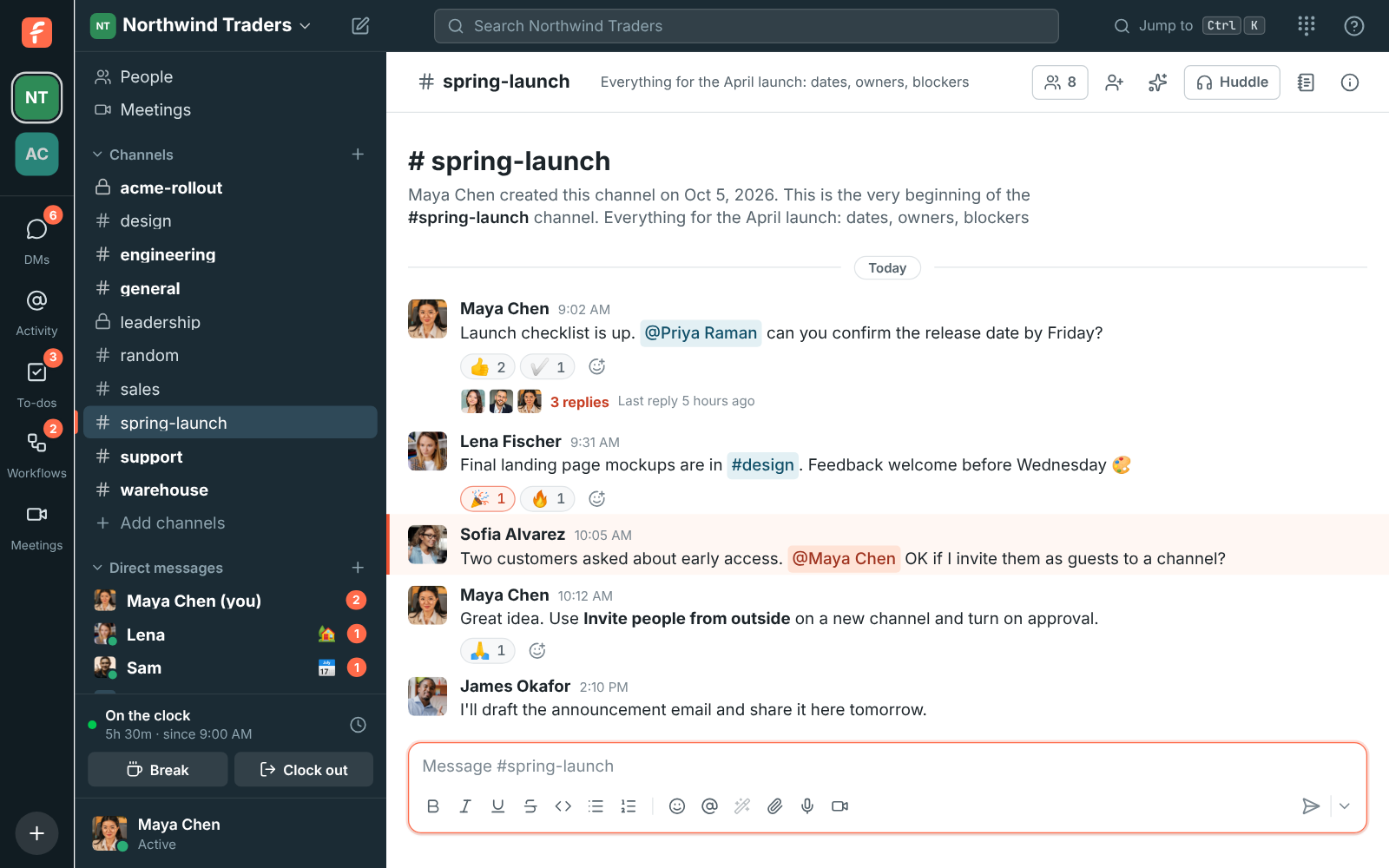
Section titled “Find your way around”- The workspace rail on the far left lists every workspace you’re in. Click one to switch. Under them are DMs, Activity, To-dos and Meetings, and the + at the bottom starts a message, channel, meeting or to-do. See DMs, Activity and to-dos.
- The sidebar has your workspace menu at the top, then People, Meetings, your Channels and your Direct messages. Unread conversations are bold, and mentions show a count.
- The top bar has the search box, Jump to a conversation (also Ctrl+K, or ⌘+K on a Mac) and the dialpad if your workspace uses Phone. The ? at its right end opens help: these guides, keyboard shortcuts, what’s new and support.
- Your account menu at the bottom of the sidebar sets your status, pauses notifications and opens Preferences.
- The right pane opens for threads, channel details, profiles and search results.
Send your first message
Section titled “Send your first message”- Pick a channel in the sidebar, or click Browse channels to find more.
- Type in the box at the bottom and press Enter to send. Shift+Enter starts a new line.
- Type
@to mention someone,#to link a channel and:to add an emoji.
To message someone directly, click New message next to Direct messages and pick up to 8 people.
Set yourself up
Section titled “Set yourself up”- Add a photo, your title and your time zone in Preferences → My account → Profile.
- Allow desktop notifications when Freesbe asks, so you don’t miss direct messages and mentions. See Notifications.
- Install the desktop app for a tray icon, an unread badge and notifications that work with the browser closed.
Answers come from the Freesbe guides and are written by AI, so check the linked guide before relying on one. Please don't include personal details such as emails or passwords.